LiveFree
Upload or link each image
Upload a PNG, JPEG, WebP or SVG file of 5 MB or smaller, or paste a link. Uploads are checked to be real images, and SVG files with scripts are refused.
Image choice question · Choice
Let people answer with pictures: pack designs, logos, ads or colourways. Ask for one image or several, let people enlarge any image before they choose, and see the result by each image’s label in Results, dashboards and report decks.
Live demo
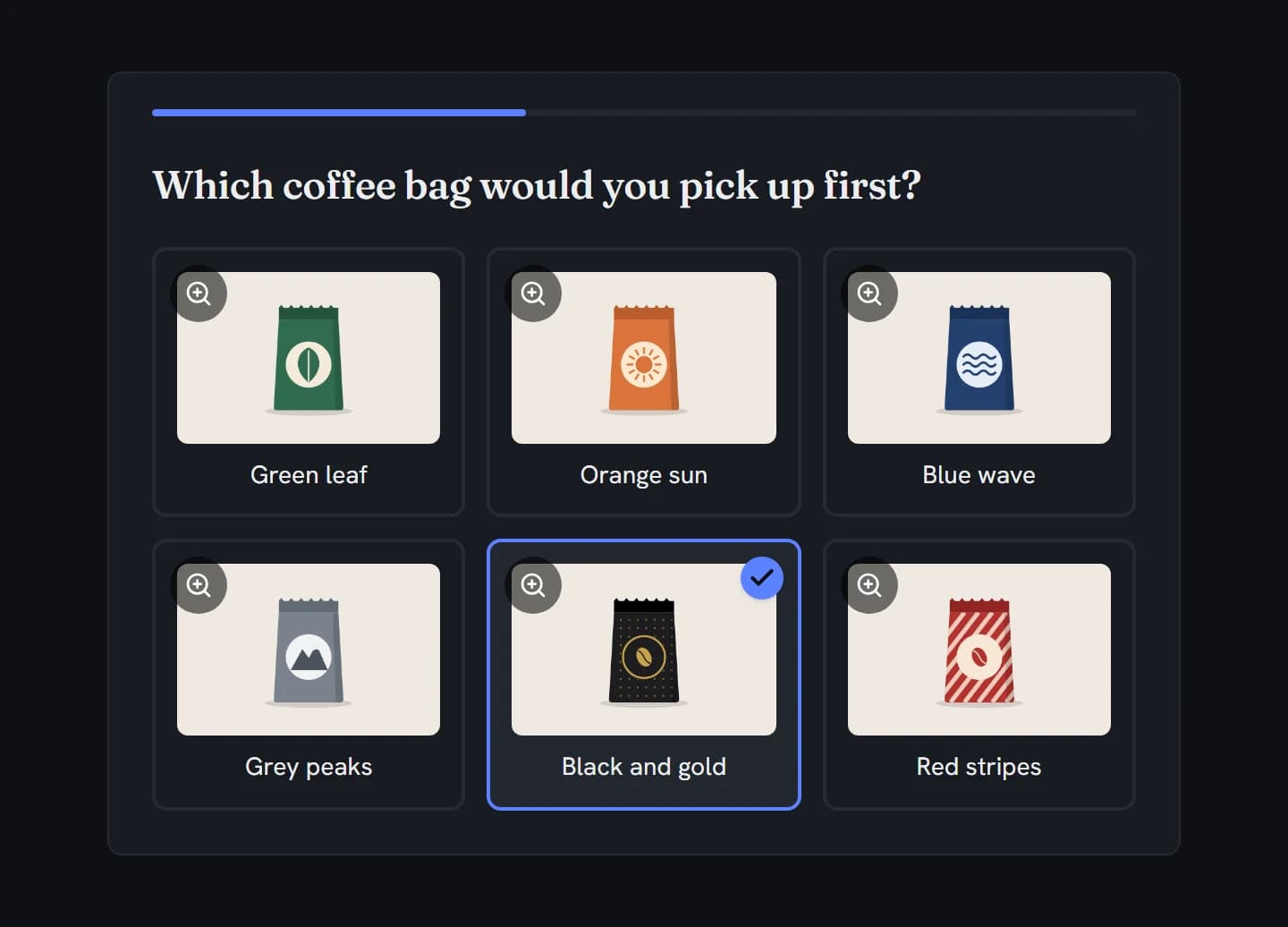
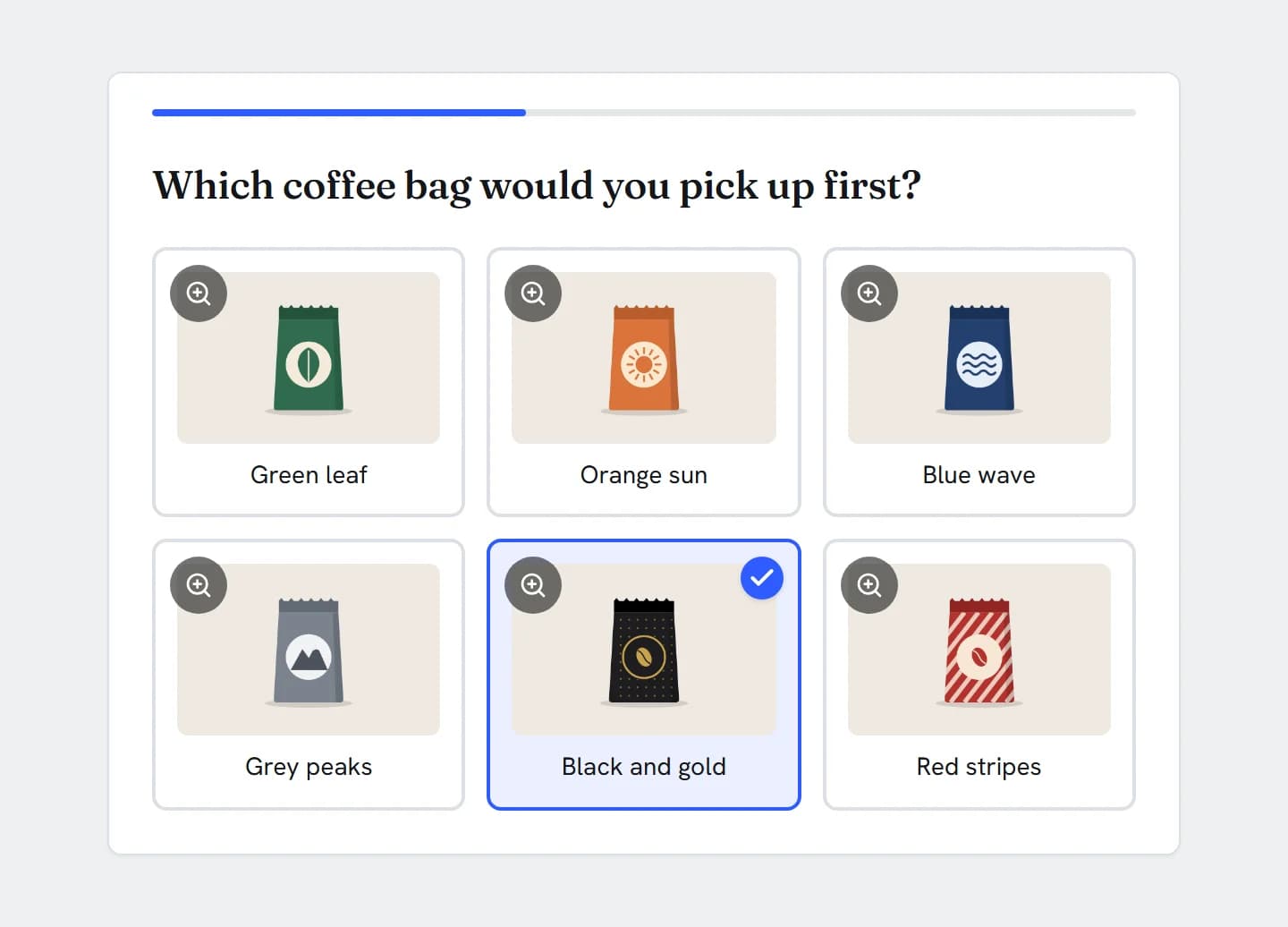
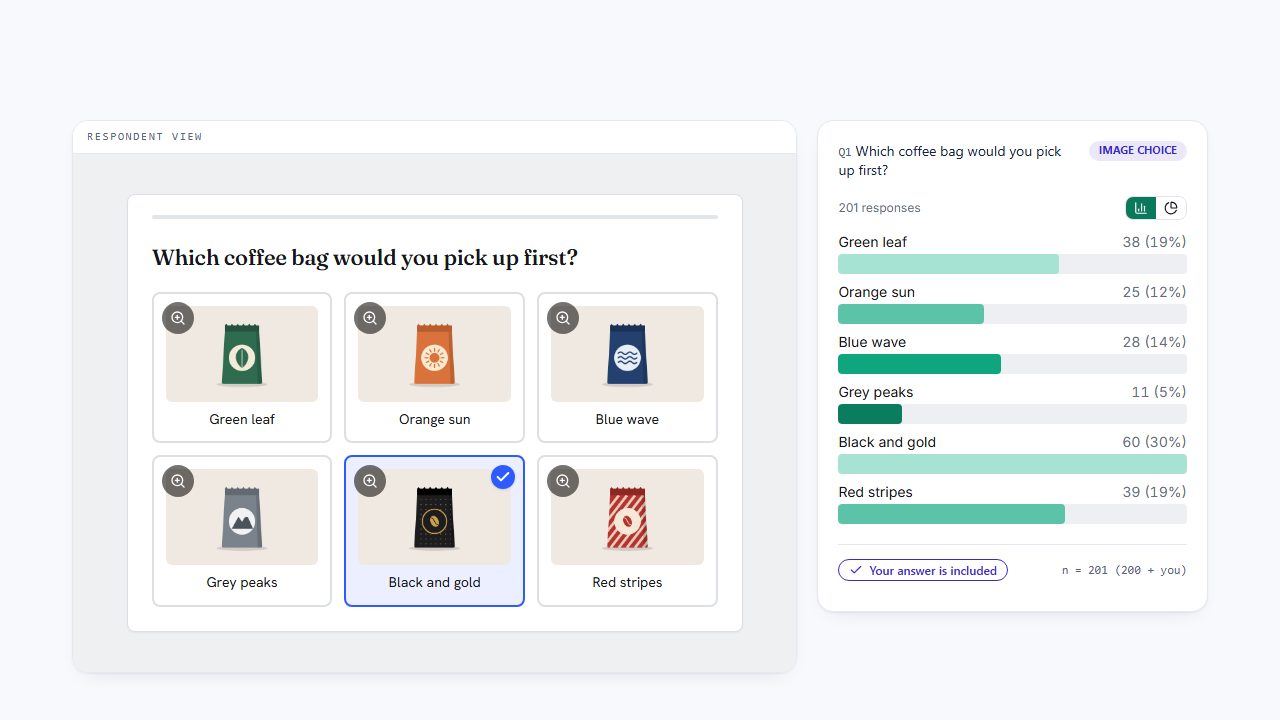
This is the question your respondents get. Enlarge any bag to look closer, choose, and watch the results beside it count your answer.
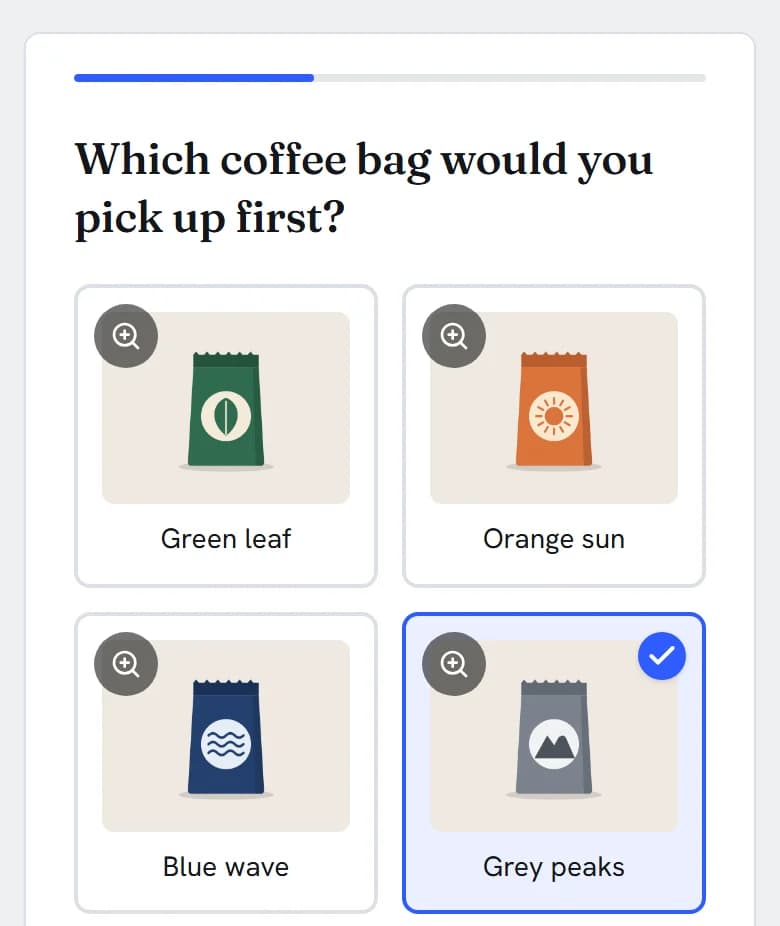
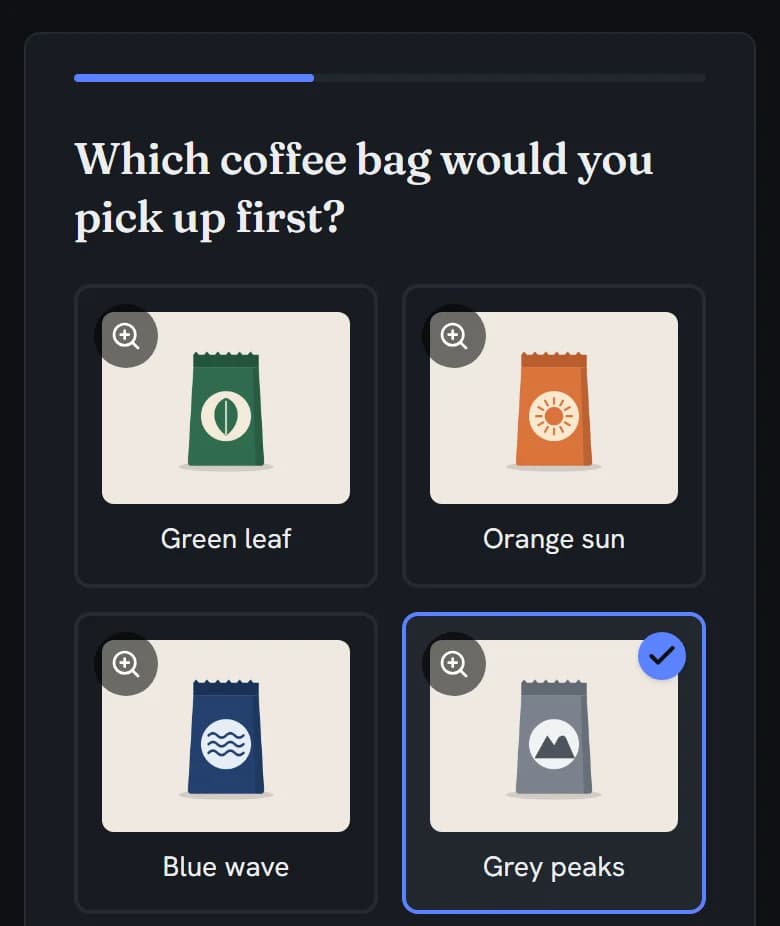
Which coffee bag would you pick up first?
 Green leaf
 Orange sun
 Blue wave
 Grey peaks
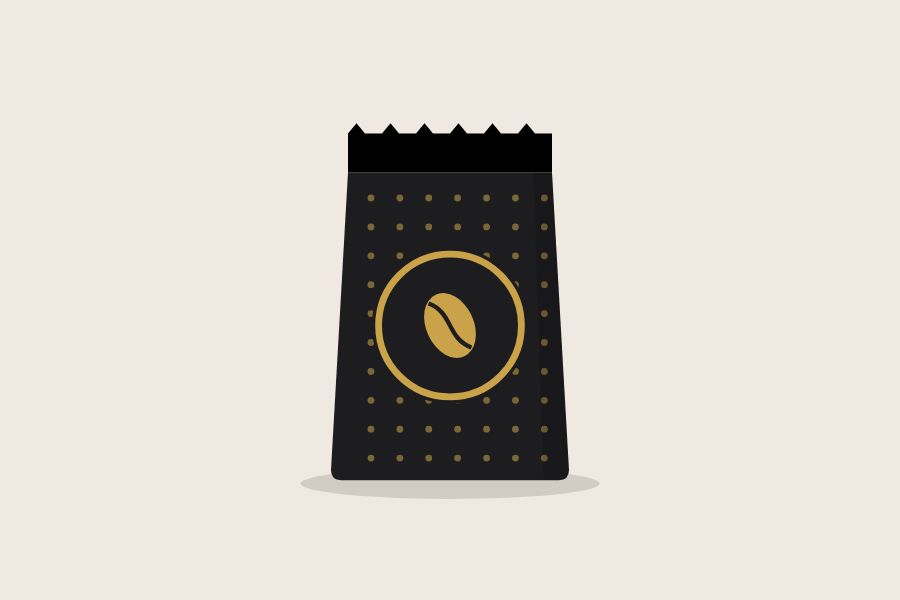 Black and gold
 Red stripes
In action
Every feature
Your own images and labels, one pick or several, a different order for each person, and results by each image’s label.
Upload a PNG, JPEG, WebP or SVG file of 5 MB or smaller, or paste a link. Uploads are checked to be real images, and SVG files with scripts are refused.
The label shows under the image and names it in Results, dashboards and report decks. Alt text describes the image to screen readers; when it’s blank, the label is used.
Selection Mode switches between one image (Single-select) and several (Multi-select).
Set it before the survey goes live: a live survey won’t take the switch.
In Multi-select, ask for a minimum or a maximum number of images, or both. Next checks the count before the respondent moves on.
The tiles don’t show the limit, so say it in your question.
Leave it on Auto, or pick 1 to 6 columns for tablet-sized screens and up.
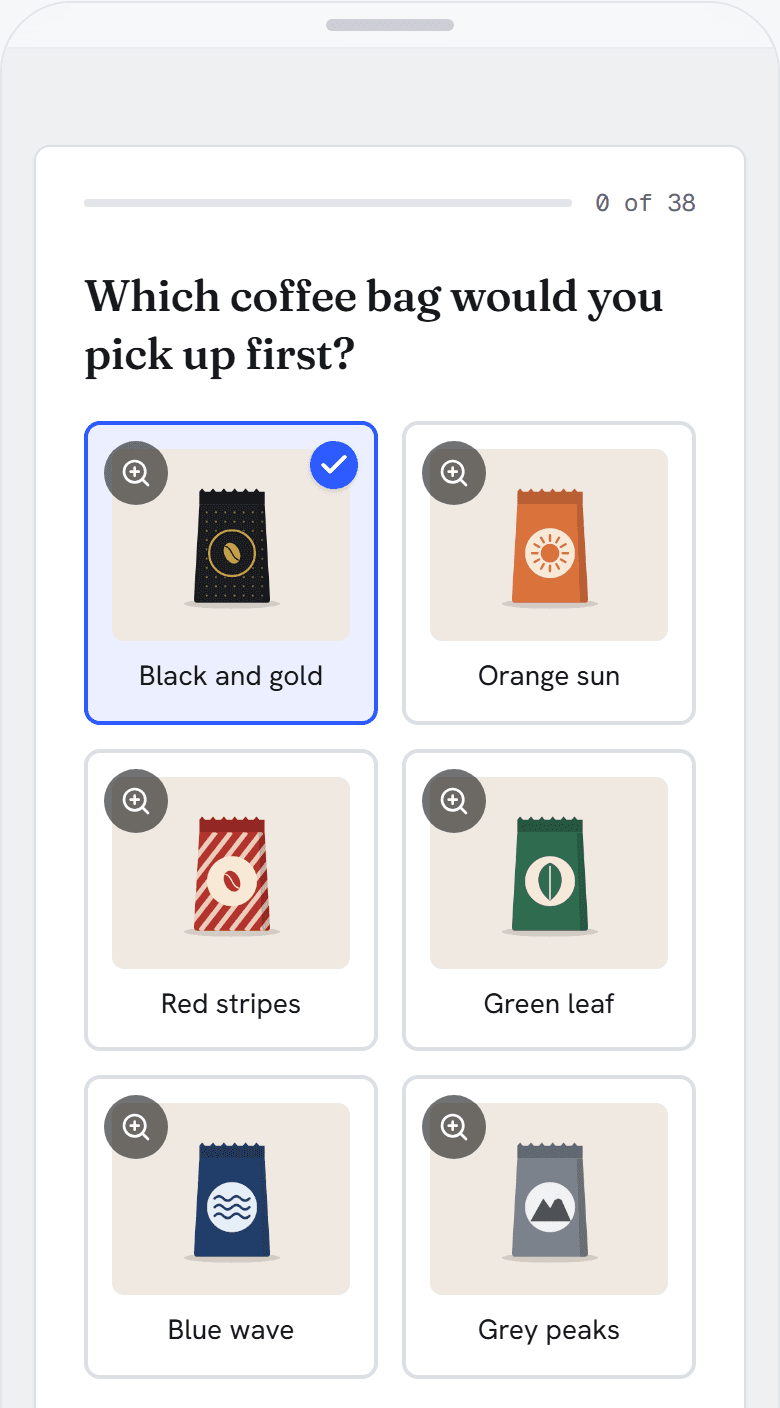
Phones show two images per row.
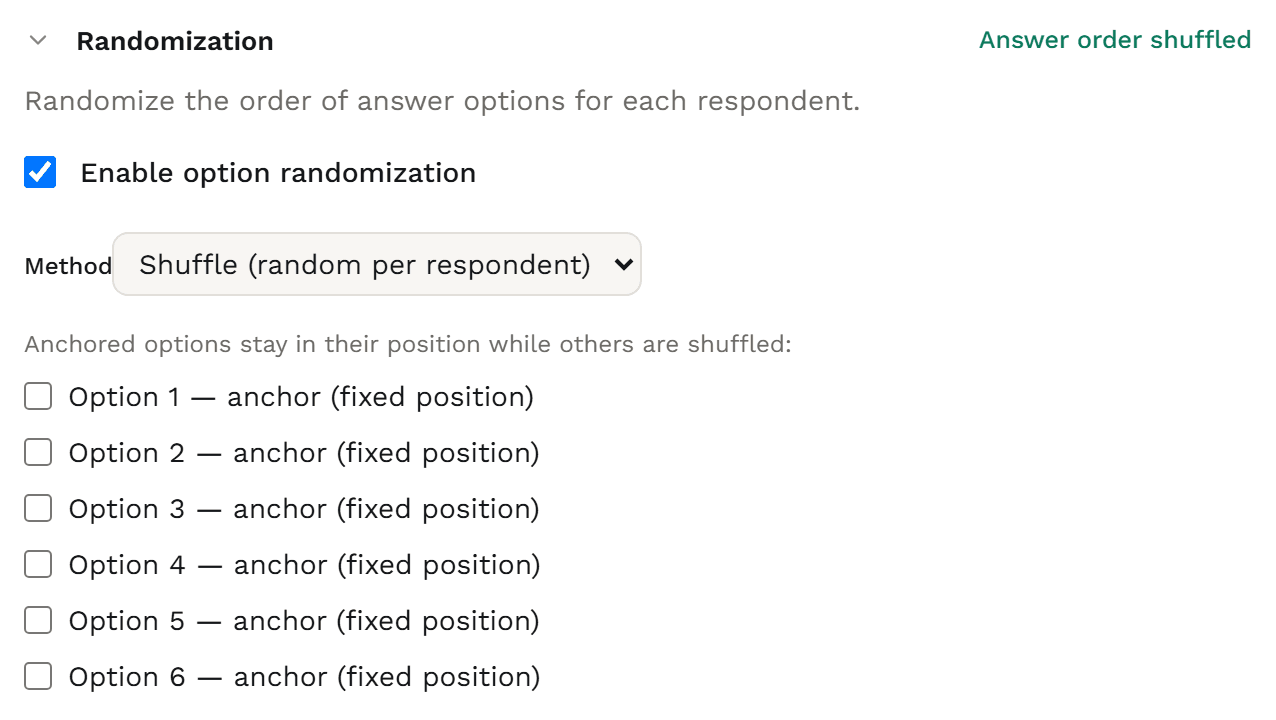
Show the images in a different order to each person, so no image is always shown first. The order each person saw is saved in your export.
Required asks for a pick before Next; soft required warns once, then lets people move on; optional lets them with no warning.
Leave out the images someone already chose in an earlier question, and the question is skipped if none are left.
Show only the images someone picked in an earlier question, such as “Of these, which would you buy?”
Carry from another image choice to keep the pictures.
Insert the label of the image someone picked into a later question.
Show or skip later questions depending on which image someone chose.
Image labels translate with the rest of your survey.
Alt text stays in the survey’s own language, and the enlarge controls are in English.
Each image is a tile with its label below. A chosen tile gets a border, a tint and a check mark.
Tiles show a fixed-height crop of each image.
An enlarge button on every image opens it full screen, with its label, so people can look closely before they pick.
On a phone the images sit two to a row; wider screens get three, or the number you set.
In Pick one, the arrow keys move between images and Space or Enter picks. In Pick any, each image is a Tab stop and Space ticks it.
With Auto-advance on selection turned on for the survey, a pick in Pick one moves straight to the next question.
Pick any waits for Next, and so does a page with more than one question.
Tiles follow the survey’s theme and dark mode.
Results charts how many people chose each image and the share, in the order you asked or most-picked first.
Images nobody picked don’t get a bar.
Filter Results to a group and the bars recount. An image choice can be a filter for every other question too.
The dashboard made for your survey gets a bar tile for each image choice, and its report deck gets the slides, for PDF or PowerPoint.
Charts name the images by their labels.
Q1 holds the code of the image chosen, with the image labels as value labels in Excel, and in SPSS (Professional+).
By default, one column per image, from Q1_1 to Q1_6, each labelled in Excel with the question and the image’s label.
A Pick one question is a nominal variable labelled with your image labels.
With shuffling on, Q1_order records each person’s order.
Not part of image choice yet: an Other write-in, None of the above or not-applicable answers, attention checks, image size or crop settings, a switch to hide labels, alt text in other languages, and pictures in charts or exports.
Choosing
Both ask people to pick from a set of answers. Image choice makes the pictures the answers. Single choice and multiple choice are text lists, with extras such as Other and None of the above.
Need people to click on part of one picture instead? Use an image hotspot (Professional+) or an image heatmap (Professional+).
Build it
In the builder, choose Image Choice (“Choose from images”) from the Choice group, and write the question, such as “Which coffee bag would you pick up first?”
Under Images, replace the two starter images with your own: upload a PNG, JPEG, WebP or SVG file of 5 MB or smaller, or paste an https link to one, then type its label and its alt text in the Alt text (accessibility) box. Choose Add image for each one after that.
Set Selection Mode to Single-select or Multi-select. For Multi-select, set Min selections or Max selections on the Rules tab if you need them. Set it before the survey goes live: a live survey won’t take the switch.
Leave Columns on Auto, or pick 1 to 6 for tablet-sized screens and up. To show the images in a different order to each person, open Randomization on the Logic tab and tick Enable option randomization.
Required asks for a pick before Next. Soft required warns once, then lets people move on without one. Optional lets them with no warning. Preview on a phone and a laptop before you launch.

The data you get
Pick one lands in one column that holds the code of the image chosen, with each image’s label attached in Excel, and in SPSS (Professional+). Pick any gives one 0/1 column per image by default. When the images are shuffled, an extra column holds the order each person saw. The files carry codes and labels, not the pictures.
| respondent_id | Q1 | Q1_order |
|---|---|---|
| 47762a85-0001-4000-8000-000000000001 | 5 | 6|2|5|4|3|1 |
| 47762a85-0002-4000-8000-000000000002 | 5 | 4|6|5|3|1|2 |
| 47762a85-0003-4000-8000-000000000003 | 4 | 1|3|6|5|4|2 |
| 47762a85-0004-4000-8000-000000000004 | 6 | 2|1|5|4|6|3 |
| 47762a85-0005-4000-8000-000000000005 | 2 | 5|3|1|6|4|2 |
| 47762a85-0006-4000-8000-000000000006 | 3 | 3|4|1|5|2|6 |
| 47762a85-0007-4000-8000-000000000007 | 5 | 6|4|2|1|3|5 |
| 47762a85-0008-4000-8000-000000000008 | 5 | 1|6|4|3|5|2 |
Trimmed to the question’s columns. Each Q1 cell is the code of the image chosen, and Q1_order the order that person was shown. Every export also carries the respondent columns (status, language, timing and more).
Q1 holds the code of the image chosen, and each code carries its image’s label in Excel, and in SPSS (Professional+).
By default, from Q1_1 to Q1_6: 1 if the image was ticked, 0 if not, each labelled in Excel with the question and the image’s label.
With the images shuffled, Q1_order records the order each person was shown.
Exports give each image’s code, with the labels in Excel, never the picture. Give every image a clear label before you launch.
Charts & analysis
Results charts each image choice question as bars, one for each image people chose, with the share that chose it. Dashboards and report decks chart it as bars too.
Which coffee bag would you pick up first?Results · image choice · 200 answers
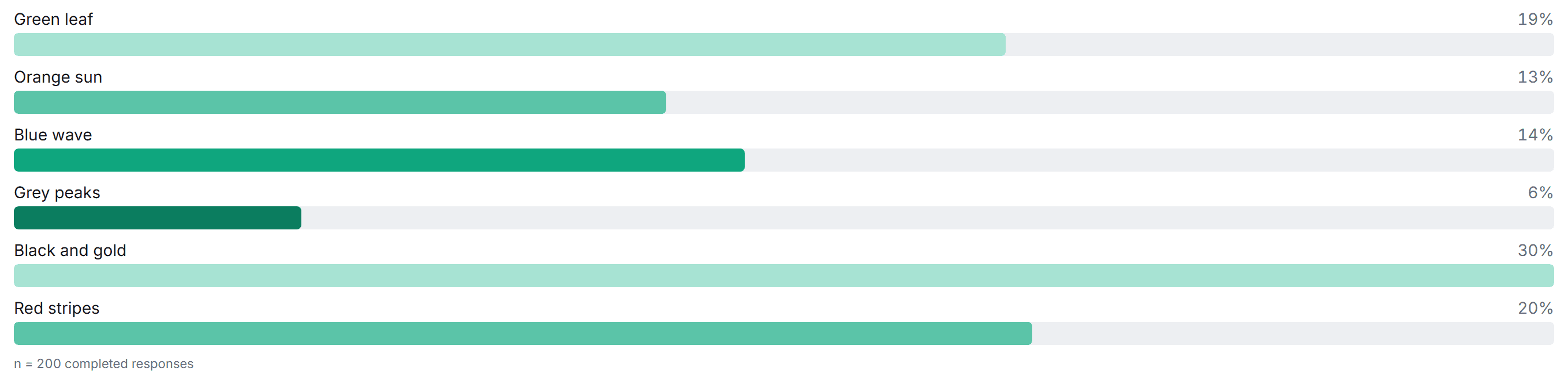
Filter Results to a group, such as people who buy coffee weekly, and the bars recount for that group. An image choice can be a filter too: see how people who picked one design answered everything else.
Weight your sample, and Results shows the share choosing each image after weighting.
An image choice gets a bar tile on the dashboard made for your survey, and a slide in its report deck, ready for PDF or PowerPoint.
Pick a survey language in Results and each image label you translated shows in that language.
How Surveti compares
| Capability | Surveti | SurveyMonkey | Qualtrics | Typeform | Alchemer |
|---|---|---|---|---|---|
| Image choice as its own question type | yesIts own type | yes1Image Choice | partial4, 5Graphics in Multiple choice | yes8Picture Choice | yes11, 12Two types: one / multi |
| One pick or several | yesSelection Mode | yes1 | yes5 | yes8 | yes11, 12 |
| Minimum and maximum picks | yesChecked at Next; not shown on the tiles | unclear1Linked, not read | yes5 | yes8 | yes12 |
| Upload or image link | yesPNG, JPEG, WebP, SVG ≤ 5 MB | yes1 | yes4 | partial8, 9Account images; Unsplash per a search summary | yes11, 12 |
| Image size or layout controls | partialColumns from tablet width; fixed-height tiles | partial1Fixed boxes | yes4Size presets, text position | partial8Supersize only | yes11, 12Per row, width or height |
| A label with each image | yesNo hide-labels switch | yes1Captions | yes4Text position | yes8Labels can be hidden | unclear11, 12 |
| Alt text per image | yesNot translated | yes1 | unclear4Rich-content graphics only | yes8 | unclear11, 12 |
| Other or None option | no | partial1None of the above | partial5Other with text entry | partial8Other | unclear11, 12 |
| Randomise the order | yesOrder saved | yes1 | unclear5 | yes8 | unclear11, 12 |
| Enlarge an image | yesWithout choosing it | unclear1 | yes4Full size when clicked | unclear | unclear11, 12 |
| Images shown in reports | noCharts use labels | no1Captions label the chart | unclear4 | unclear | no11, 12Reporting values |
| Count and share per image in reports | yesBars by label for each image picked | yes1 | unclear | unclear | yes11, 12 |
| Export layout documented | yesA coded column, or 0/1 per image by default | unclear1 | yes5 | unclear | yes11, 12 |
| SPSS export | paidLabelled codes for Pick one · Professional+ | unclear1 | yes7On the free account | unclear | paid13Full Access |
| On the free or entry plan | yesFree | unclear3Not among the listed free types | partial7Multiple choice listed; graphics not stated | unclear | yes13Collaborator |
Partial means partly built in or possible only with a documented workaround; paid means built in on paid plans or licences; unclear means the vendor’s public docs don’t settle it. QuestionPro’s Image Chooser has size presets and 1 to 5 columns; Jotform’s Image Choice element is in Card Forms only; Google Forms puts images on ordinary multiple-choice and checkbox options.
Image choice, with every setting, its charts and CSV and Excel exports, is on Free.
Every image has an enlarge button that shows the picture larger, so people can look closely before they commit.
Selection Mode sets one pick or several. In Pick any, set a minimum or maximum, and Next checks it.
Shuffle the images for each person, and the order each person saw is saved in your export.
Uploaded files are checked to be real images, and SVG files with scripts in them are refused.
A coded column for Pick one, with the labels in Excel, and a 0/1 column per image for Pick any by default.
When to use it
“Which coffee bag would you pick up first?” Green leaf · Orange sun · Blue wave · Grey peaks · Black and gold · Red stripes
Accessibility
Each image is a radio button in Pick one and a checkbox in Pick any, and says whether it is chosen.
The arrow keys move between images, Home and End jump to the first and last, and Space or Enter picks. In Pick any, Tab to an image and press Space to tick it.
A chosen image gets a border, a tint and a check mark, and every image and enlarge button shows a focus ring.
Write a description for each image. If you leave it blank, the label is used instead.
Use it in
Solution
Pack, label and concept tests, with the images shuffled for every respondent.
Solution
Which look, colour or design should ship, asked of the people who’ll buy it.
Solution
Creative tests for clients, delivered as report decks charted by each design’s name.
Example
“Which coffee bag would you pick up first?” across six unbranded bag designs, from Green leaf to Red stripes.
A question whose answers are pictures. People tap the image that fits best, or every image that applies. It’s also called a picture choice or image select question, and it’s a staple of pack, logo and ad testing.
Yes. Set Selection Mode to Multi-select. You can also ask for a minimum or maximum number of images on the Rules tab, and Next checks the count. The tiles don’t show the limit, so say it in your question.
Upload PNG, JPEG, WebP or SVG files of 5 MB or smaller, or paste an https link to an image. Each tile shows a fixed-height crop of its image, so keep the subject in the centre; people can enlarge any image to see all of it.
No. Results, dashboards and report decks name each image by its label. Exports give its code, with the labels in Excel.
A Pick one question is one column holding the code of the image chosen, with the image labels attached as value labels in Excel, and in SPSS (Professional+). A Pick any question is one 0/1 column per image by default. When the images are shuffled, an extra column holds the order each person saw.
Yes. Tick Enable option randomization and each person sees the images in their own shuffled order. The order each person saw is saved in an extra column of your export.
Yes. In Pick one, the arrow keys move between images and Space or Enter picks. In Pick any, Tab to an image and press Space to tick it. Each image is a radio button or a checkbox to assistive technology.
Image choice is on Free, with every setting, Results, dashboards, report decks, and CSV and Excel exports. SPSS export is on Professional+.
One answer from a text list, with Other, None and Not applicable. Free.
Checkboxes with an exclusive None and a limit on screen. Free.