
LiveFree
Clear answer tiles
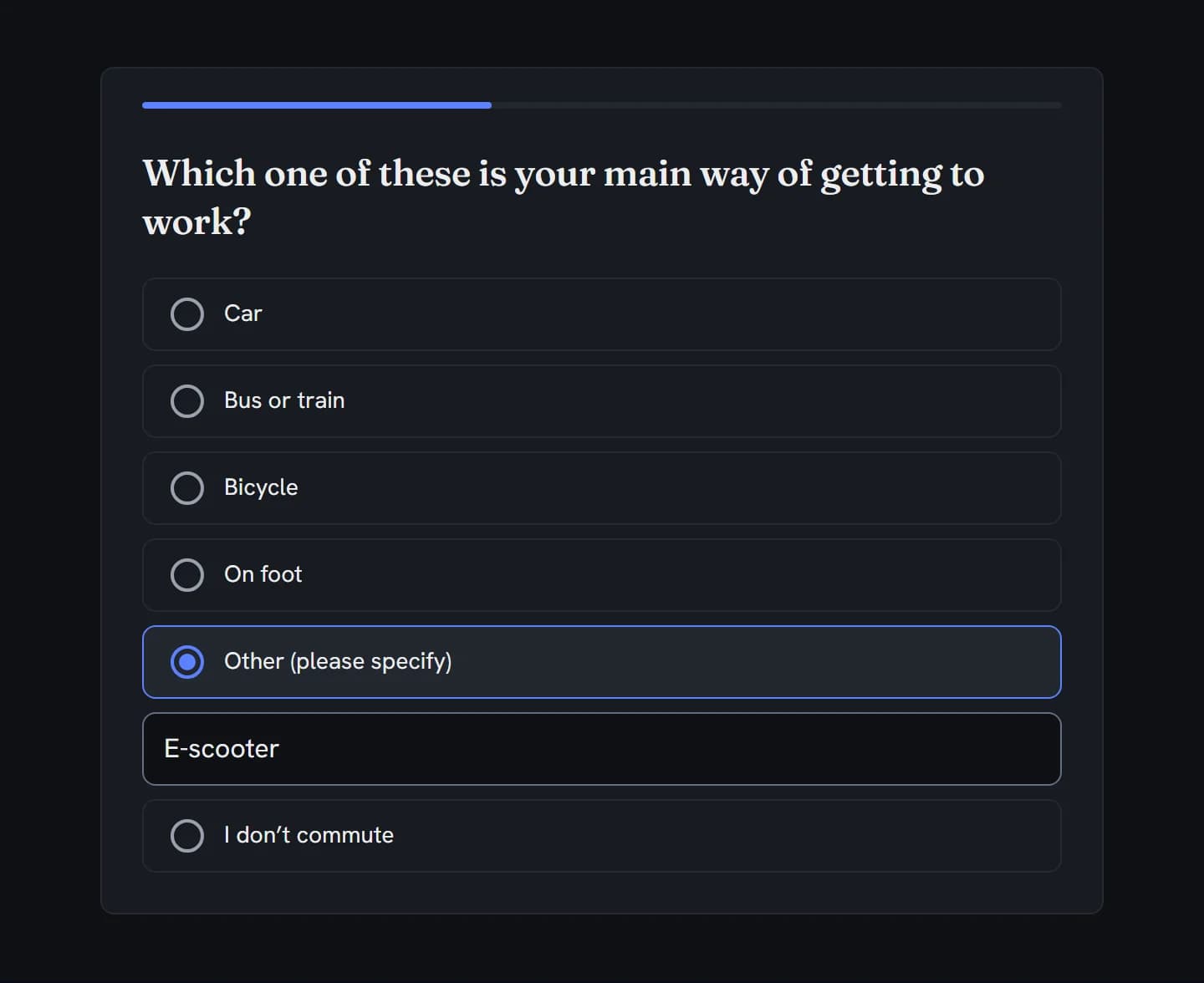
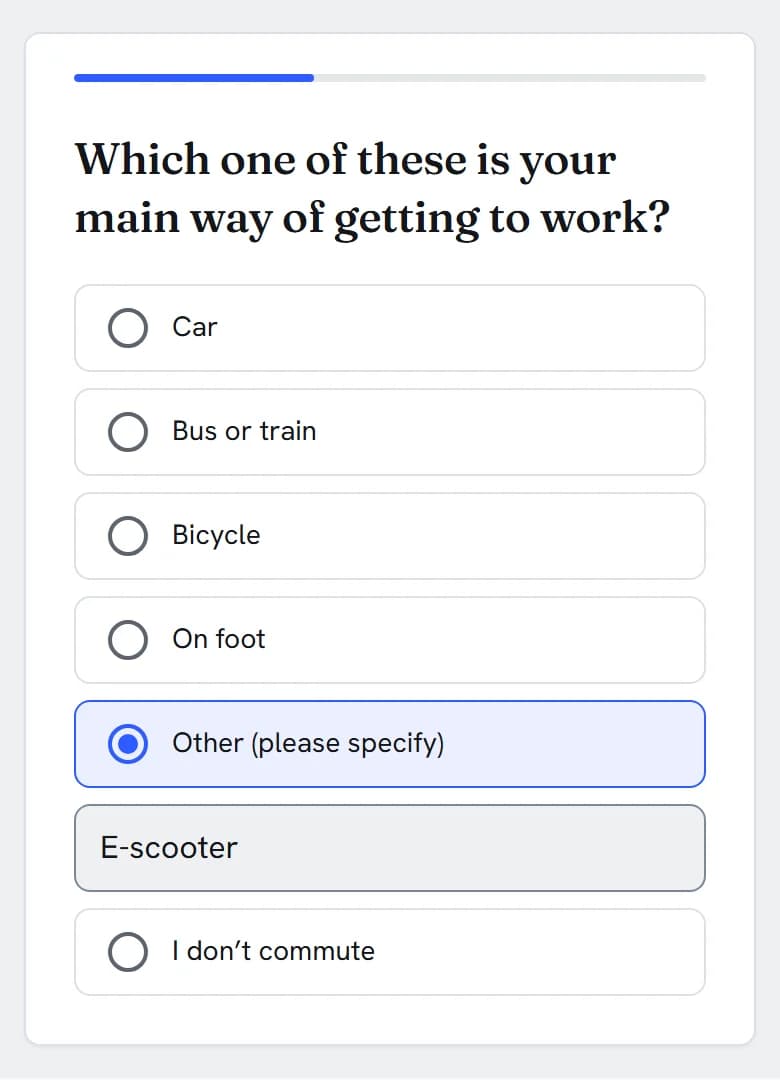
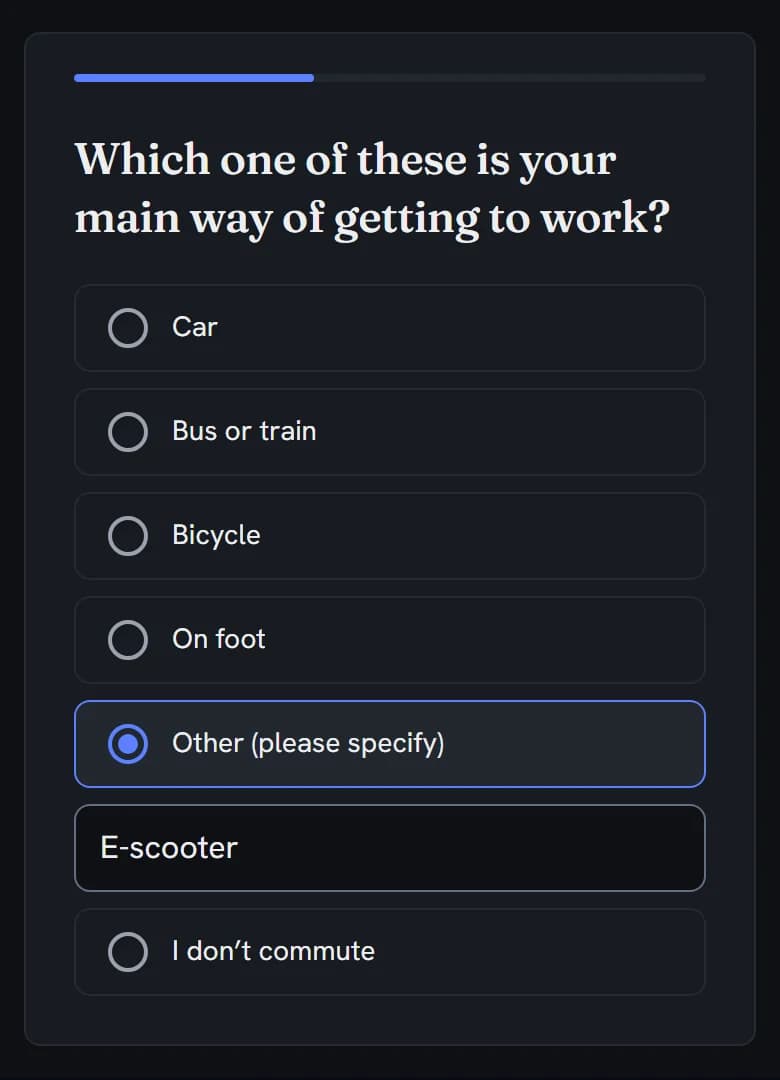
One tile per answer with a round marker. The chosen tile gets a filled marker, a tick and your theme’s selected style.
Live demo
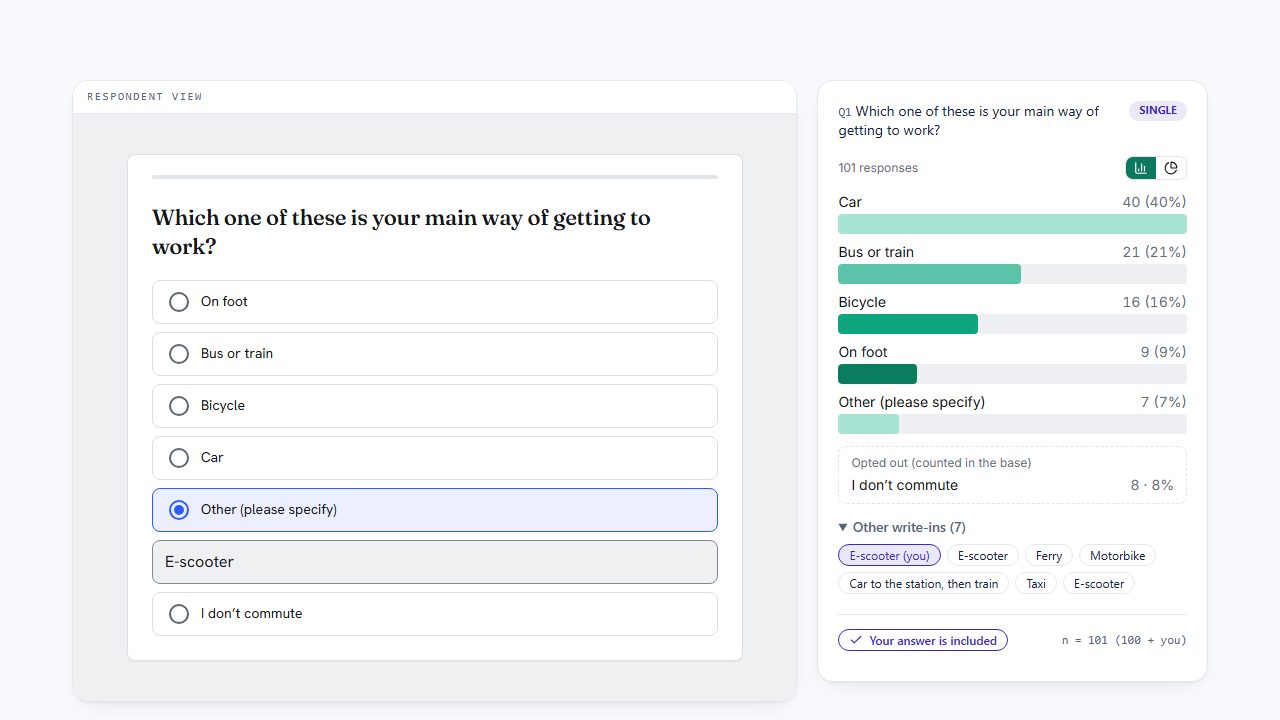
This is the question your respondents get. Answer it and the chart beside it recalculates with your answer counted.
Which one of these is your main way of getting to work?
In action
Every feature
The everyday question, with the answer-order, routing and data controls researchers reach for.
One tile per answer with a round marker. The chosen tile gets a filled marker, a tick and your theme’s selected style.
Stack the answers, spread them over two to four columns, or lay them out as a wrapping row. On phones, columns fold into one.
Arrow keys move and select. On one-question pages, keys 1 to 9 pick an answer and Enter moves on. Turn on lettered answers and A, B, C pick too.
At 12 or more answers a search box appears above the list. The chosen answer stays selected while filtered out of view. You can also switch it on or off.
Make the answer mandatory, warn once before a skip with your own message, or leave it optional.
The question, every answer, the “Please specify” prompt and the search box translate per survey language, and A to Z sorting follows each language.
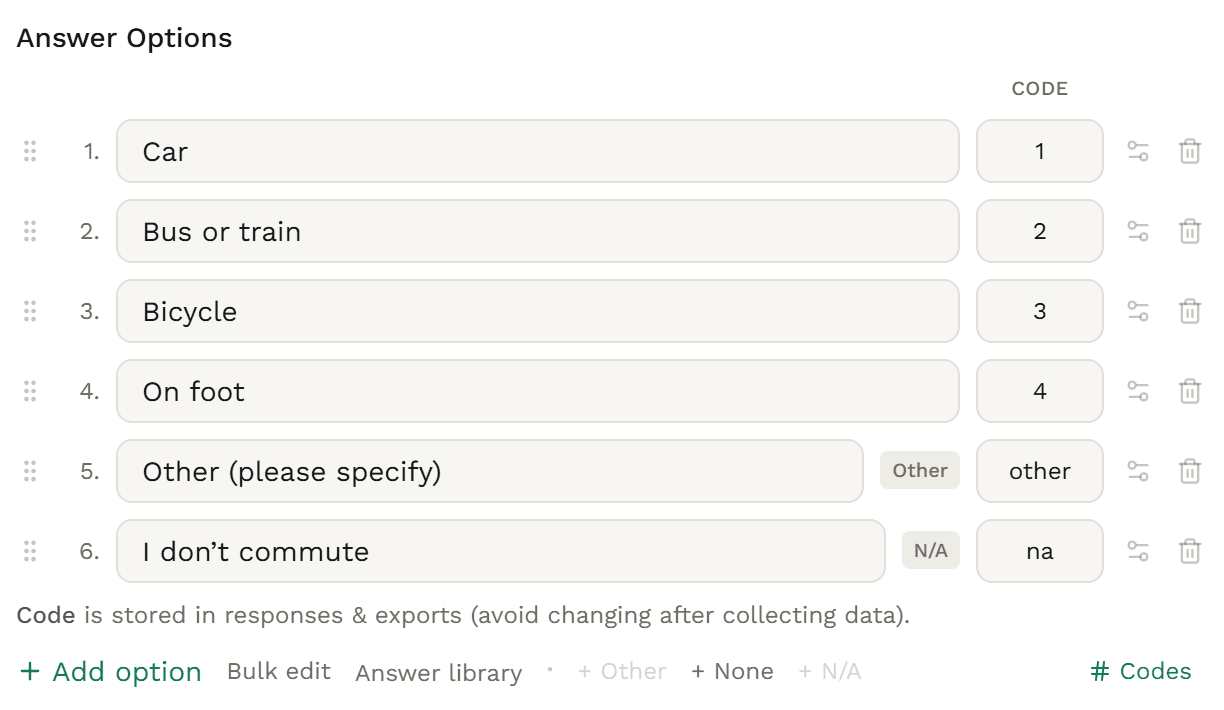
Add Other (please specify), None of the above and Not applicable once each, with their own codes: other, none and na.
Picking Other opens a “Please specify…” box. You can make the write-in required, and the server checks it.
None and N/A keep their place when the list is shuffled or sorted, are never hidden by “Exclude answers given in”, and get their own SPSS codes.
Each respondent gets their own order, which holds when they go Back or come back later. Each question shuffles differently.
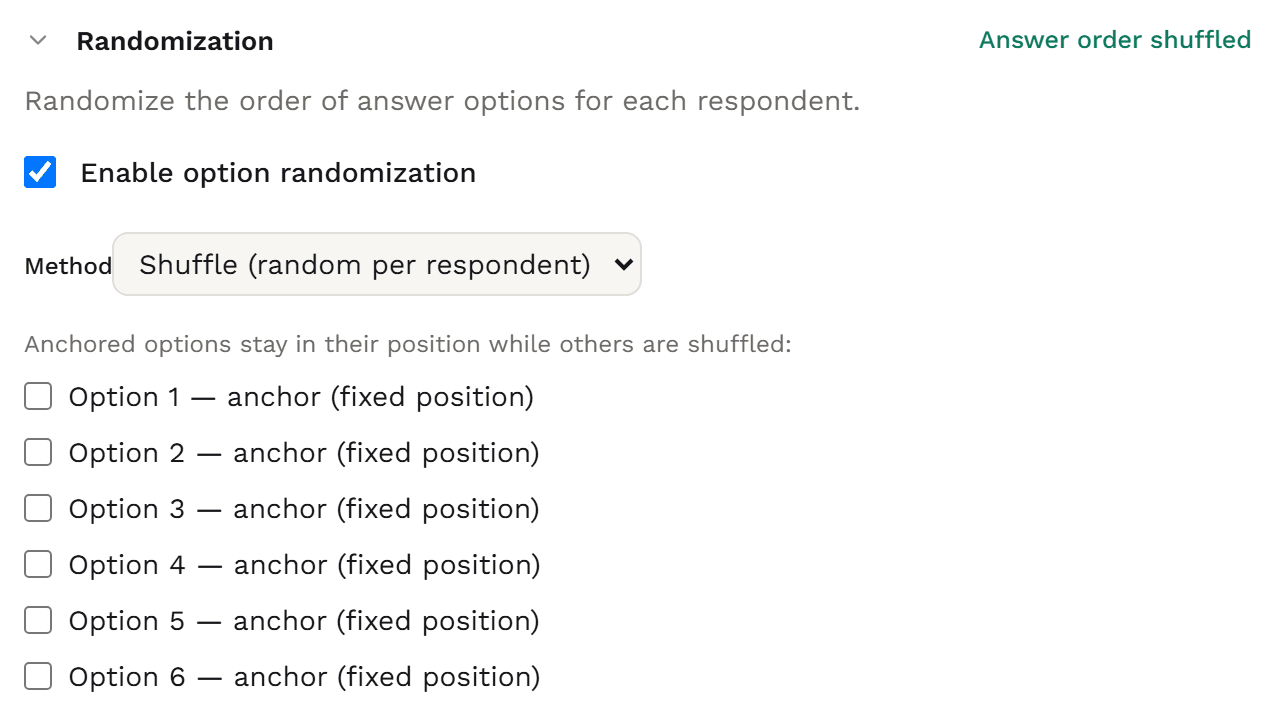
Fix any answer in its position, or set anchors in the Randomization section. Other, None and N/A are pinned for you.
Keep the list in sequence and move the starting point for each respondent. The start point is picked at random for each person.
Sort answers alphabetically in the respondent’s language. Pinned answers keep their place.
Sorting takes priority over shuffling, so use one or the other.
With shuffling on, the export adds a column with the order each respondent saw, such as 3|1|4|2|other|na.
Offer only the answers someone chose in an earlier question, only the ones they didn’t, or all of them. A carried Other shows their own words.
“Exclude answers given in” removes answers picked at earlier questions. Other and None always stay. If nothing is left, the question is skipped and the count shows beside the base.
Skip to a question, end the survey, screen out, or show and hide later questions on the chosen answer.
The survey-level skip and branching panel is on Professional+.
Answer-level display logic shows one answer only if an earlier answer says so. It runs on the server, so the rule never reaches the browser.
Set Max responses on an answer and it stops being offered once that many people have picked it. The last place can’t be taken twice.
The cap counts every stored answer, including people who haven’t finished.
Build quota cells on “Q1 is Car” or “is any of”. When a cell fills, new qualifying respondents go to the quota-full ending.
Insert the chosen answer into later questions, in the respondent’s language, or their own text when they picked Other.
Mark the answer an attentive respondent should give. A different answer flags the response for review without blocking anyone.
Bulk edit takes one answer per line, with an optional “| code”, so a 30-answer list goes in at once. Paste an edited list later and each answer keeps its code and settings.
Ready-made lists for yes/no, scales, demographics, geography and dates.
The Codes view shows the code each answer stores and exports, flags duplicates, and warns when you use 97, 98 or 99. A survey with duplicate codes won’t launch.
Set an export tag such as COMMUTE and the columns become COMMUTE, COMMUTE_TEXT and COMMUTE_order.
A Qualtrics single-answer question comes in as single choice with its answer order and anchors, exclusive answers (as None of the above), recode values (as codes), text entry (as Other) and force response. Excel sheets and Word, PDF or text files import too.
Word and PDF imports use AI credits.
Adding an answer is safe. Renaming, reordering or removing answers, or changing the shuffle, asks you to confirm first.
Turn a single choice question into a dropdown, or back, without rebuilding it, even on a live survey.
Change a respondent’s answer and Other text from the respondent drawer when cleaning data.
Not part of single choice: more than one answer (use Multiple choice), picture-led answers (use Image select), a description under each answer, and Don’t know or Refused buttons (add a None of the above or Not applicable answer instead).
Build it
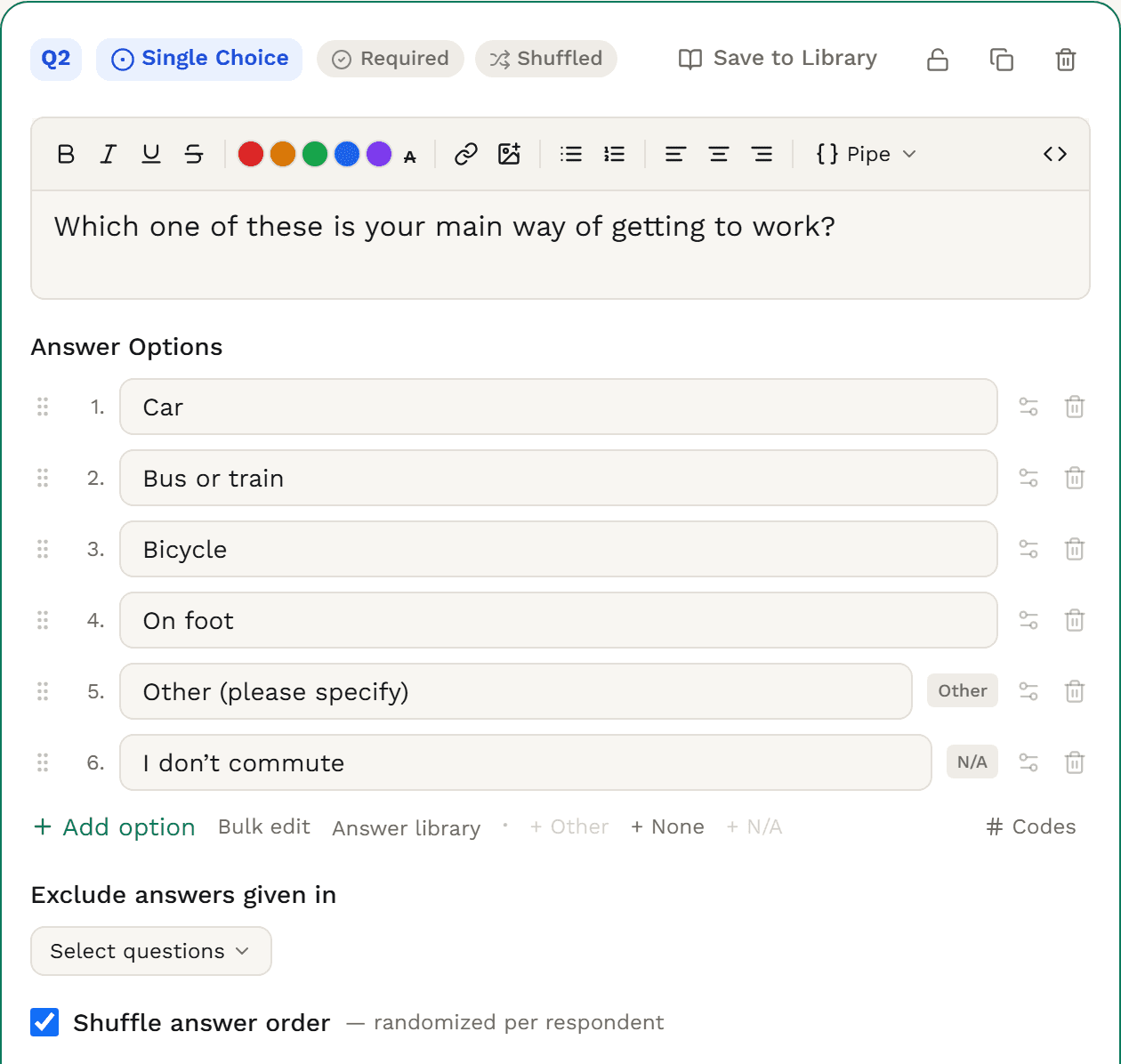
In the builder, add a question and choose Single Choice as its type.
Type each answer, paste a whole list with Bulk edit, or pick a ready-made list from the Answer library. Drag to reorder.
Click + Other, + None or + N/A. Tick Write-in required on Other if you need the text.
Tick Shuffle answer order, or open Randomization to rotate the list or pin answers in place. Other, None and N/A keep their place.
Turn on Codes to see the code each answer stores and exports. Set them before you launch.
In Rules, choose required, soft required (warn once, then allow skipping) or optional. Then preview the survey on desktop and phone.
The data you get
Each response stores the code of the chosen answer. CSV, Excel and JSON carry that code. Excel’s Value Labels sheet and SPSS value labels turn the codes back into answer text.
| respondent_id | Q1 | Q1_TEXT | Q1_order |
|---|---|---|---|
| 47762a85-0001-4000-8000-000000000001 | 1 | (empty) | 1|3|2|4|other|na |
| 47762a85-0002-4000-8000-000000000002 | 1 | (empty) | 1|3|2|4|other|na |
| 47762a85-0003-4000-8000-000000000003 | 2 | (empty) | 1|3|2|4|other|na |
| 47762a85-0004-4000-8000-000000000004 | 1 | (empty) | 4|2|3|1|other|na |
| 47762a85-0005-4000-8000-000000000005 | 1 | (empty) | 3|1|4|2|other|na |
| 47762a85-0006-4000-8000-000000000006 | 1 | (empty) | 3|4|2|1|other|na |
| 47762a85-0007-4000-8000-000000000007 | 2 | (empty) | 4|1|2|3|other|na |
| 47762a85-0033-4000-8000-000000000033 | other | E-scooter | 4|2|3|1|other|na |
Trimmed to the question’s columns, exported with Include open-ended answers ticked. Q1_order appears only when shuffling is on. Every export also carries the standard respondent columns (status, timing, weight and more).
The answer takes the question’s position (Q1) or your own export tag. The write-in adds _TEXT, so a tag of COMMUTE gives COMMUTE and COMMUTE_TEXT.
CSV, Excel and JSON cells hold the answer’s code, such as 2 or other. Answer text comes from the Value Labels sheet in Excel and the value labels in SPSS.
Numeric codes Other 98, None 99 and N/A 97, or 9998 / 9999 / 9997, or your own. You can declare None and N/A, and Other too, as missing values. Answers coded with text, such as AB, export to SPSS as a text variable holding the code, with the same labels.
The write-in exports in Q1_TEXT when you tick Include open-ended answers. Leave it unticked and the column reads [OPEN_ENDED] for everyone who wrote one.
An unanswered question exports as an empty cell, which SPSS reads as system-missing. When “Exclude answers given in” leaves nothing to pick, SPSS gives it its own missing code.
Weighted exports carry a weight column, and the SPSS syntax sets WEIGHT BY weight. Answer codes are never changed. Weighting is on Research Team.
Charts & analysis
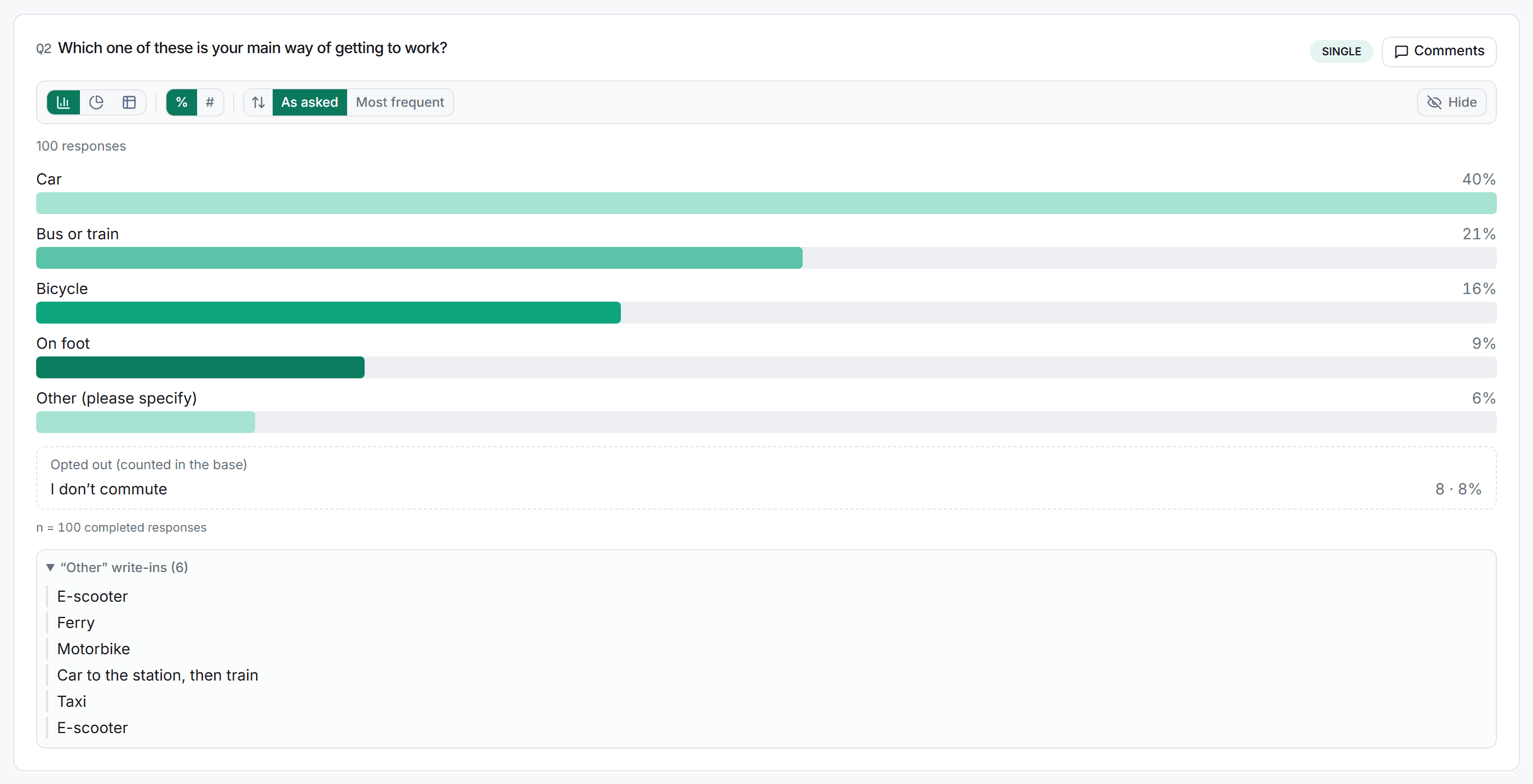
Every single choice question is charted for you. Crosstab it against any other question, test the differences, weight it, and send it to clients as an editable deck.
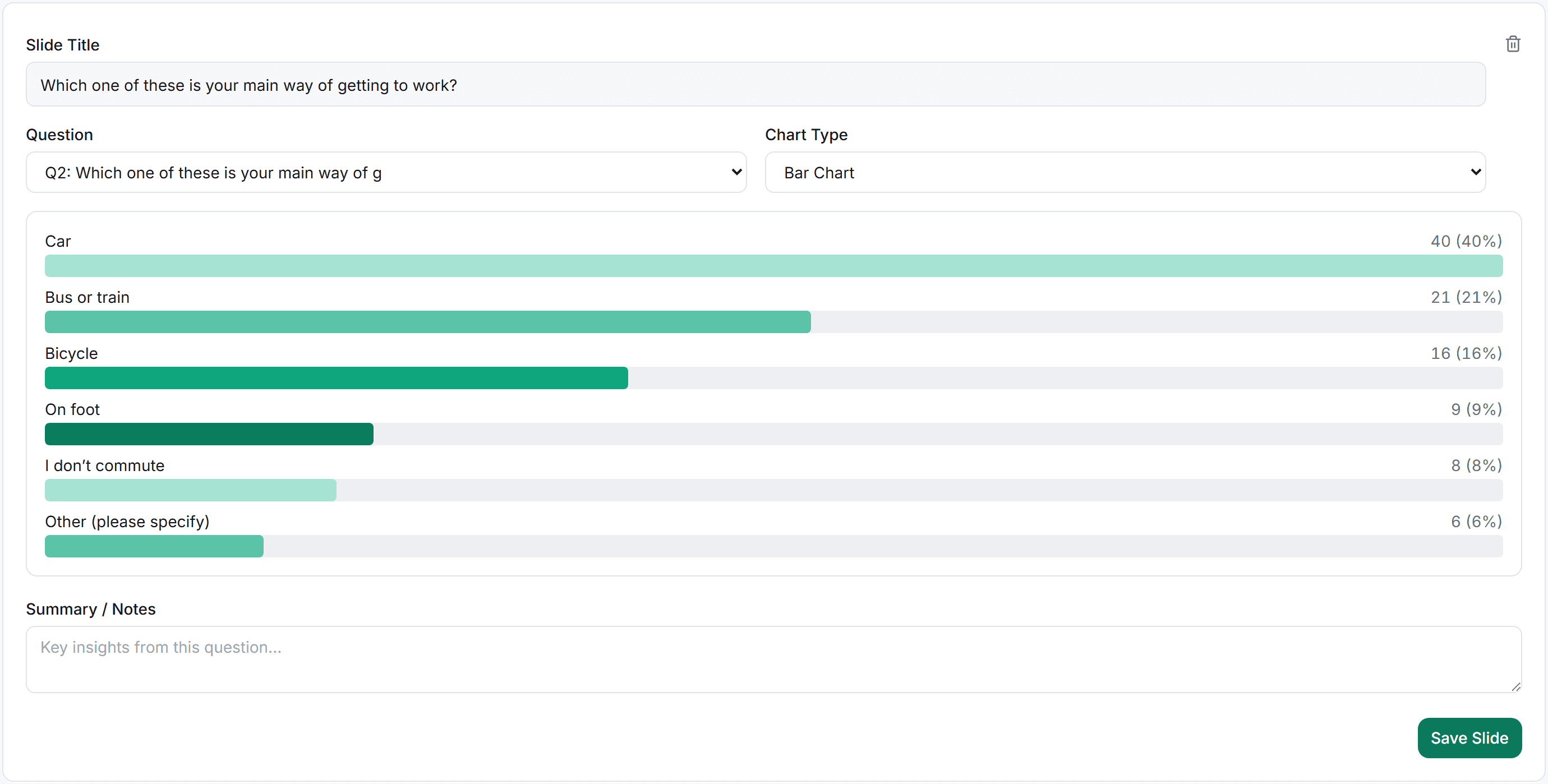
Main way of getting to work, by ageColumn %, significance at 95%
Crosstabs · Solo+Letters · Professional+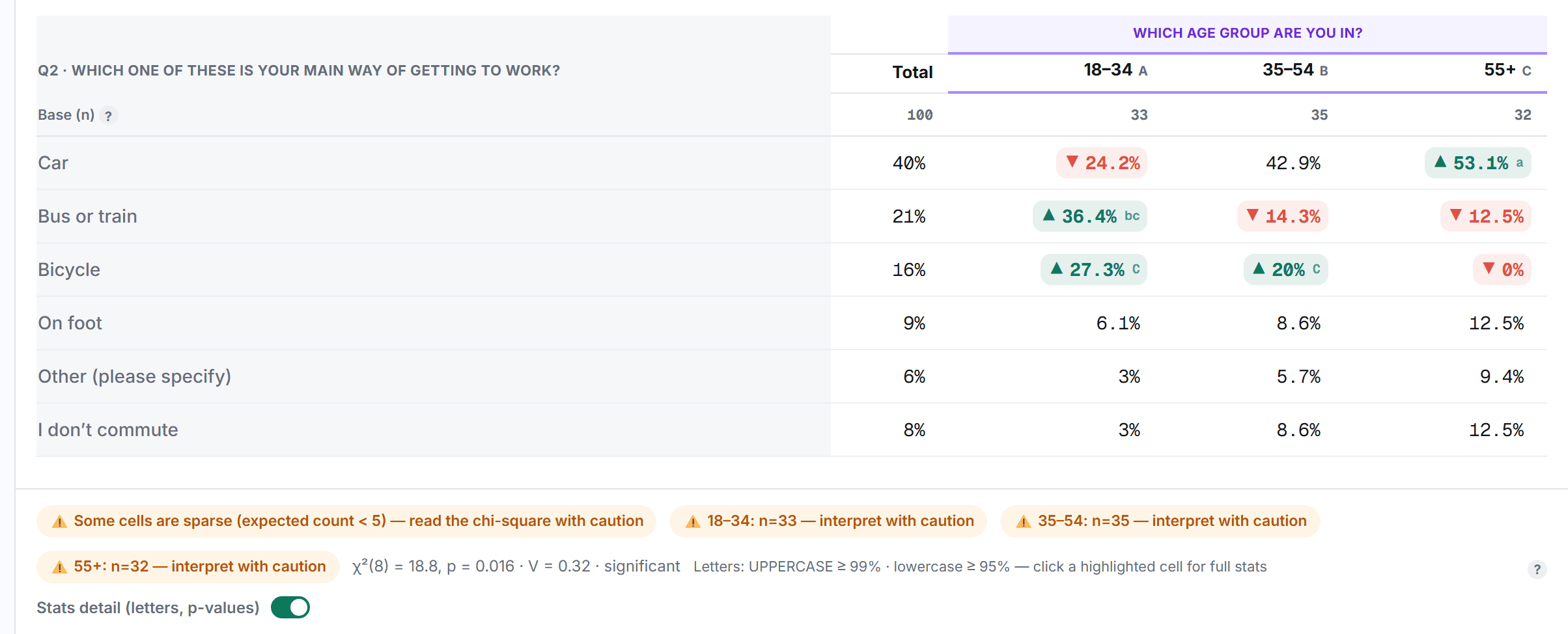
Put the question in the rows or the banner. As a banner, each answer becomes a column you can rename, merge, hide or reorder, and save as a banner book.
CrosstabsColumn-proportion tests put letters on the answers that differ between columns, with your choice of confidence level and multiple-comparison correction.
Significance testingWeights carry through to Results, crosstabs, dashboards, decks and exports. A single choice question can also be one of your rim-weighting targets.
Text analysis finds themes and sentiment in the Other write-ins and lets you code them.
Filter any Results view to the people who chose an answer, such as everyone who travels by bus or train.
Compare a deck with an earlier snapshot. Shares are matched by answer code, so renaming an answer doesn’t break the comparison.
ReportsHow Surveti compares
| Capability | Surveti | SurveyMonkey | Qualtrics | Typeform | Alchemer |
|---|---|---|---|---|---|
| Dedicated “None of the above” answer | yesNone and Not applicable, one click each | yes3 | partial35, 21Exclusive setting on multi-answer only | yes38 | partial62Exclusive setting on checkboxes only; Not applicable works |
| Shuffle answer order | yesEvery plan | paid1, 9 | yes22, 36On the free account | yes38 | yes63 |
| Keep Other and None in place while shuffling | yesAutomatic, and pin any other answer | paid1Last answer only | yes22Fixed display order | yes38Other and None only | yes62, 71, 63Fixed position on any answer |
| Carry forward chosen or unchosen answers | yesEvery plan, plus hide answers already given | paid6 | yes24 | partial41“Hide answer choices” rules | paid66, 76, 75Option piping · Professional and Full Access |
| Quotas or caps on an answer | yesPer-answer caps and quota cells, every plan | paid8One quota per survey | paid28, 36Not on the free account | no48 | yes68Answer option quotas; partials count |
| SPSS export with value labels | paidLabelled codes, Other 98, None 99 · Professional+ | paid12 | unclear30, 36Value labels not documented | no44CSV and XLSX only | paid70, 65, 75Full Access only |
| Crosstabs | paidSolo+ | paid13, 20Premier | paid32, 36Not on the free account | no50, 47 | yes72, 75Plan not readable on the licence grid |
| Significance testing on answer shares | paidLetters on answer rows · Professional+ | paid1495% level only | paid32, 36 | no47Effect size, numeric questions only | yes72Chi-square, Fisher’s exact, column proportions |
| Translated answer text | yesEvery plan | paid19, 20Premier | paid37, 36 | paid45, 46, 40Plan names conflict | yes77Manual translation only |
Partial means possible only with a documented workaround; paid means built in on paid tiers or licences only; unclear means the vendor’s docs don’t settle it. Google Forms, QuestionPro and SurveySparrow were also reviewed. Google Forms is free, with an Other answer, shuffled answers and branching by section; responses go to CSV or Sheets, and it documents no crosstabs or SPSS export. QuestionPro leaves Other and N/A out of the shuffle by default. SurveySparrow pipes selected or unselected choices and has a crosstab widget with significance tests.
Shuffle per respondent, rotate the start position or sort A to Z in the respondent’s language. Other, None and N/A stay at the end, and you can pin any other answer.
Offer only what someone chose in an earlier question, or only what they didn’t, and hide answers they already gave. A carried Other shows their own words.
Close an answer once enough people have picked it, show it only when an earlier answer says so, and build quota cells on it. No add-on or higher plan needed.
A nominal variable with every code labelled, Other coded 98 and None 99, the write-in as its own text variable, your variable name, and WEIGHT BY set when you export weighted. SPSS export is on Professional+.
Crosstab any answer against any other question on Solo+, add significance letters on Professional+, and weight the whole study on Research Team, without moving the data to another tool.
Native, editable PowerPoint charts, PDF decks mailed on a schedule, dashboards and a client portal, all from the same question.
When to use it
“Which one of these is your main way of getting to work?” Car · Bus or train · Bicycle · On foot · Other (please specify) · I don’t commute
Accessibility
Every answer is a radio in a radio group named by the question, so screen readers announce the question, each answer and whether it’s selected.
One Tab stop for the list. Arrow keys move and select, wrap at the ends and skip unavailable answers. On one-question pages, keys 1 to 9 pick an answer and Enter moves on.
The chosen answer gets a filled marker and a tick as well as your theme’s colour, so the choice reads without colour vision.
Every answer tile is at least 44px tall, and the whole tile is the tap target.
Use it in
Template
“Which brand do you use most often?” alongside awareness and ranking.
Template
“What was the primary purpose of your visit today?”
Template
“How did you first hear about us?” next to NPS and satisfaction.
Solution
Field, crosstab, test and report a study in one place.
It’s the one-answer kind. Many tools call any pick-from-a-list question multiple choice. In Surveti, Single Choice takes one answer, and the multiple choice question (Multiple Choice in the builder) lets people tick any number. If more than one answer can be true at once, use a multiple choice question.
Four to seven is comfortable. Longer lists work too: at 12 or more answers Surveti adds a search box above the list. For a long list people already know, like countries, a dropdown question is more compact.
Yes. Add an Other (please specify) answer and picking it opens a text box, which you can make required. The text exports in its own column, such as Q1_TEXT, when you include open-ended answers in the export.
Tick Shuffle answer order so each respondent gets their own order, or rotate the start position. Other, None and N/A stay at the end, and you can pin any other answer. The order each person saw exports in its own column.
Yes. Set Max responses on the answer and it stops being offered once that many people have picked it. The cap counts every stored answer, including people who haven’t finished. To control completes by group, build a quota on the answer instead.
One column holding the chosen answer’s code, plus a text column for Other. CSV and JSON carry codes only. Excel adds a Value Labels sheet, and SPSS (Professional+) labels every code, with Other as 98 and None as 99.
Use Crosstabs (Solo+) to put the question against any banner. On Professional+, significance letters mark the answers that differ between columns. On Research Team, weights carry into the same tables.