LiveResearch Team
Starts ready to edit
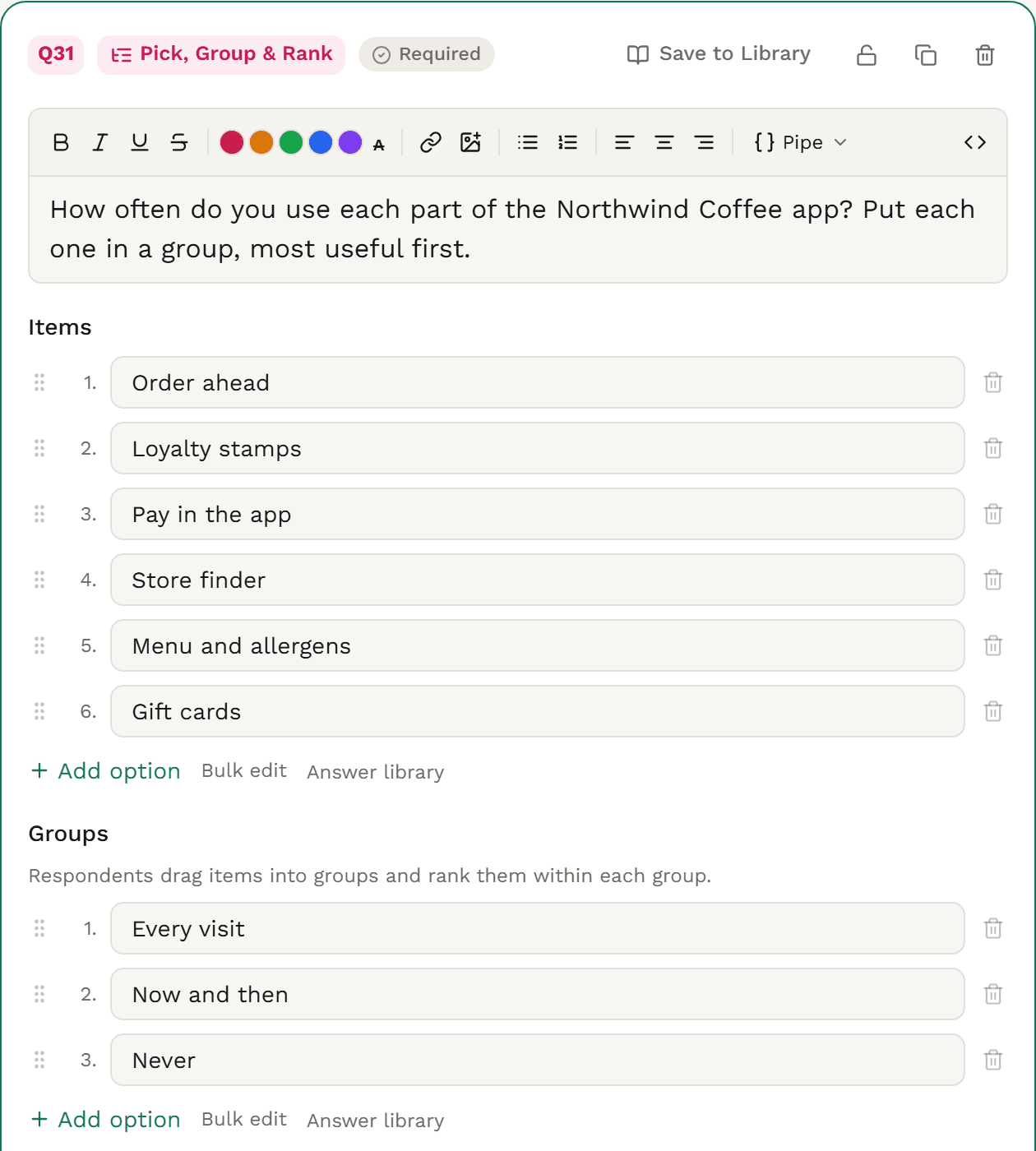
A new Pick, Group & Rank starts with three items, Item 1 to Item 3, and two groups, Group A and Group B, saved with the question. Before your first launch, Surveti checks it has at least two items and a group.
Pick, Group & Rank question · Ranking
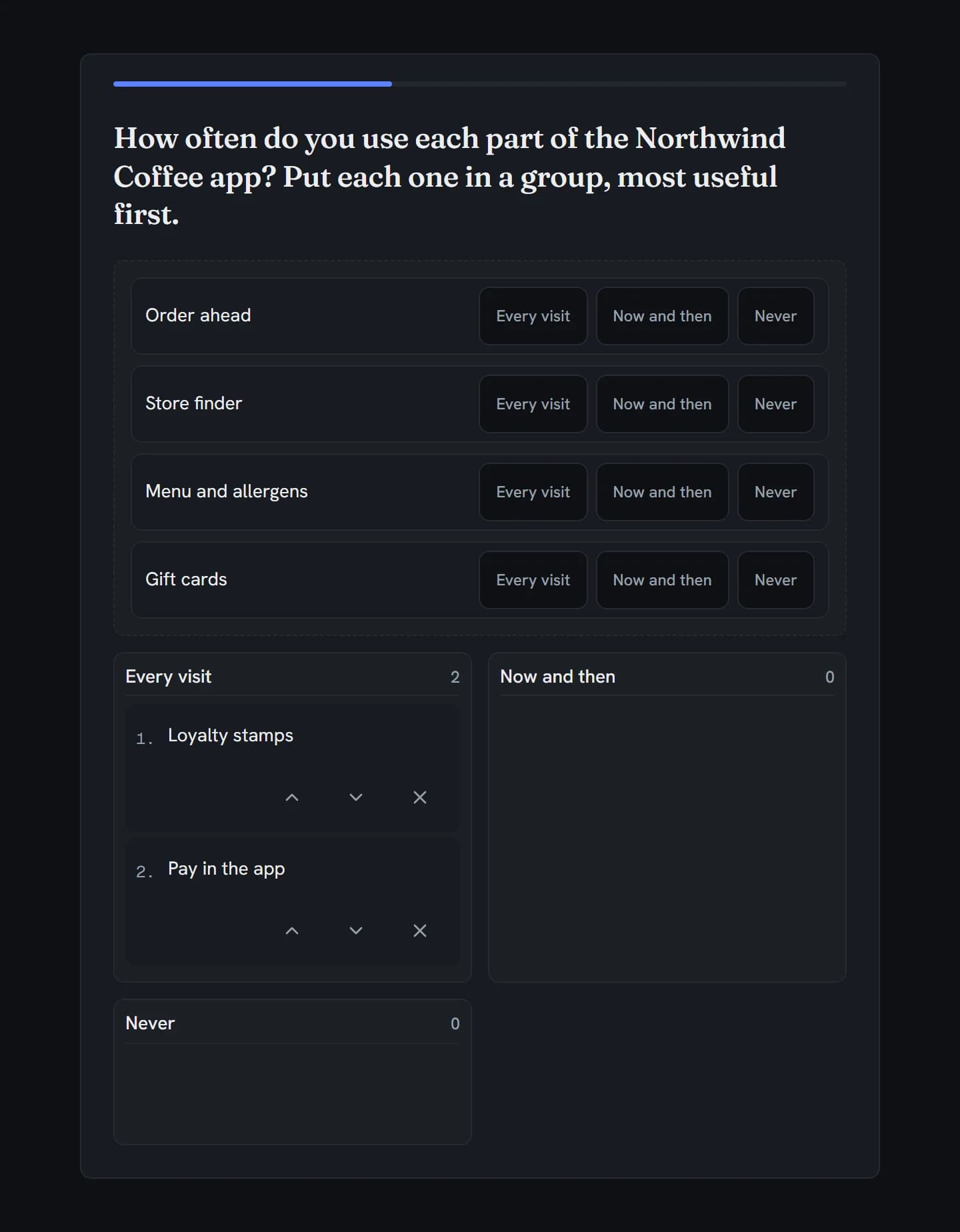
Ask people to put each item in one of your groups, then order the items inside each group, such as how often they use each part of an app and which matters most. Every item gets a button for each group, phones stack the groups, and Results shows where each item landed and its average rank there.
Live demo
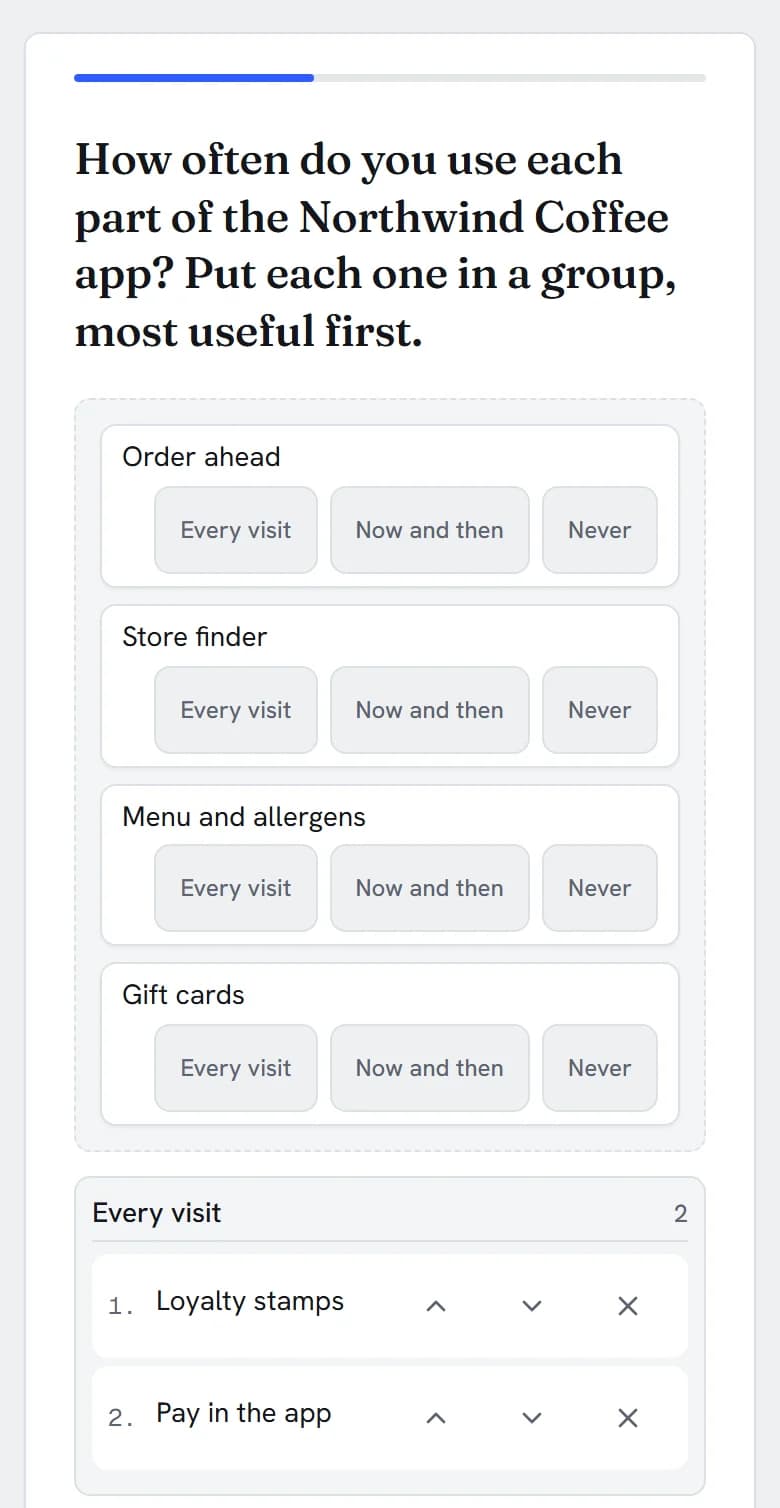
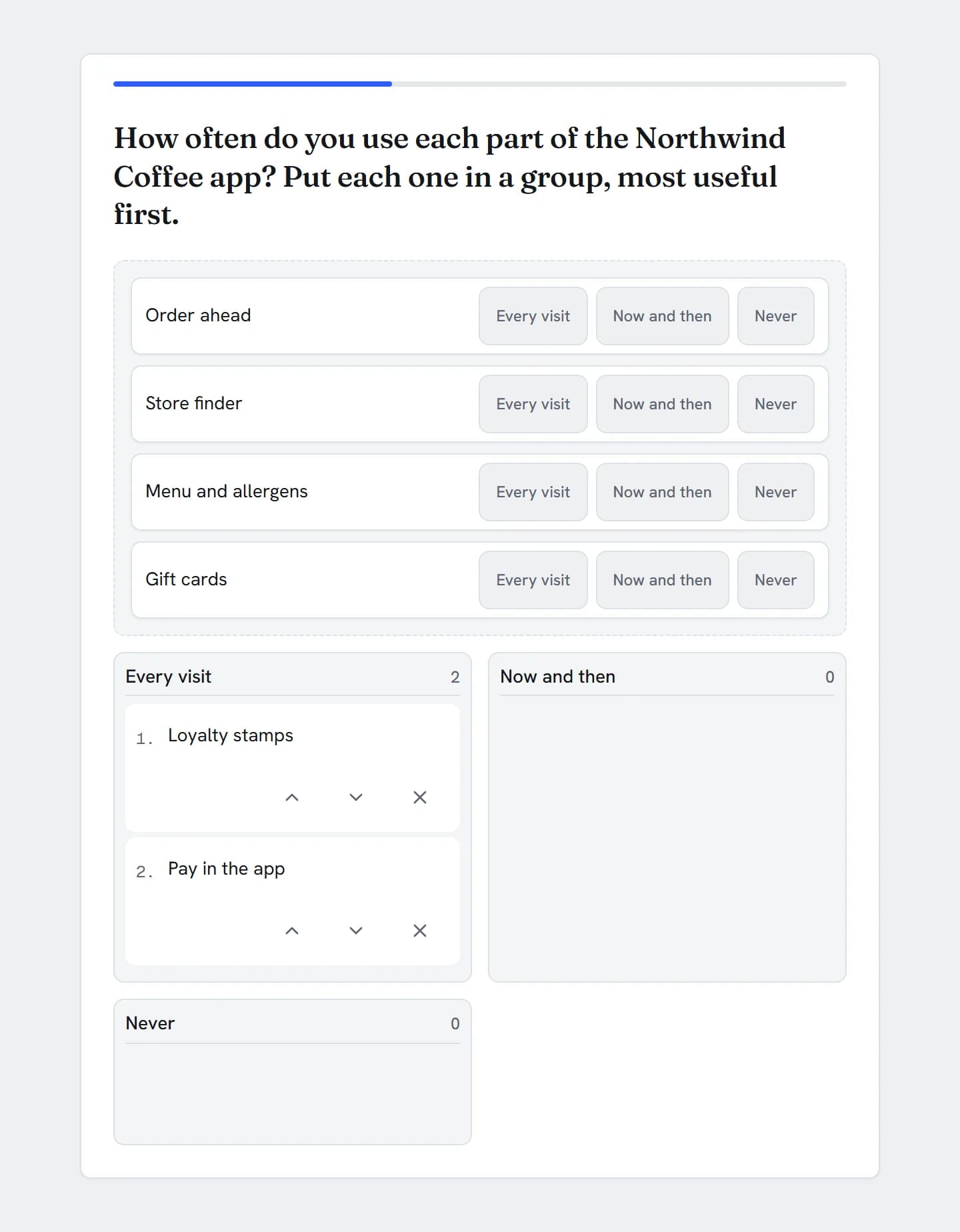
This is the question your respondents get. Tap a group under a feature to place it, then use the arrows to put each group in order, most useful first. Once Next would let you through, the results beside it count you, and you see the row your answer becomes in the export.
How often do you use each part of the Northwind Coffee app? Put each one in a group, most useful first.
Every feature
Your items and groups, every item placed or any you like, buttons to place and reorder, groups that stack on a phone, logic by group, and a table of where every item landed.
A new Pick, Group & Rank starts with three items, Item 1 to Item 3, and two groups, Group A and Group B, saved with the question. Before your first launch, Surveti checks it has at least two items and a group.
Write as many items as you need, at least two, and put them in any order.
Write the groups people sort into, at least one, such as Every visit, Now and then and Never.
People can’t add or name groups of their own.
Tick Enable option randomization to shuffle or rotate the items for each person, and anchor any that should stay put.
Groups always show in your order.
A pick, group and rank question is required by default: every item goes in a group before Next.
Next says which items are left.
Make the question optional or soft required, and people place as many items as they like, or none.
A minimum or maximum number to place isn’t a setting yet.
Show a later question to people who put anything in a group, such as asking those who put a feature in Never what would change their mind. Quotas count by group the same way.
Rules on which group one item went into, or on its rank, aren’t part yet.
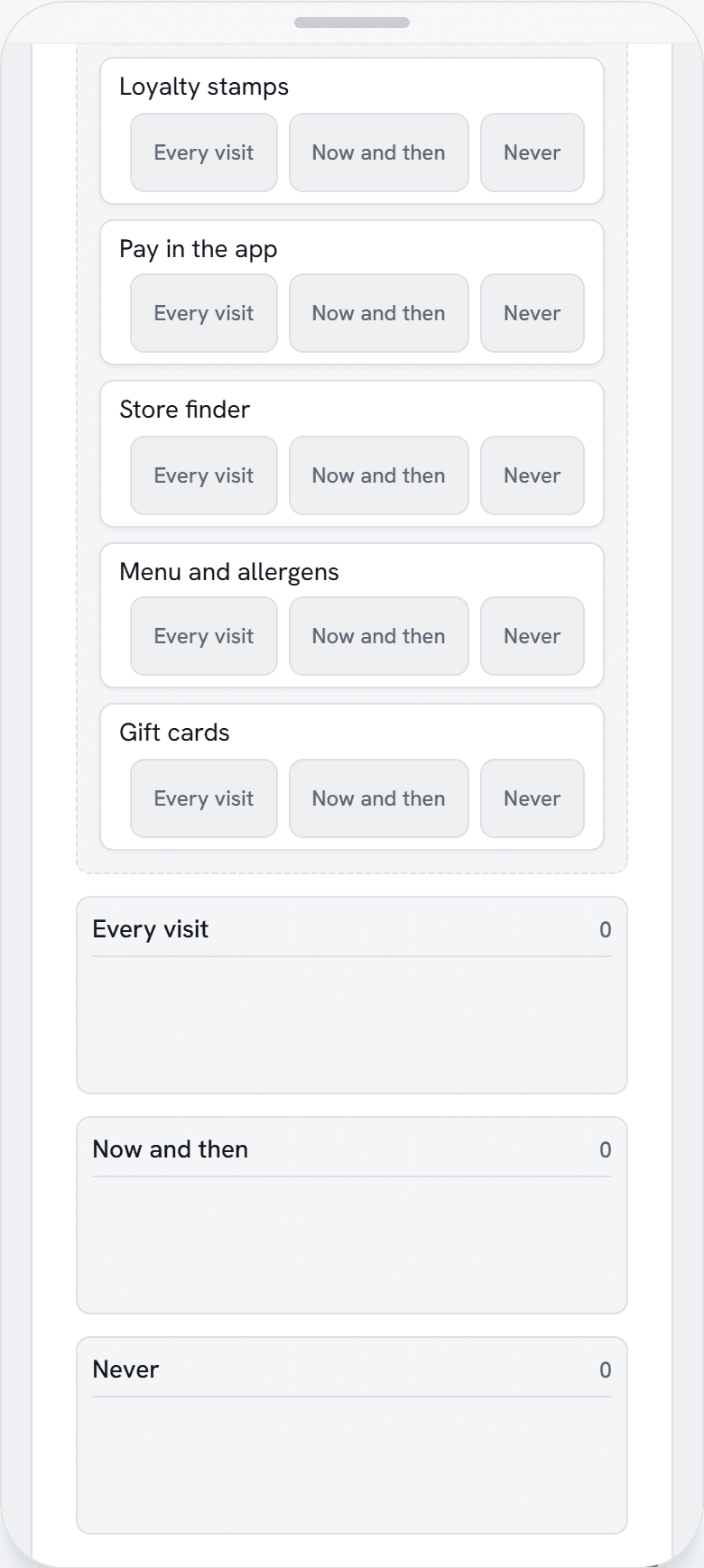
Each item in the list has a button for every group: tap one and the item goes to the end of that group. With a mouse, people can also drag it in.
Up and down arrows move an item within its group, and the order people leave is the rank. Remove sends an item back to the list.
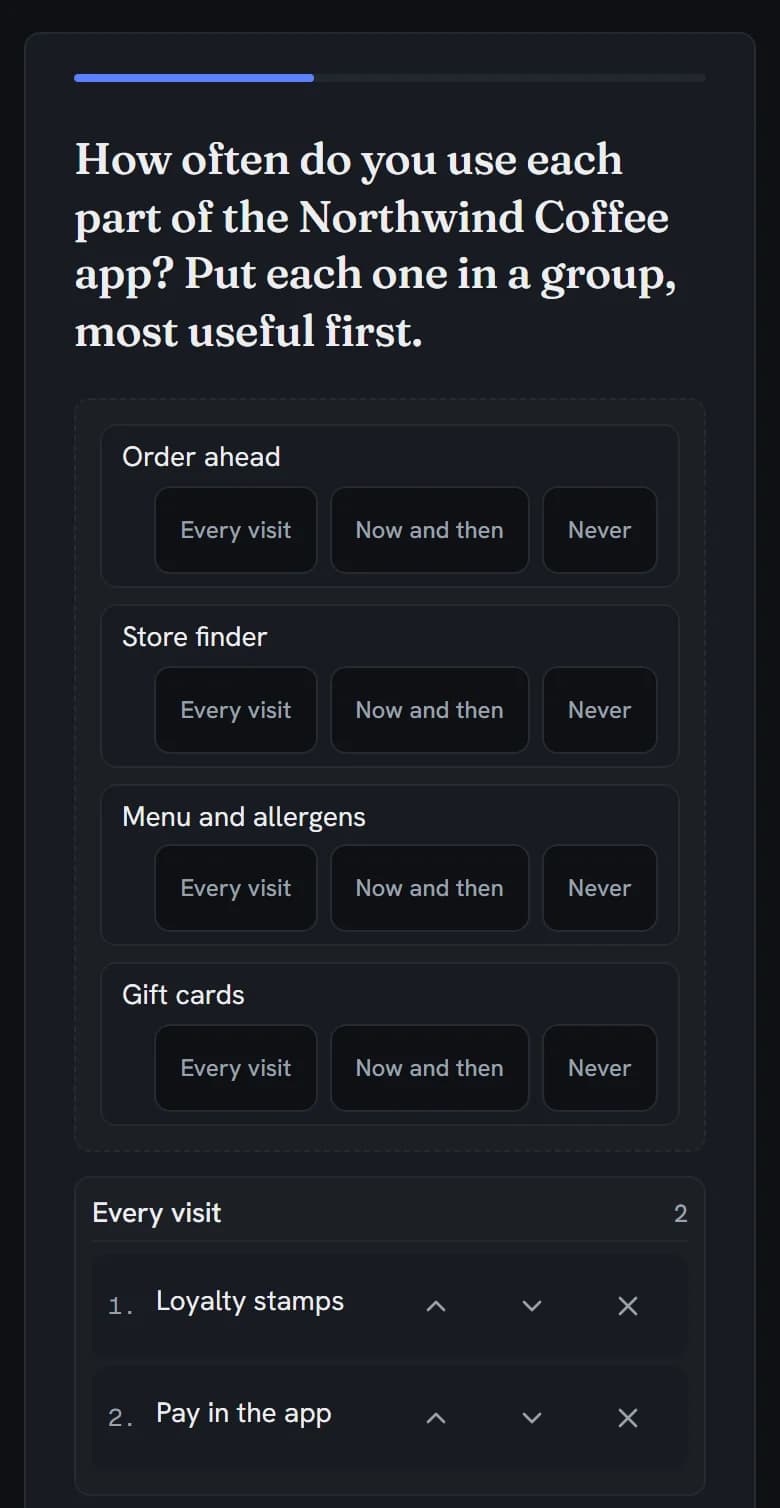
On a phone the groups stack one under another, and nothing scrolls sideways; on a wider screen they sit two to a row.
A long item name wraps inside its group, with its buttons beside it or below it.
The list, the group buttons and the groups follow your survey’s theme and dark mode.
Results shows a row for each item and a column for each group, plus Not placed: the share of people who put the item in each group, with every group listed, used or not.
The base is everyone who placed at least one item.
Beneath each share, the item’s average position in that group (1 = first).
Weight respondents, and every share, rank and base follows the weights. Clients you share results with see the same table.
Two columns per item, named by its code, Q1_1_group to Q1_6_rank, each labelled with your question and the item.
A group cell holds the group’s code, such as 2, and a rank cell the item’s place in it, such as 1; both are blank for an item left out.
SPSS gets each item’s group with the group names as value labels, so you read Now and then, not 2, and its rank as an ordinal.
Not part of pick, group and rank questions yet: a minimum or maximum number of items to place, or a limit per group; a sort-only mode with no ranking; item images; groups people name themselves; rules on which group one item went into, or on its rank; group names in other languages; piping an answer into a later question; and pick, group and rank questions in crosstabs, on dashboards or in report decks.
Choosing
A pick, group and rank question asks for your groups and an order inside each. A card sort asks for groups only. A ranking asks for one ordered list.
Weighing items against each other in small sets instead? Use MaxDiff.
Build it
In the builder, choose Pick, Group & Rank from the Ranking group, and write the question, such as “How often do you use each part of the Northwind Coffee app? Put each one in a group, most useful first.” It starts with three items, Item 1 to Item 3, and two groups, Group A and Group B, saved with the question, ready to rename.
Edit the Items, at least two: the things people place, such as features, products or tasks.
Edit the Groups, at least one. People put every item in one of them, then order the items in each group.
A pick, group and rank question is required by default: every item goes in a group before Next. Under Response requirement, choose Optional — can be left blank or Soft required — warn but allow skipping to let people place as many as they like.
Tick Enable option randomization to show the items in a different order to each person, or rotate where the list starts. Groups always show in your order.
Preview on a phone and a laptop. Settle the items and groups before the survey goes live. Before your first launch, Surveti checks it has at least two items and a group.
The data you get
Each item gets two columns: the group it went into, and its place inside that group.
| respondent_id | Q1_1_group | Q1_1_rank | Q1_2_group | Q1_2_rank | Q1_3_group | Q1_3_rank | Q1_4_group | Q1_4_rank | Q1_5_group | Q1_5_rank | Q1_6_group | Q1_6_rank |
|---|---|---|---|---|---|---|---|---|---|---|---|---|
| 47762a85-0001-4000-8000-000000000001 | 2 | 1 | 1 | 1 | 1 | 2 | 2 | 2 | 2 | 3 | 3 | 1 |
| 47762a85-0002-4000-8000-000000000002 | 1 | 1 | 2 | 1 | 3 | 1 | 2 | 2 | 2 | 4 | 2 | 3 |
| 47762a85-0003-4000-8000-000000000003 | 1 | 1 | 3 | 2 | 1 | 2 | 2 | 1 | 3 | 1 | 3 | 3 |
| 47762a85-0004-4000-8000-000000000004 | 2 | 3 | 1 | 2 | 1 | 1 | 2 | 1 | 3 | 1 | 2 | 2 |
| 47762a85-0005-4000-8000-000000000005 | 2 | 1 | 2 | 2 | 1 | 1 | 3 | 1 | 2 | 3 | 3 | 2 |
| 47762a85-0006-4000-8000-000000000006 | 2 | 1 | 3 | 1 | 1 | 1 | 2 | 3 | 2 | 2 | 3 | 2 |
| 47762a85-0007-4000-8000-000000000007 | 1 | 1 | 2 | 1 | 1 | 2 | 2 | 3 | 2 | 2 | 3 | 1 |
| 47762a85-0008-4000-8000-000000000008 | 1 | 1 | 3 | 1 | 3 | 2 | 2 | 2 | 2 | 1 | 2 | 3 |
Trimmed to the question’s columns. Every export also carries the respondent columns (status, language, timing and more).
Columns are named by each item’s code, Q1_1_group to Q1_6_rank, so rewording an item never renames them.
A group cell holds the group’s code, such as 2. SPSS and the Excel Value Labels sheet name each code.
A rank cell holds the item’s place in its group, such as 1, where 1 is the top of the group.
An item someone left out of an optional question has two empty cells.
Charts & analysis
Results shows a row for each item and a column for each group: the share of people who put the item there, and its average rank in that group.
How often do you use each part of the Northwind Coffee app? Put each one in a group, most useful first.Results · 200 answers
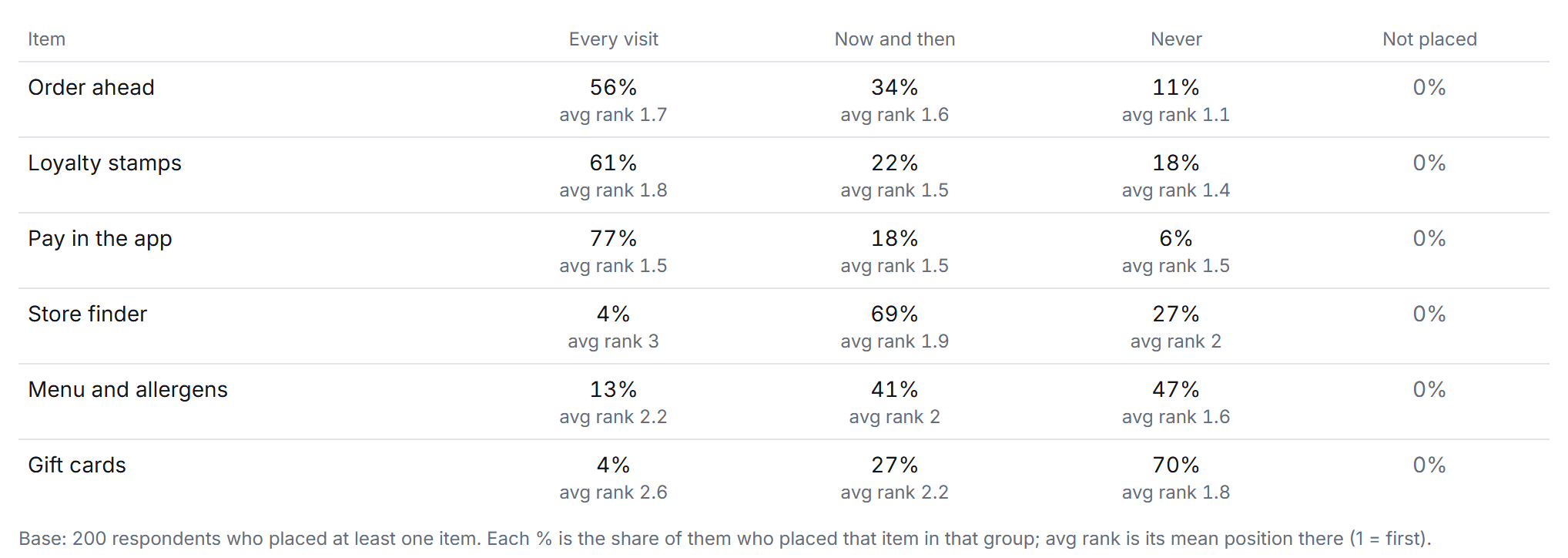
For every item, the share of people who put it in each group, and the share who left it out, with every group listed, used or not.
Beneath each share, the item’s average position in that group (1 = first), so you see what people ranked highest within each group.
Weight respondents, and every share, rank and base follows the weights.
A group and a rank for every item, for your own crosstabs and charts in the tool you already use.
How Surveti compares
| Capability | Surveti | Qualtrics | SurveySparrow | QuestionPro | Alchemer | Askable |
|---|---|---|---|---|---|---|
| Group and rank in one question | yes | yes1 | yes3 | partial4Ranked by preference | no6Groups only | yes7Opt-in ranking |
| Groups you define | yes | yes1 | yes3 | yes4 | yes6 | yes7 |
| Groups respondents name | no | no13 | unclear | yes5Open sorting | unclear6 | yes7 |
| Minimum or maximum to place | noEvery item, or any when optional | yes1Must select | unclear | yes4Categorize | unclear | partial7Require all cards |
| Limit per group | no | yes1Each group contains | yes3 | yes4 | unclear6 | unclear |
| Leave items unsorted | partialWhen the question is optional | partial1Via Must select | unclear | yes4 | unclear | yes7 |
| Sort-only switch (no rank) | no | yes1Stack items in groups | partial3Display Ranking | unclear | n/aNo rank | yes7 |
| Randomise items | yesShuffle or rotate | unclear1 | yes3 | yes4 | unclear | yes7 |
| Phone-specific layout | yesGroups stack, no sideways scroll | unclear1 | unclear | unclear | yes6One item at a time | unclear |
| Report: item × group | yesShare per item and group | yes1Groups data source | yes3Distribution-wise | yes4 | yes6 | unclear |
| Report: rank within a group | yesAverage rank in each group | yes1Rank data source | yes3Group-wise | yes4Average ranking | no6 | yes7Avg rank |
| Export: group and rank per item | yesSPSS value labels | yes1Groups from 0 | unclear | partial4Excel | partial6Group only | unclear |
| On the free or entry plan | paidResearch Team | paid12Not on the free account | unclear | paid4Research Edition | unclear | unclear |
Partial means partly built in, or possible through a documented workaround; unclear means the vendor’s public docs don’t settle it; n/a means the setting doesn’t apply to that product. Qualtrics’ is its Pick, Group & Rank question, SurveySparrow’s its Group Rank, QuestionPro’s its closed card sorting, Alchemer’s its Grouping question (groups with no order inside them) and Askable’s its card sort block with “Require cards to be ranked”; Askable is a research-panel tool rather than a survey platform. Also documented elsewhere: Forsta’s card sort puts cards in groups, and ranking is a separate element, and SurveyMonkey, Jotform and Google Forms have no question that groups items.
A button per group under each item, and up, down and remove beside each placed one, so it works by touch or mouse.
On a phone the groups stack one under another, and nothing scrolls sideways.
Every item goes in a group before Next, and Next says which items are left. Or make it optional.
The share of people who put each item in each group, with its average rank there.
Show later questions, or count quotas, by whether people put anything in a group.
Each item’s group arrives in SPSS with the group names, and its rank as an ordinal.
When to use it
“How often do you use each part of the Northwind Coffee app? Put each one in a group, most useful first.” Items: Order ahead, Loyalty stamps, Pay in the app, Store finder, Menu and allergens, Gift cards. Groups: Every visit, Now and then, Never.
Accessibility
Every action is a button: a button per group under each item to place it, and up, down and remove beside each placed item, so it works by touch or mouse.
Each button is named for what it does, such as “Move Order ahead to Every visit” or “Move Order ahead up”.
With a mouse, you can also drag an item from the list into a group.
The list, the group buttons and the groups follow your survey’s theme and dark mode.
Use it in
Solution
Find which features people use on every visit, and which they rank highest within each group.
Solution
Group products or services by how often people buy them, then see which leads each group.
Solution
Ask which parts of a service people use, and which matter most to them.
Example
“How often do you use each part of the Northwind Coffee app? Put each one in a group, most useful first.” for 200 people, placing six features in three groups: Every visit, Now and then and Never.
A question where people put each item in one of your groups, then order the items inside each group, such as sorting app features by how often they use them, most useful first. In the builder it’s Pick, Group & Rank, in the Ranking group. There’s no separate picking step: every item goes in a group, unless you make the question optional.
A pick, group and rank question is required by default: every item goes in a group before Next, and Next says which items are left. Each item goes in one group, once.
Yes, if you make the question optional or soft required: then people place as many items as they like, or none. Results shows the share who left each item out, and its export cells are blank. A minimum or maximum number to place isn’t a setting yet.
Each item in the list has a button for every group: tap one and the item goes to the end of that group. Up and down arrows move it within the group, and remove sends it back to the list. With a mouse, people can also drag an item from the list into a group.
A row for each item and a column for each group, plus Not placed. Each cell is the share of respondents who put that item in that group, with its average rank there beneath (1 = first in the group). The base is everyone who placed at least one item, and every group is listed, used or not.
Yes, by group: show a later question to people who put anything in a group, such as asking those who put a feature in Never what would change their mind. Quotas count by group the same way. Rules on which group one item went into, or on its rank, aren’t part yet.
The groups stack one under another and nothing scrolls sideways; on a wider screen they sit two to a row. Long item names wrap inside a group, and every action is a button, so nothing needs dragging on a touch screen.
Two columns per item: the code of the group it went into, and its place inside that group, labelled with your question and the item. In SPSS each group column carries the group names as value labels and each rank is ordinal; in Excel the Value Labels sheet names the group codes.
Pick, group and rank questions are on Research Team, with logic and quotas by group, Results, weighting, and CSV, Excel and SPSS exports.