LiveProfessional+
Starts with Positive and Negative
A new Text Highlighter starts with two categories, Positive and Negative, saved with the question. Before your first launch, Surveti checks it has a passage with words and a category.
Text Highlighter question · Interactive
Show people a short text, such as a product description, an ad script or a policy, and let them highlight the words they react to, as Positive or Negative, or your own categories. Results shades your passage by the share of people behind each word, lists the phrases they agree on and, if you ask, their comments.
Live demo
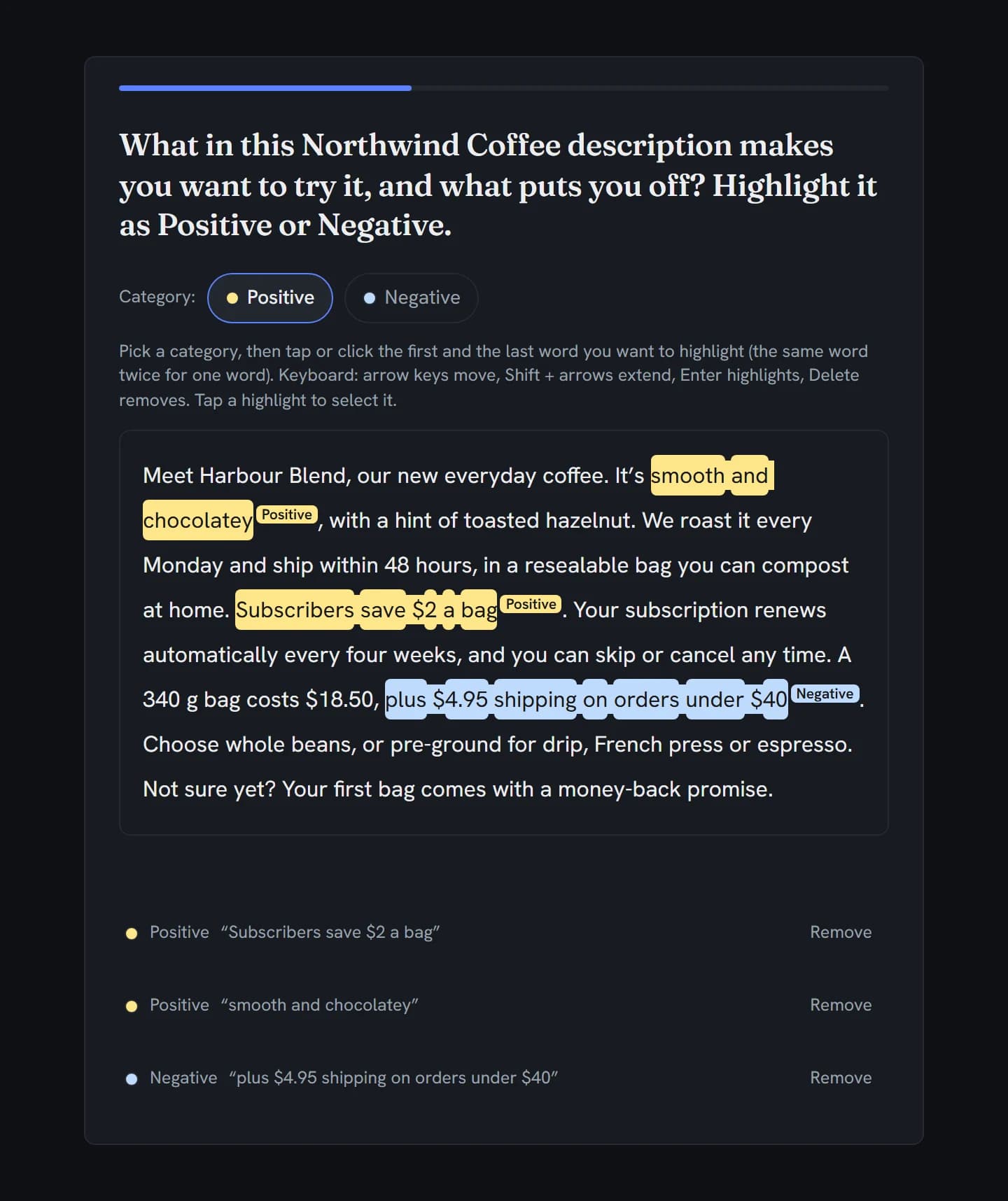
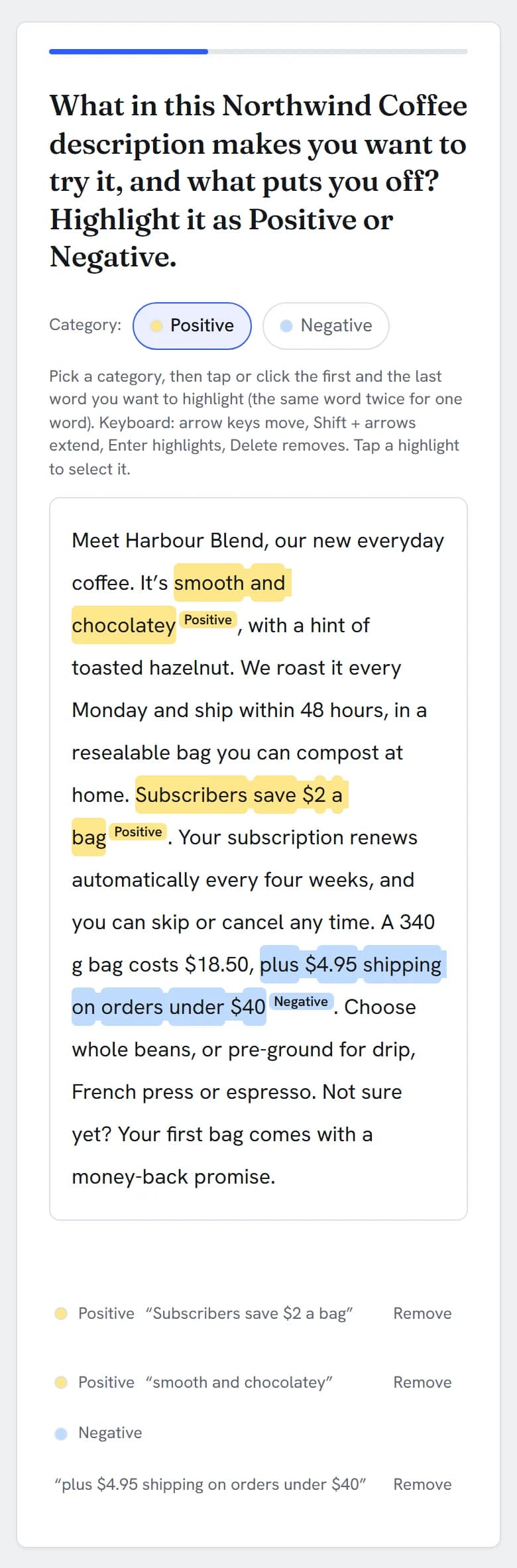
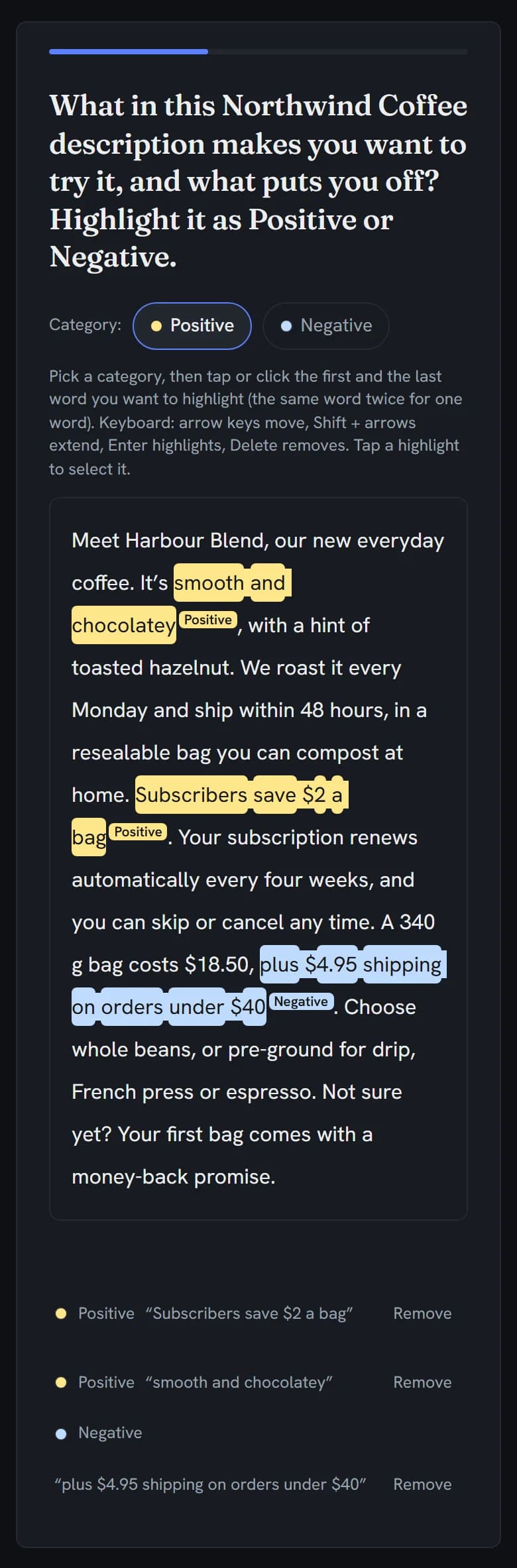
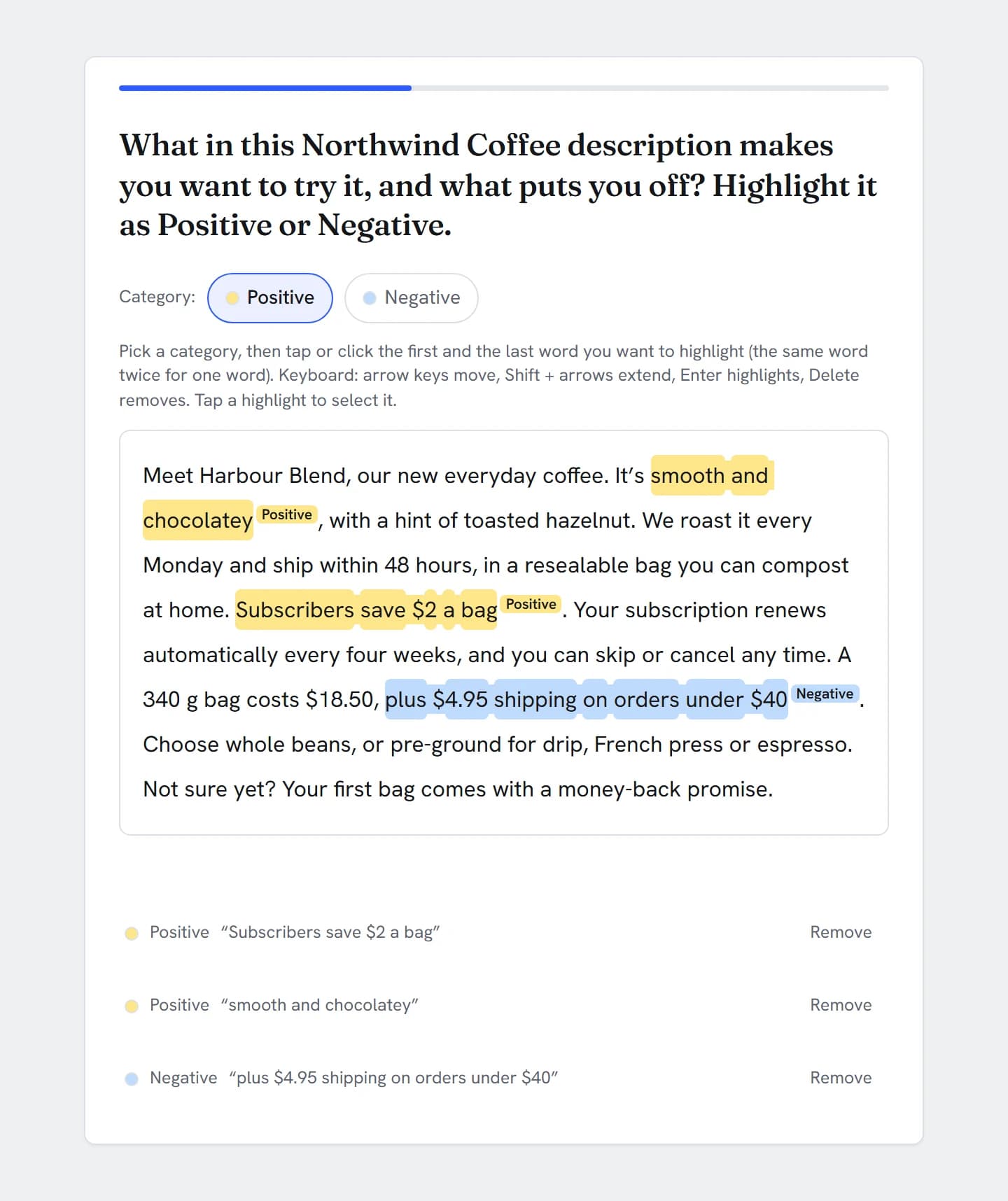
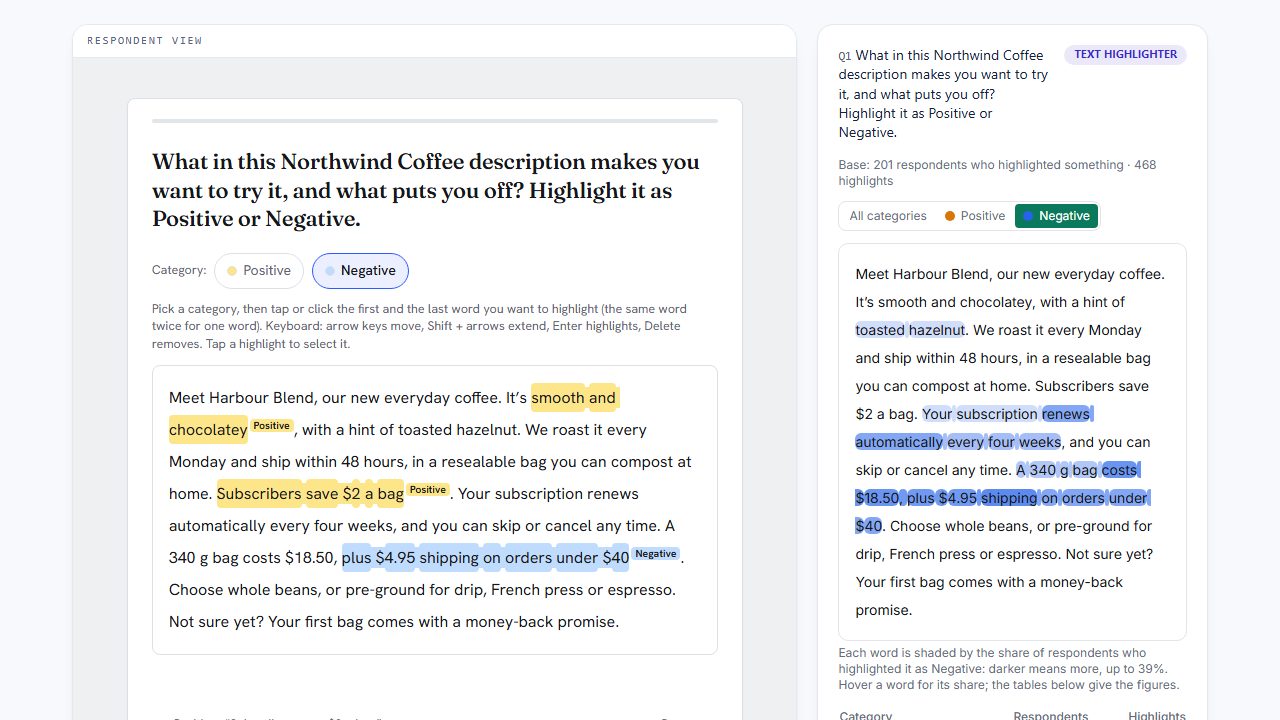
This is the question your respondents get. Pick Positive or Negative, then tap or click the first and the last word you want. Tap a highlight to select it; Remove takes it away and Undo puts it back. Once Next would let you through, the shaded passage beside it counts you, and you see the row your answer becomes in the export.
What in this Northwind Coffee description makes you want to try it, and what puts you off? Highlight it as Positive or Negative.
Pick a category, then tap or click the first and the last word you want to highlight (the same word twice for one word). Keyboard: arrow keys move, Shift + arrows extend, Enter highlights, Delete removes. Tap a highlight to select it.
In action
Every feature
Your passage and your categories, comments if you want them, whole-word highlights by tap, click or keyboard with select-then-remove and Undo, logic by category, and a shaded passage with the share of people behind every word.
A new Text Highlighter starts with two categories, Positive and Negative, saved with the question. Before your first launch, Surveti checks it has a passage with words and a category.
Paste your text under Text passage: plain text, with your line breaks kept.
There’s no bold, italics or links in the passage yet.
Keep Positive and Negative, rename them, or add more, such as Confusing. Each category keeps the same colour for respondents and in Results.
The colours come in a fixed order; you can’t pick them yet.
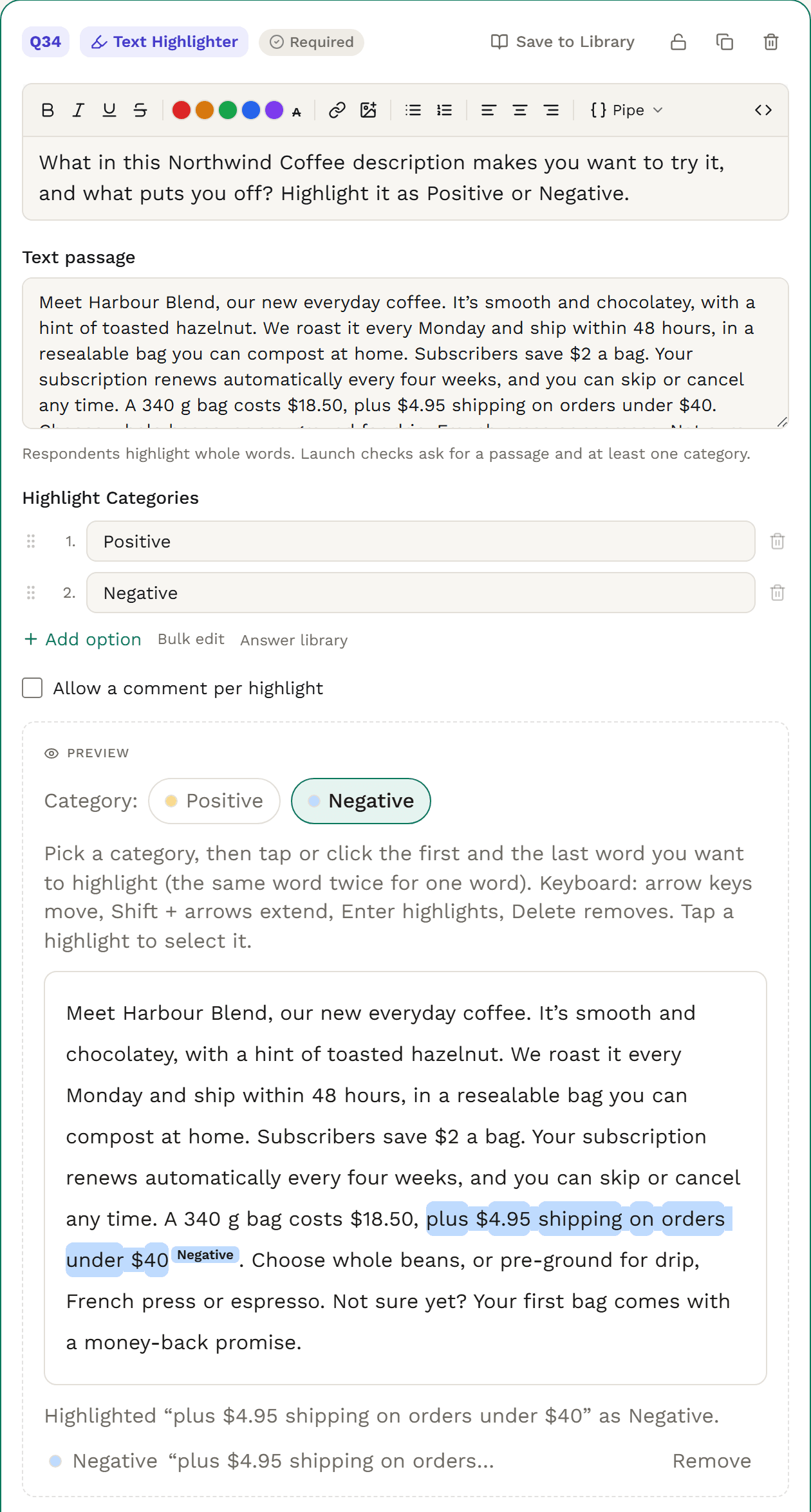
The editor’s preview is the real question: highlight a few words to check how your passage reads. Nothing you do there is saved.
A text highlighter question is required by default: at least one highlight before Next. Make it optional to let people skip it.
People can make up to 50 highlights on one passage.
A minimum or maximum of your own isn’t a setting yet.
Tick Allow a comment per highlight and each highlight gets a box for a comment of up to 500 characters.
Show a later question to people who highlighted something as Negative, such as asking what would change their mind. Quotas count by category the same way.
Rules on which words someone highlighted aren’t part yet.
Buttons above the passage hold the categories, the first one picked. People tap or click the first and the last word they want, in either order, or the same word twice for one word; with a mouse they can also drag.
A highlight runs from a first word to a last word. A stretch that includes highlighted words is refused, with a message saying why.
A tap or click on a highlight selects it and its row. Remove, or Delete, takes it away, and Undo puts it back with its comment.
The passage is one stop for the Tab key: arrow keys move, Shift + arrows extend, Enter or Space highlights, Escape cancels and Delete removes.
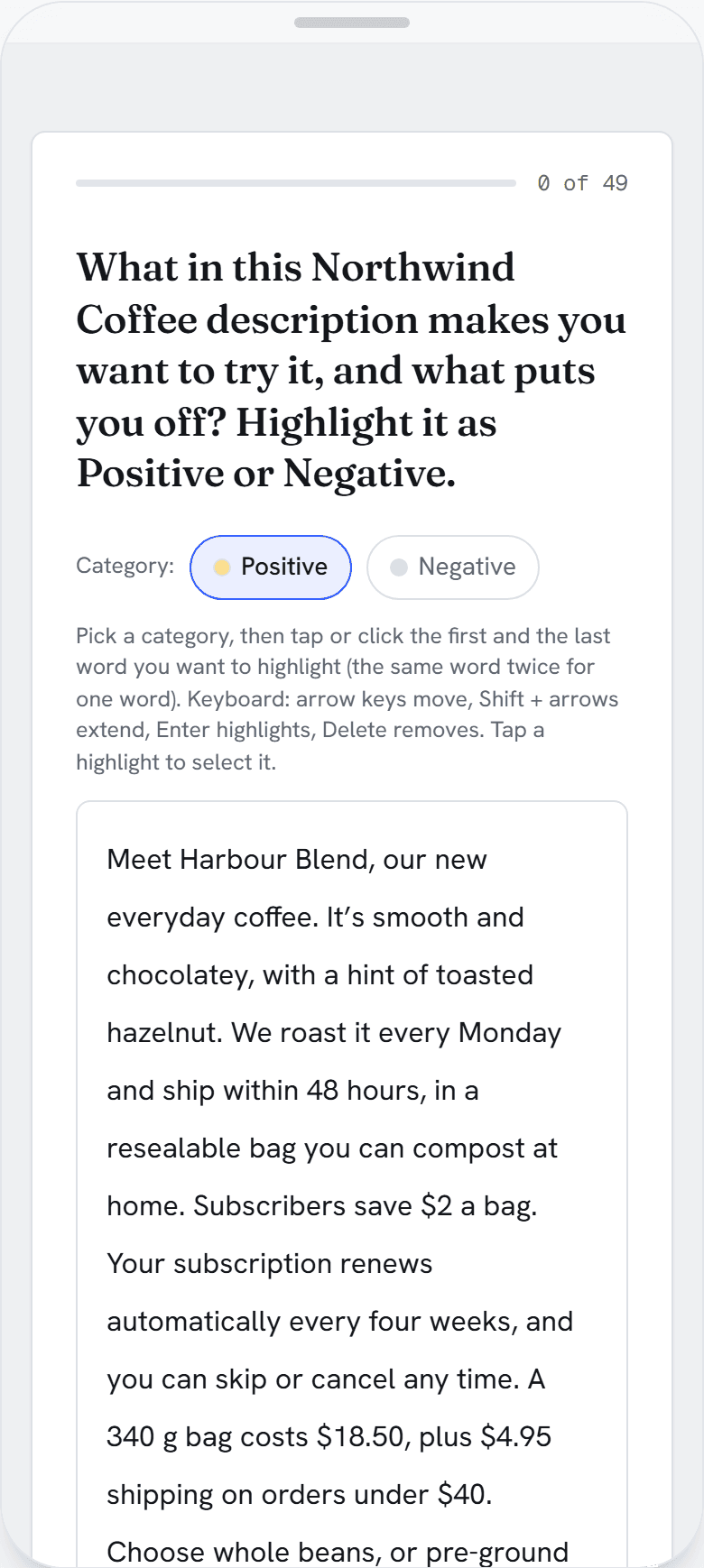
People tap the first and the last word: no text selection, no handles to drag, and the passage wraps to the screen with nothing scrolling sideways. Checked with touch on emulated iPhone and Android screens.
The category buttons, the highlights list and the buttons follow your survey’s theme and dark mode; highlights keep their colours, with dark text on them.
Each word shaded by the share of people who highlighted it, for all categories or one: the darker the word, the more people chose it.
Each category’s share of the people who highlighted something, and its highlights; the base is stated on the card.
The exact stretches highlighted most, up to 10 per category, each as a share of people.
Your team reads the comments with their category and the words they’re on. Clients you share results with see the same shading and shares, and how many comments there are, not the words.
For a very small group of respondents, clients see the category shares without the shading or the phrases.
Weight respondents, and the base, the shares, the shading and the phrases follow the weights.
One cell per person, every highlight as [start-end:Category] and its words, such as [202-227:Positive] "Subscribers save $2 a bag"; [162-200:Positive] "resealable bag you can compost at home"; [349-388:Negative] "plus $4.95 shipping on orders under $40".
With comments on, a second column holds them, numbered to match the highlights, when you tick “Include open-ended answers”.
Each highlight names its category, so the cell reads without a key.
Not part of text highlighter questions yet: a minimum or maximum number of highlights; choosing each category’s colour, or putting several categories on one highlight; text people can’t highlight, or bold and links in the passage; the passage and the question’s own words in other languages; languages written without spaces, such as Chinese, Japanese or Thai, where a whole run of text counts as one word; piping an answer into a later question; a column per category in the export; and text highlighters in crosstabs, on dashboards or in report decks.
Choosing
A text highlighter asks which words in your text people react to. An open-ended question asks them to say it in their own words. An image heatmap asks where on a picture.
Want people to tick the statements they agree with instead? Use a multiple choice question (Free).
Build it
In the builder, choose Text Highlighter from the Interactive group, and write the question, such as “What in this Northwind Coffee description makes you want to try it, and what puts you off? Highlight it as Positive or Negative.” It starts with two categories, Positive and Negative, saved with the question.
Under Text passage, paste the passage people will read: plain text, with your line breaks kept.
Keep Positive and Negative, rename them, or add more under Highlight Categories. People pick a category, then highlight.
Tick Allow a comment per highlight to give each highlight a comment box.
The editor’s preview is the real question: highlight a few words to check how your passage reads. Nothing you do there is saved.
Preview on a phone and a laptop. Settle the passage before the survey goes live. Before your first launch, Surveti checks the question has a passage with words and at least one category.
The data you get
One cell holds a person’s highlights, each with where it sits in your passage, its category and its words. With comments on, a second cell holds their comments, numbered to match.
| respondent_id | Q1 | Q1_comments |
|---|---|---|
| 47762a85-0001-4000-8000-000000000001 | [202-227:Positive] "Subscribers save $2 a bag"; [162-200:Positive] "resealable bag you can compost at home"; [349-388:Negative] "plus $4.95 shipping on orders under $40" | 1 (Positive): Nice saving |
| 47762a85-0002-4000-8000-000000000002 | [298-321:Positive] "skip or cancel any time"; [202-227:Positive] "Subscribers save $2 a bag"; [247-267:Negative] "renews automatically" | (empty) |
| 47762a85-0003-4000-8000-000000000003 | [349-368:Negative] "plus $4.95 shipping" | (empty) |
| 47762a85-0004-4000-8000-000000000004 | [323-347:Negative] "A 340 g bag costs $18.50"; [298-321:Positive] "skip or cancel any time" | (empty) |
| 47762a85-0005-4000-8000-000000000005 | [135-155:Positive] "ship within 48 hours"; [247-267:Negative] "renews automatically" | (empty) |
| 47762a85-0006-4000-8000-000000000006 | [323-347:Negative] "A 340 g bag costs $18.50"; [349-388:Negative] "plus $4.95 shipping on orders under $40" | (empty) |
| 47762a85-0007-4000-8000-000000000007 | [109-155:Positive] "roast it every Monday and ship within 48 hours" | (empty) |
| 47762a85-0008-4000-8000-000000000008 | [349-388:Negative] "plus $4.95 shipping on orders under $40" | 1 (Negative): Should ship free |
Trimmed to the question’s columns, with open-ended answers included. Every export also carries the respondent columns (status, language, timing and more).
Every highlight a person made, in the order they made them, such as [202-227:Positive] "Subscribers save $2 a bag"; [162-200:Positive] "resealable bag you can compost at home"; [349-388:Negative] "plus $4.95 shipping on orders under $40".
The two numbers are where the highlight starts and ends in your passage, counted in characters from 0, so you can line highlights up with the text.
After the colon, the category’s name, such as Positive or Negative, then the highlighted words in quotes.
With comments on, Q1_comments holds them, numbered to match the highlights, when you tick “Include open-ended answers”.
Charts & analysis
Results shades your passage word by word by the share of people who highlighted each word, for every category together or one at a time, and lists the phrases people highlighted most.
What in this Northwind Coffee description makes you want to try it, and what puts you off? Highlight it as Positive or Negative.Results · 200 answers
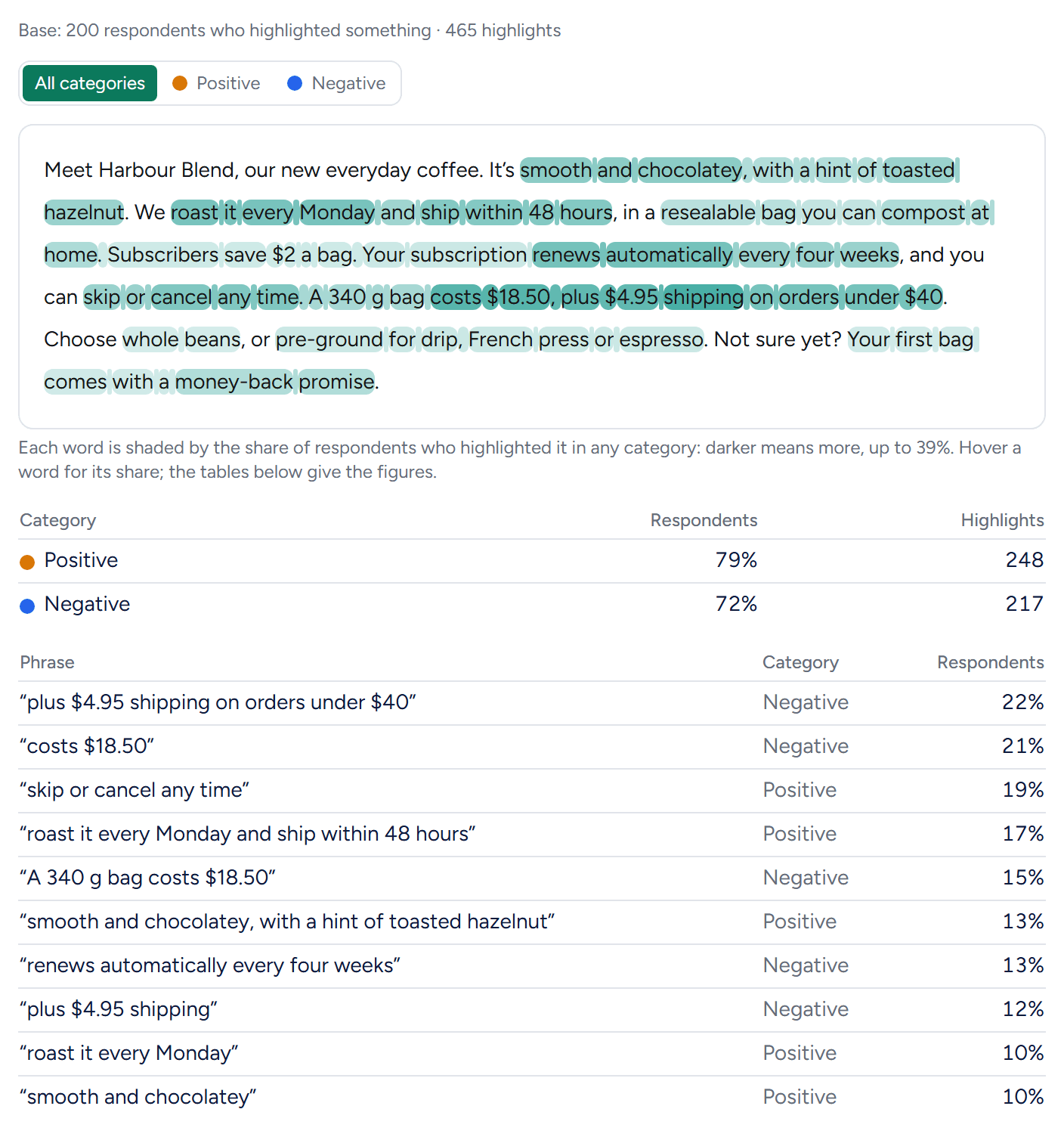
Your passage, each word shaded by the share of people who highlighted it, for all categories or one: the darker the word, the more people chose it.
For each category, the share of people who highlighted something with it, and its highlights, on a base Results states: everyone who highlighted something.
The exact stretches highlighted most, up to 10 per category, each as a share of people.
Your team reads every comment with its category and the words it’s on, filtered with the switcher. Clients you share results with see how many there are, not the words.
Weight respondents, and the base, the shares, the shading and the phrases follow the weights.
How Surveti compares
| Capability | Surveti | Qualtrics | Alchemer | QuestionPro | Conjointly |
|---|---|---|---|---|---|
| Whole-word selection | yesTap the first and last word | yes1Words, or phrases you group | unclear3Pieces of text | yes4Words | unclear5Results count characters |
| Your own categories | yesPositive and Negative to start | yes1With suggested sets | yes3 | yes4Like and Dislike to start | yes5Up to five |
| Choose each category’s colour | noFixed order | yes1 | yes3 | yes4Colour picker | yes5 |
| Several categories on one highlight | no | unclear | yes3Allow Multi-Select | unclear | no5 |
| Minimum or maximum highlights | noUp to 50 | yes1Min and max | partial3Max only | unclear | partial5Min only |
| Comment per highlight | yesUp to 500 characters | unclear | yes3 | yes4 | yes5Length range |
| Touch on a phone | yesTaps, no text selection | unclear | yes3Press and hold | unclear | unclear |
| Passage shaded in results | yesBy share of people | yes2 | yes3 | yes4 | yes5 |
| One category at a time | yesAll categories or one | yes2 | yes3 | yes4 | yes5 |
| Comments in results | yesFor your team | partial1Word clouds, tables | yes3 | yes4 | partial5An AI summary |
| Crosstabs | no | no1 | unclear3Standard Report charts | unclear | partial5Counts of highlights |
| Highlights in the export | partialOne cell, by name | yes1A column per category | yes3A column per option | unclear | unclear |
| On the free or entry plan | paidProfessional+ | unclear | unclear6Some paid accounts | paid4Research Edition | unclear |
Partial means partly built in, or possible through a documented workaround; unclear means the vendor’s public docs don’t settle it. Qualtrics’ is its Highlight question, with its Text Highlights widget in dashboards; Alchemer’s and QuestionPro’s their Text Highlighter; Conjointly’s its text highlighter, with up to five highlight types. Also documented elsewhere: Forsta’s Text Highlighter element is a select question shown over text (its help pages could not be read, so it isn’t compared); SurveyMonkey, Typeform and Jotform document no text highlighter question.
People tap or click the first and the last word they want: no fiddly text selection, and no handles to drag on a phone.
Arrow keys move from word to word, Shift + arrows extend, Enter highlights and Delete removes.
A tap on a highlight selects it; Remove takes it away, and Undo puts it back with its comment.
Switch between all categories and one, and read every word as a share of the people who highlighted something.
Beside the shading, a table of the stretches highlighted most, each as a share of people.
Your team reads the comments by category; clients you share results with see the count.
When to use it
“What in this Northwind Coffee description makes you want to try it, and what puts you off? Highlight it as Positive or Negative.” Categories: Positive, Negative.
Accessibility
The passage is one stop for the Tab key. Arrow keys move from word to word, Shift + arrows extend a selection, Enter or Space highlights it, Escape cancels, and Delete removes a highlight.
Each word says whether it’s highlighted, and in which category, and each highlight you add, select or remove is announced.
Enter in the passage highlights, and Enter in a comment box stays in the box: neither moves the survey on.
The category buttons, the highlights list and the buttons follow your survey’s theme and dark mode; highlights keep their colours, with dark text on them.
Use it in
Solution
Test a product description or a feature list: what draws people in, and what puts them off.
Solution
Test an ad script, a claim or a tagline, word by word.
Solution
Share the shaded passage with clients in the portal, with the comments kept for your team.
Example
“What in this Northwind Coffee description makes you want to try it, and what puts you off? Highlight it as Positive or Negative.” for 200 people, each highlighting Positive and Negative words in a coffee description.
A question that shows a short text and lets people highlight the words they react to, in your categories, such as Positive or Negative. Results shades the passage by how many people highlighted each word. In the builder it’s Text Highlighter, in the Interactive group.
They pick a category from the buttons above the passage, then tap or click the first and the last word they want, in either order, or the same word twice for one word. With a mouse they can also drag across the words. Highlights are whole words and can’t overlap: a stretch that includes highlighted words is refused, with a message. Without a mouse, arrow keys, Shift + arrows and Enter do the same.
A tap or click on a highlight selects it, and never deletes it. Its Remove button, or Delete, takes it away, and Undo puts it back with its comment.
Up to 50. The question is required by default, so at least one highlight goes on the passage before Next; make it optional to let people skip it. A minimum or maximum of your own isn’t a setting yet.
Yes: tick Allow a comment per highlight and each highlight gets a comment box, up to 500 characters. Your team reads the comments in Results with their category and the words they’re on; clients you share results with see how many there are, not the words. The export has a comments column when you include open-ended answers.
Your passage, shaded word by word like a heat map by the share of people who highlighted each word, for all categories or one at a time. Two tables give each category’s share of people and its highlights, and the phrases highlighted most, as a share of people. The base is everyone who highlighted something.
Yes, by category: show a later question to people who highlighted something as Negative, such as asking what would change their mind. Quotas count by category the same way. Rules on which words someone highlighted aren’t part yet.
People tap the first and the last word they want, or the same word twice for one word. Highlighting doesn’t use the phone’s own text selection, so there are no handles to drag, and the passage wraps to the screen with nothing scrolling sideways. We checked it with touch on emulated iPhone and Android screens.
One cell per person with every highlight as [start-end:Category] and its words: where it starts and ends in your passage, counted in characters, and the category’s name. With comments on, a second column holds them, numbered to match, when you include open-ended answers.
Text highlighter questions are on Professional+, with comments, logic and quotas by category, Results, and CSV, Excel and SPSS exports. Weighting is on Research Team.
People write their own answer. Free.
Tagged clicks on one image, as a heat map per tag. Professional+.