LiveFree
A comment box or one line
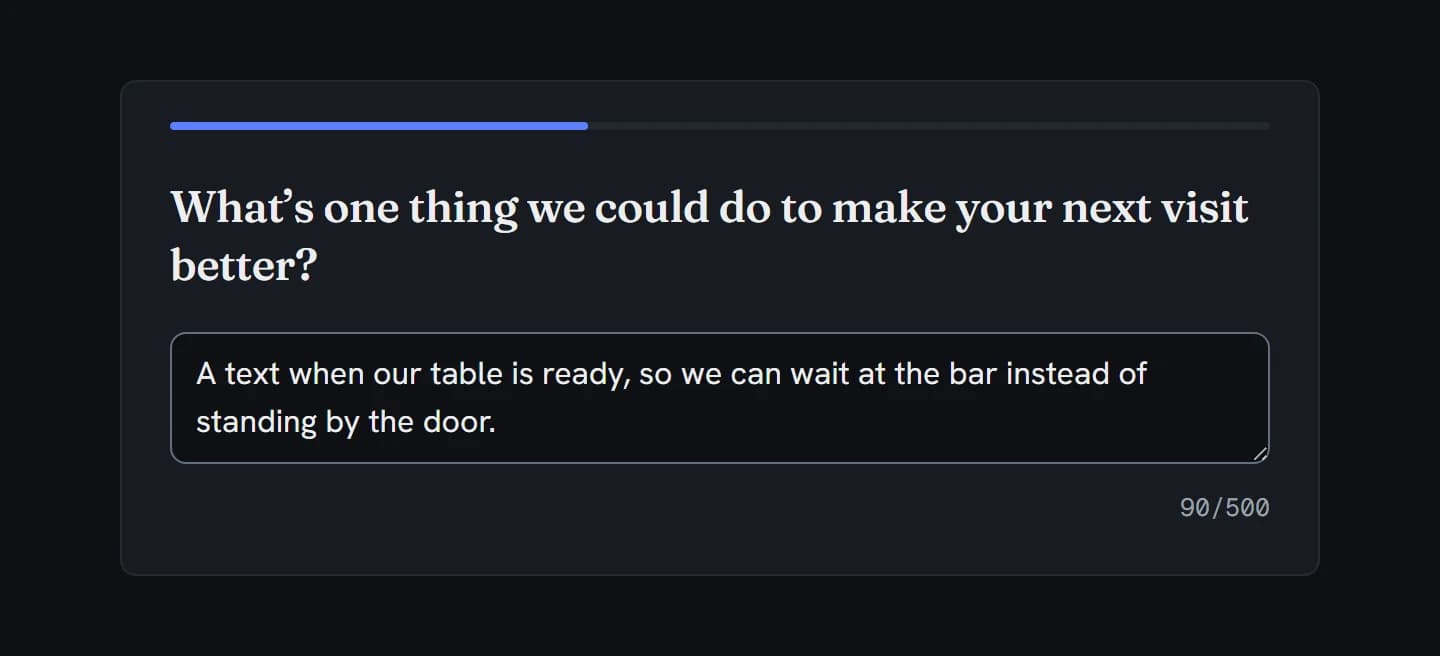
Long answer gives a multi-line box people can drag taller. Turn it off for a single line, for a name or a short reply. The builder preview shows the same box.
Open-ended question · Text
Let people answer in their own words. In the builder it’s Text / Essay: a comment box, a one-line field, or a field checked as a number, email, phone or postal code as they type. Numbers come back with a mean and median, and every answer can go into your export.
Live demo
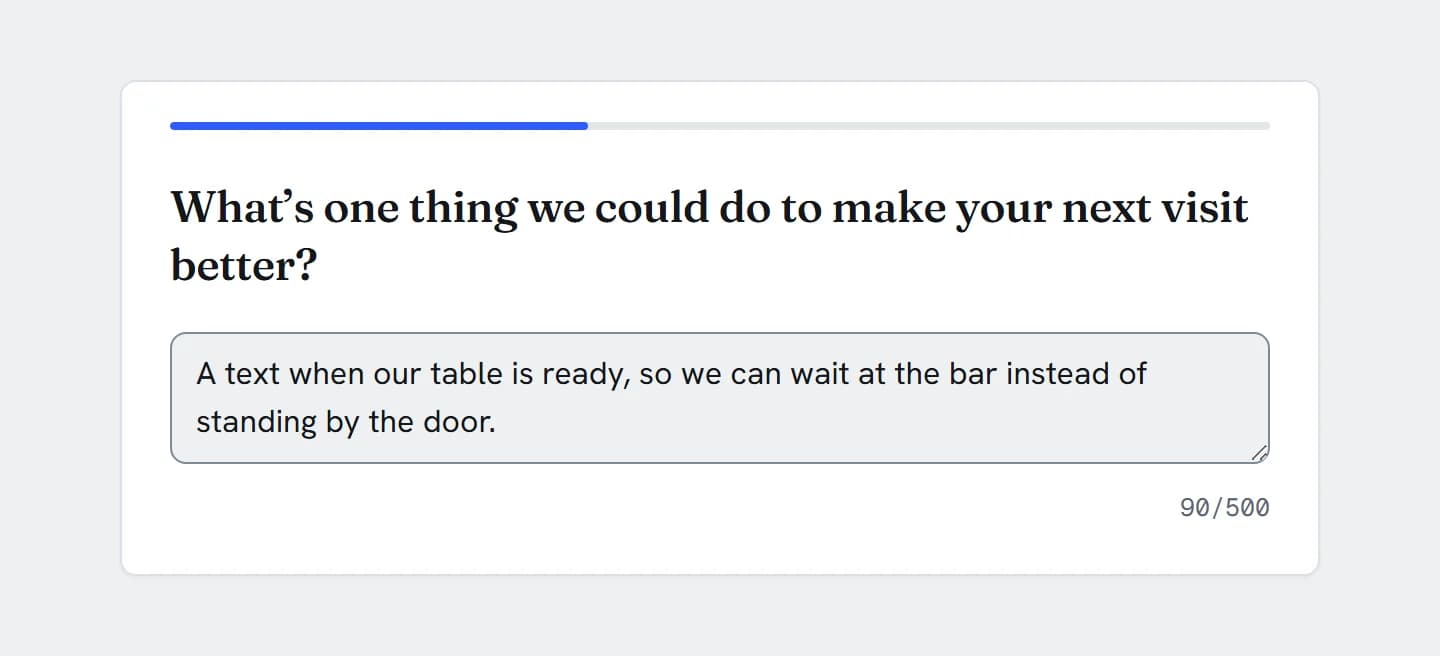
This is the question your respondents get. Type an answer and press Next: the results count you, and you can see the row your answer becomes in the export.
What’s one thing we could do to make your next visit better?
When to use it
“What’s one thing we could do to make your next visit better?”
Every feature
A comment box or a checked field, the right keyboard on a phone, numbers you can average, and answers that stay private until you ask for them.
Long answer gives a multi-line box people can drag taller. Turn it off for a single line, for a name or a short reply. The builder preview shows the same box.
Number, Percent, Currency, Email address, Phone number, Postal / ZIP code, Website URL or US State. Phone and postal formats know the US, Canada, the UK, Australia, New Zealand and the Netherlands.
The same check runs again when the answer is saved.
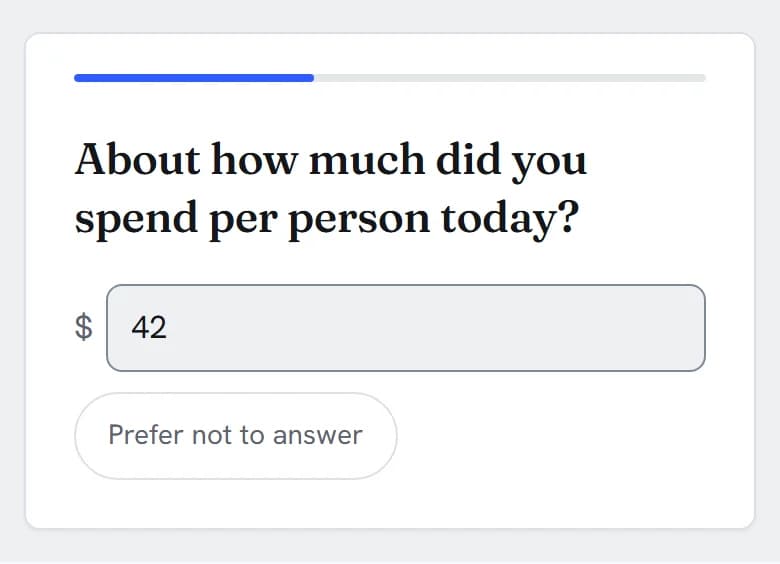
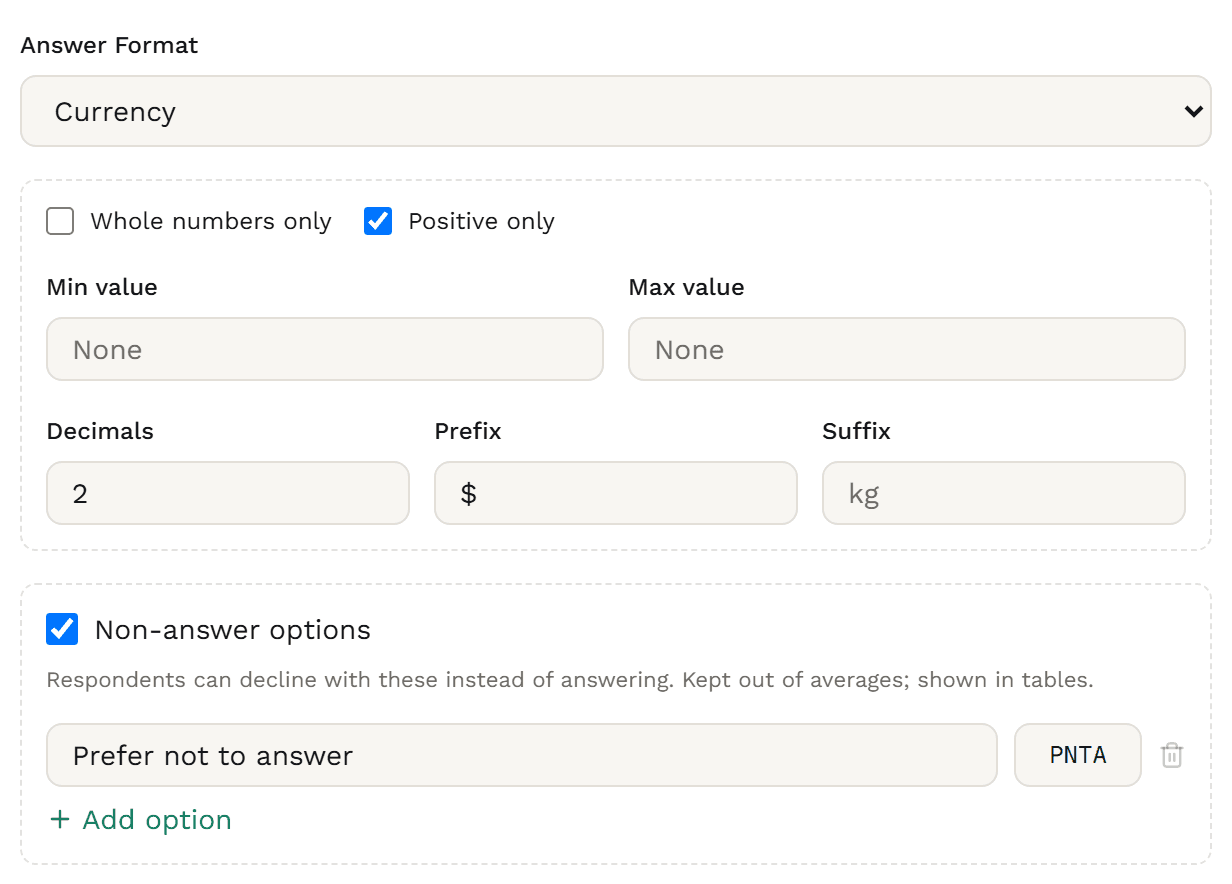
Allow whole numbers only or positive numbers only, set a minimum and maximum, cap the decimals, and show a label such as “$” or “kg” beside the box.
Add a Don’t know or Prefer not to answer pill to a number question. It clears the box and stays out of the mean, and in an export it’s left blank until you tick Include open-ended answers.
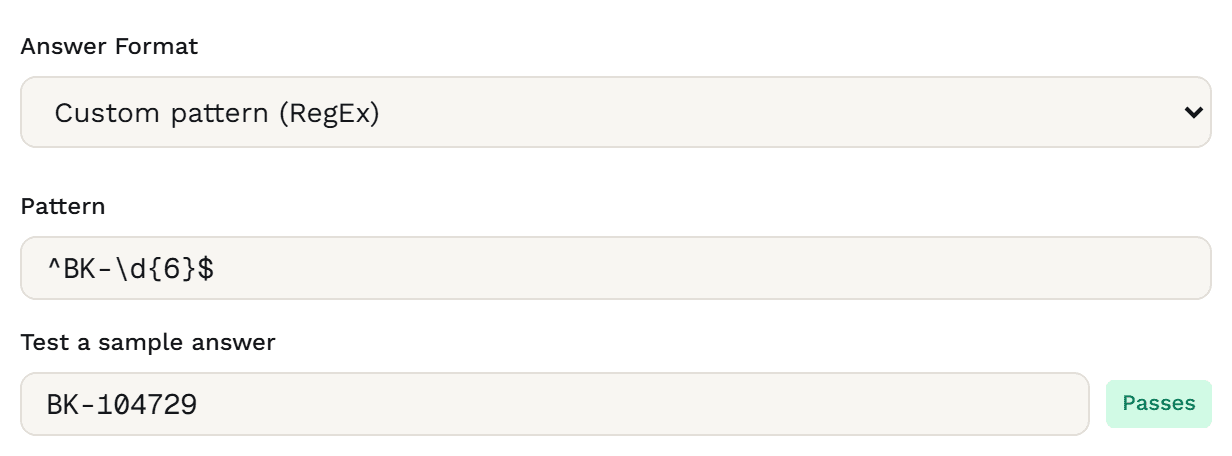
Write a custom pattern for things like order numbers, and test sample answers in the builder. Patterns that are broken, or too slow to run safely, are flagged in the editor.
Set a minimum and a maximum. With a maximum, people see a counter such as 67/500 under the box.
Limits count characters, not words.
Replace the standard message for a format with your own wording, translated per survey language.
A required answer can’t be only spaces. A soft-required one warns once before a skip. An optional one can be left blank.
Write your own placeholder, or keep the standard one in the respondent’s language. Pre-filled text is only saved if the person changes it.
Your placeholder and pre-filled text aren’t translated.
Insert the answer into a later question with ${Q1}, such as “You said the wait. What would make it easier?” Show a follow-up only to people who wrote something.
An OPEN, TEXT or ESSAY row in a sheet, or a Qualtrics Text Entry question, comes in as Text / Essay, with email, number and phone checks kept.
A number keyboard for Number, Percent and Currency, an email keyboard, a phone keypad, a web address keyboard, and a number pad for US ZIP codes. Email, phone and postcode answers can autofill.
The standard placeholder, the format and length messages and the limit announcements come in English, Spanish, French, German, Portuguese and Italian. Or write your own error message.
Every answer is checked again when it’s saved, with the same rules, so a format or limit can’t be skipped.
A screen reader announces the question as the box’s name, along with any help text, instead of the placeholder.
With a maximum set, the box is described as “Up to 500 characters”. Near the limit a screen reader hears it once, and again when the limit is reached, not on every key.
An error is announced and tied to its own box, even with several open questions on one page.
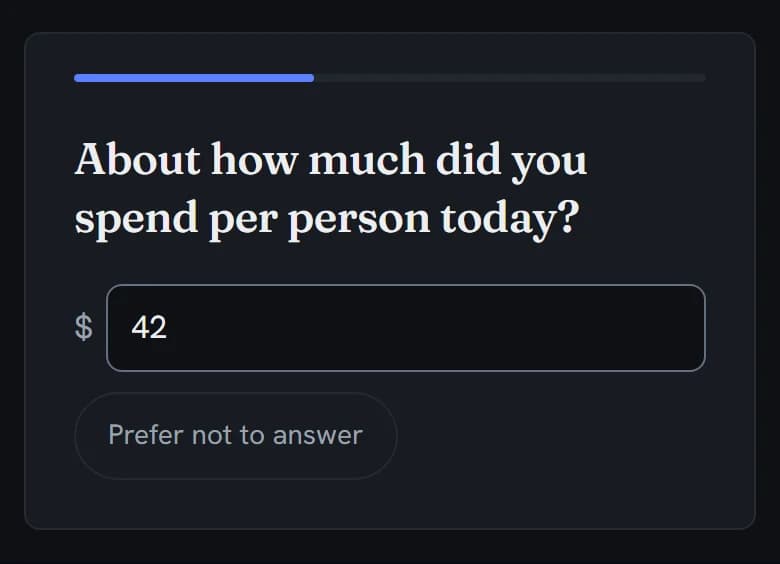
The box is at least 44px tall with a clear focus ring, and follows the survey’s colours, dark mode included.
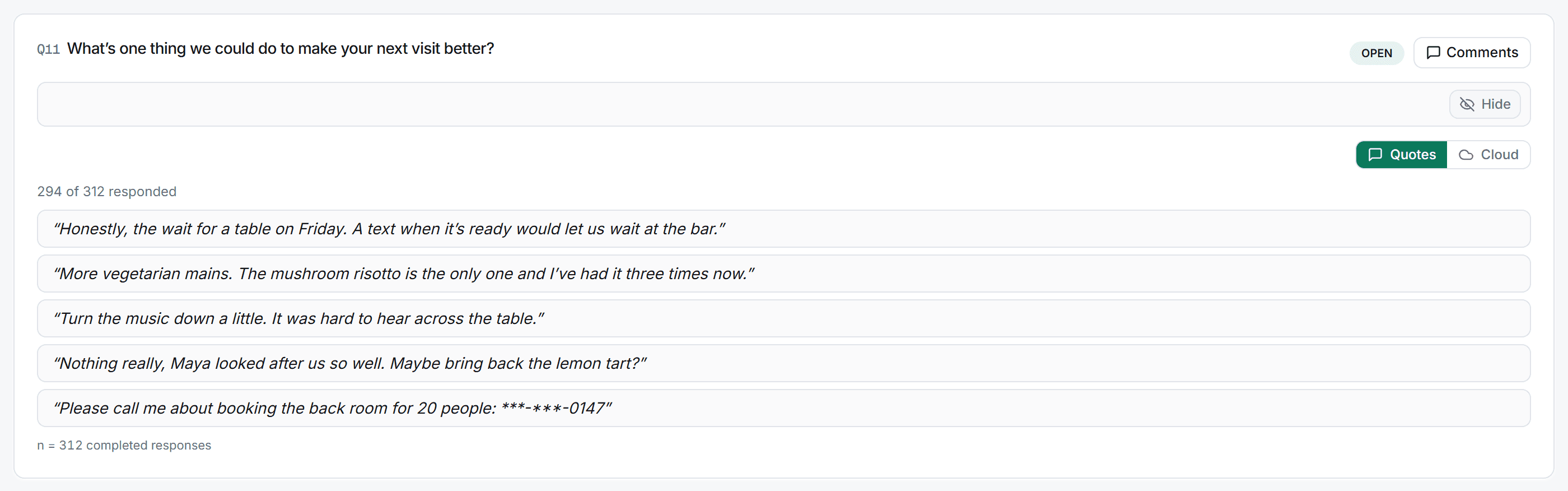
Results shows how many people answered and a sample of five answers, filtered like the rest of Results.
To read every answer, export them.
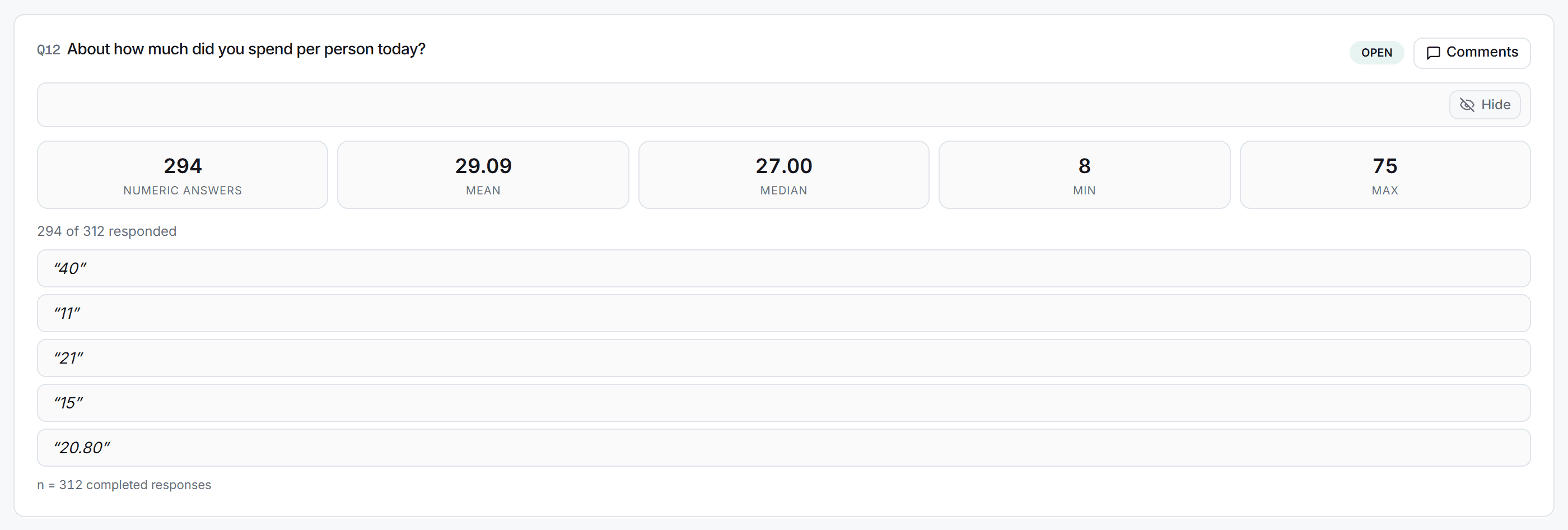
A Number, Percent or Currency question gets the count of numeric answers, the mean, median, min and max beside its answers, weighted when you weight Results (Research Team).
Put it in the rows against any banner: ranges set from the answers, a mean in every column, letters for the differences.
Each number question gets a table of ranges and its mean across your banner, with letters. Written answers aren’t tabulated.
Emails and phone numbers in answers are masked for Analysts and Viewers, such as t***@example.org. Researchers and above see them in full.
Stored answers and data exports are unchanged; reports, decks and portals always mask them.
On by default for plain-text answers. It flags keyboard mashing, one character typed over and over, and the same answer in every open box. “No” is fine, and text in other scripts isn’t called gibberish.
A short answer only counts below your Min Length, or under two characters on a required question. Tick Exclude from fraud & quality checks for a box that isn’t a real open-end.
Each question gets its own column, Q1, Q2 and so on, labelled with the question.
Written answers read [OPEN_ENDED] until you tick Include open-ended answers. Email and phone answers also need Include personal data, and are encrypted when stored.
A Number, Percent or Currency answer is always included: “41.50” arrives as 41.5, a number cell in Excel.
In CSV, an answer that starts with = + - or @ (unless it’s a plain number such as -5) gets a leading apostrophe, so it never runs as a formula.
Written answers become string variables sized to the longest answer, or a width you choose, with a warning for anything cut. A number question becomes a scale variable, until Include open-ended answers brings in an opt-out’s text, which makes it a string.
Not part of the open-ended question yet: word limits, dashboard tiles and report slides, and searching across answers. Read every answer by exporting them.
Build it
In the builder, add a question and choose Text / Essay. Ask about one thing, such as “What’s one thing we could do to make your next visit better?”
Keep Long answer (multi-line essay box) on for a comment box people can drag taller, or turn it off for a single line. The editor’s preview shows the box respondents get.
Leave Answer Format on Plain text, or pick Number, Percent, Currency, Email address, Phone number, Postal / ZIP code, Website URL, US State or a custom pattern. For numbers, tick Whole numbers only or Positive only, set a Min value and Max value, the Decimals and a Prefix such as “$”, and turn on Non-answer options for a Don’t know or Prefer not to answer pill.
Add a Min Length or Max Length in characters (a maximum shows a counter), your own Placeholder Text, and a Custom error message for a format.
In Rules, make it required, soft required or optional. Add pre-filled text if you like: it’s only saved if the person changes it.
Pipe it into a later question with ${Q1}. If the box isn’t a real open-end, such as a reference number or a height typed into a Plain text box, tick Exclude from fraud & quality checks on the Design tab.

The data you get
Each question gets one column. Written answers stay out of your files until you ask for them, and numbers always come through as numbers.
| respondent_id | Q1Comment | Q2Spend |
|---|---|---|
| 47762a85-0001-4000-8000-000000000001 | [OPEN_ENDED] | 40 |
| 47762a85-0002-4000-8000-000000000002 | [OPEN_ENDED] | 11 |
| 47762a85-0003-4000-8000-000000000003 | [OPEN_ENDED] | 21 |
| 47762a85-0004-4000-8000-000000000004 | [OPEN_ENDED] | 15 |
| 47762a85-0005-4000-8000-000000000005 | [OPEN_ENDED] | 20.8 |
| 47762a85-0006-4000-8000-000000000006 | (empty) | 28 |
| 47762a85-0007-4000-8000-000000000007 | [OPEN_ENDED] | 31 |
| 47762a85-0008-4000-8000-000000000008 | [OPEN_ENDED] | (empty) |
Written answers read [OPEN_ENDED] until you tick Include open-ended answers. Spend amounts come through as numbers whatever the boxes say, and the last person’s Prefer not to answer is left blank. Q3 (email) is left out until you tick Include personal data. Trimmed to the three questions; the names under each header are for reading here. Every export also carries the standard respondent columns.
Named Q1, Q2 and so on, and labelled with the question.
Written answers read [OPEN_ENDED] until you tick Include open-ended answers. Email and phone answers also need Include personal data.
A Number, Percent or Currency answer is always included: “41.50” arrives as 41.5 and a number cell in Excel. In SPSS it’s a scale variable, until an opt-out’s text comes in with Include open-ended answers and makes the column text.
Prefer not to answer is never exported as a number. It’s left blank until you tick Include open-ended answers, then comes through as the text PNTA.
In CSV, an answer that starts with = + - or @ (unless it’s a plain number such as -5) gets a leading apostrophe, so a spreadsheet shows it as text and never runs it as a formula.
Weighted exports fill the weight column with each person’s weight. Weighting is on Research Team.
Charts & analysis
Results shows how many people answered and a sample of what they wrote. A number question also gets its mean and median, and you can crosstab it against any banner.
Spend per person, by when they visitedColumn % and the mean, letters at 95% and 99%
Crosstabs · Solo+Letters · Professional+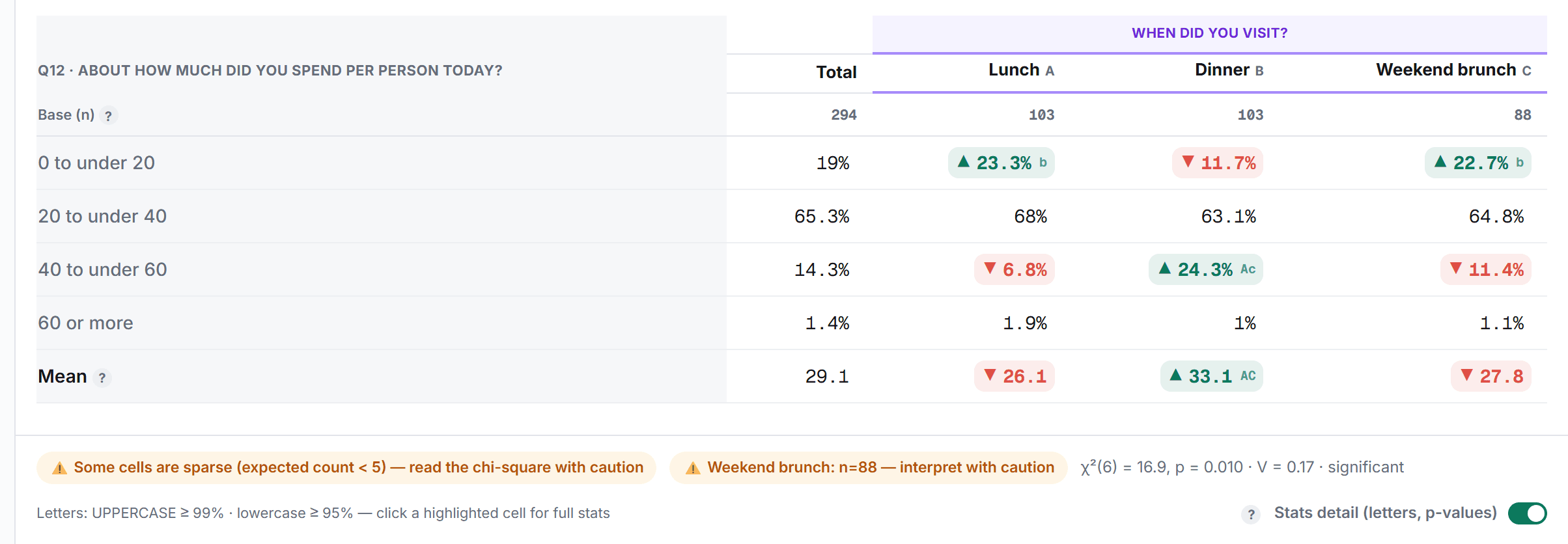
Put a Number, Percent or Currency question in the rows against any banner. It’s split into ranges, with the mean in every column.
CrosstabsLetters mark a mean or a range share that is significantly higher than another column’s, in the same table.
Significance testingEvery number question gets a table of ranges and its mean across your banner, with letters. Written answers aren’t tabulated; they stay in your export.
Weights carry through to the mean and median in Results, and to crosstabs and tab books. Weighted exports fill the weight column.
How Surveti compares
| Capability | Surveti | SurveyMonkey | Qualtrics | Typeform | Alchemer |
|---|---|---|---|---|---|
| Text questions on the free plan (or entry plan) | yesEvery plan | yes16Text box on Basic | yes28Text entry on the free account | unclear44Not re-read for Free | no64No free plan |
| Single-line and multi-line box | yesLong answer on or off | yes1, 2Single Textbox, Comment Box | yes18Single Line, Multiple Lines, Essay | yes32Short Text, Long Text | yes48, 49Textbox, Essay |
| Author-set maximum characters | yesMax Length | partial2, 3Not on Comment Box | yes18Custom validation | yes32, 33max_length | yes48, 49Min and max characters |
| Author-set minimum characters | yesMin Length | partial3A length range, not on Comment Box | partial18, 19Single Line content validation; regex | no34No minimum | yes48, 49Textbox and Essay |
| Word-count limit | noCharacters only | no2No limit on Comment Box | partial20Only with a regex | unclear32Not documented | yes49Min and max words on Essay |
| Email / number / date validation | yesEmail, number, %, currency, phone, postal, URL; dates use the Date type | yes3Numbers, dates, email | partial18Content type, Single Line only | yes32Separate email, number types | yes50Number, email, percent, date |
| Custom-pattern (regex) validation | yesWith a tester in the builder | no3Not offered | partial19Community-documented | partial32API, long text only | yes50Custom and preloaded |
| Placeholder text | yesYours, or a translated default | unclear1, 2Not covered | unclear18Not covered | unclear32Not documented | yes51HTML Placeholder |
| Visible character counter | yesWith Max Length; read out near the limit | no2No counter on Comment Box | unclear18Not covered | unclear32Not documented | unclear49Not covered |
| Gibberish / low-quality text flag | yesOn by default, every plan, plain-text answers | paid10Response Quality, English, US data | partial26Off by default, not for all customers | unclear40, 41Bots only documented | paid58, 65Data Cleaning, English; Full Access |
| Duplicate or copied text flag | partialThe same answer in every open box | partial10Answer copies the question | partial26Duplicate respondents, not text | unclear41Not documented | partial58Placeholder answers such as “test” |
| Export text answers (CSV / Excel) | yesEvery plan; tick Include open-ended answers | paid6, 16No export on Basic | yes18, 28A column per box | yes45CSV or XLSX | yes48, 49A single column |
| SPSS export with text as string variables | paidWith Include open-ended answers ticked, sized to the longest answer · Professional+ | paid11Text handling not described | partial28, 31On free; strings not described | no45No SPSS export | paid59Textbox String(100); Full Access |
| PII detection or masking in text answers | partialEmails and phones masked on screen below Researcher; data exports unchanged | unclear17Covers contact fields, not free text | paid27, 28Sensitive Data Policy, via sales | unclear42, 43Nothing found | partial60, 61A workflow action, one field each |
Partial means partly built in or possible only with a documented workaround; paid means built in on paid tiers or licences only; unclear means the vendor’s docs don’t settle it. Google Forms, QuestionPro and SurveySparrow were also reviewed. Google Forms has Short answer and Paragraph questions; Short answer can check a number, an email, a length or a regular expression, with your own error text.
A Number, Percent or Currency answer gets its mean, median, min and max in Results, ranges and a mean in a crosstab (Solo+), and comes through as a number in CSV and Excel.
A number keyboard for amounts, an @ keyboard for email, a phone keypad, a web keyboard for URLs and a number pad for US ZIP codes, with autofill for email, phone and postcode.
Eight formats and your own pattern with a tester, checked as people type and again when the answer is saved.
Written answers stay out of exports until you ask for them. Email and phone answers are encrypted when stored, and masked on screen for Analysts.
The low-effort check catches keyboard mashing and the same answer given in every open box. Its mashing test leaves other scripts alone, and a short real answer such as “No” passes, unless you set a Min Length, which refuses it when it’s sent.
With Include open-ended answers ticked, written answers arrive in strings sized to the longest one. A number question is a scale variable, until an opt-out’s text comes in and makes it a string. On Professional+.
As few as will do the job. Typing takes effort, so every open box adds drop-off. One or two focused questions, often a “why” after a key rating, usually beat a survey full of text boxes.
Yes. In the builder the type is called Text / Essay. Turn Long answer (multi-line essay box) off and respondents get one line, good for a name or a short reply. Leave it on for a comment box they can drag taller. The builder preview shows the same box.
Yes. Pick Number, Percent, Currency, Email address, Phone number, Postal / ZIP code, Website URL or US State, or write your own pattern and test it in the builder. Phone and postal formats know the US, Canada, the UK, Australia, New Zealand and the Netherlands. You can also set a minimum or maximum length in characters. Answers are checked as people type and again when they’re saved.
Each question gets one column. Written answers show as [OPEN_ENDED] until you tick Include open-ended answers, so they don’t end up in a file by accident. Email and phone answers also need Include personal data. A Number, Percent or Currency answer always comes through, as a number. An opt-out such as Prefer not to answer isn’t a number: it’s left blank until you tick Include open-ended answers, and then comes through as text. In SPSS (Professional+), written answers are strings sized to the longest answer.
Yes, when the format is Number, Percent or Currency. Results shows how many gave a number, with the mean, median, min and max. Crosstabs (Solo+) split it into ranges with a mean in every column, letters mark the differences on Professional+, and tab books (Research Team) give it a table across your whole banner.
On screen, team members below Researcher, such as Analysts and Viewers, see emails and phone numbers in answers masked, like t*@example.org or *-***-0147. Researchers, Admins and Owners see them in full. Reports, decks and portals always mask them. Stored answers and data exports aren’t changed: they follow the Include open-ended answers and Include personal data boxes.
No. “No” or “Price” is a real answer. A short answer only counts against someone when you’ve set a Min Length and they wrote less, or when a required answer is under two characters. The check also looks for keyboard mashing and the same answer given in every open box. It is one of several checks: a respondent is held for review when two of them fail.
The box is named by its question, so a screen reader announces the question, any help text and the limit, such as “Up to 500 characters”. Near the limit it says “Approaching the character limit”, and “Character limit reached” when it’s reached. Errors are linked to the box. The box is at least 44px tall and follows the survey’s light or dark look.
Often paired with: NPS, with an open “why” after the score. For dates, use the Date question.