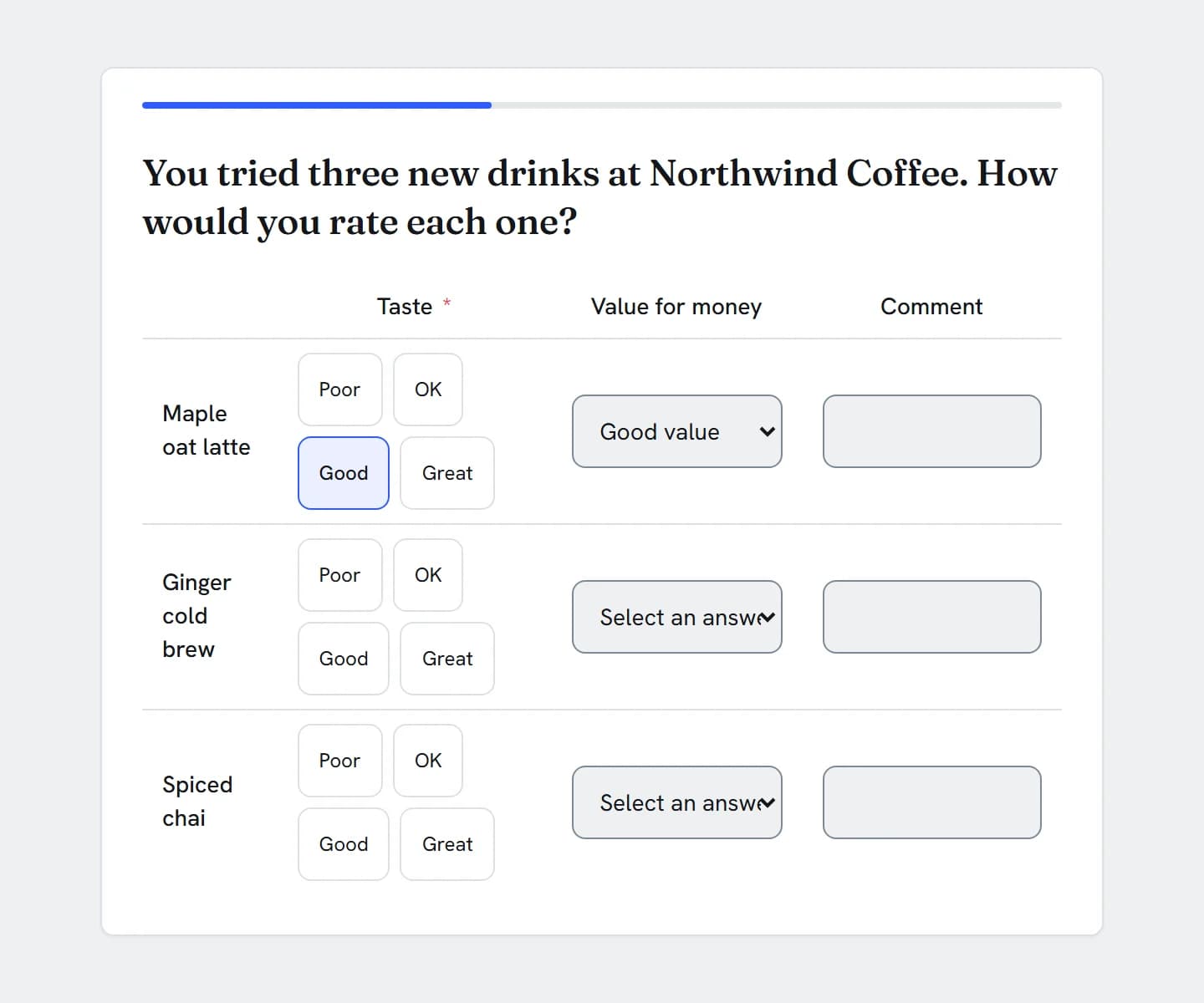
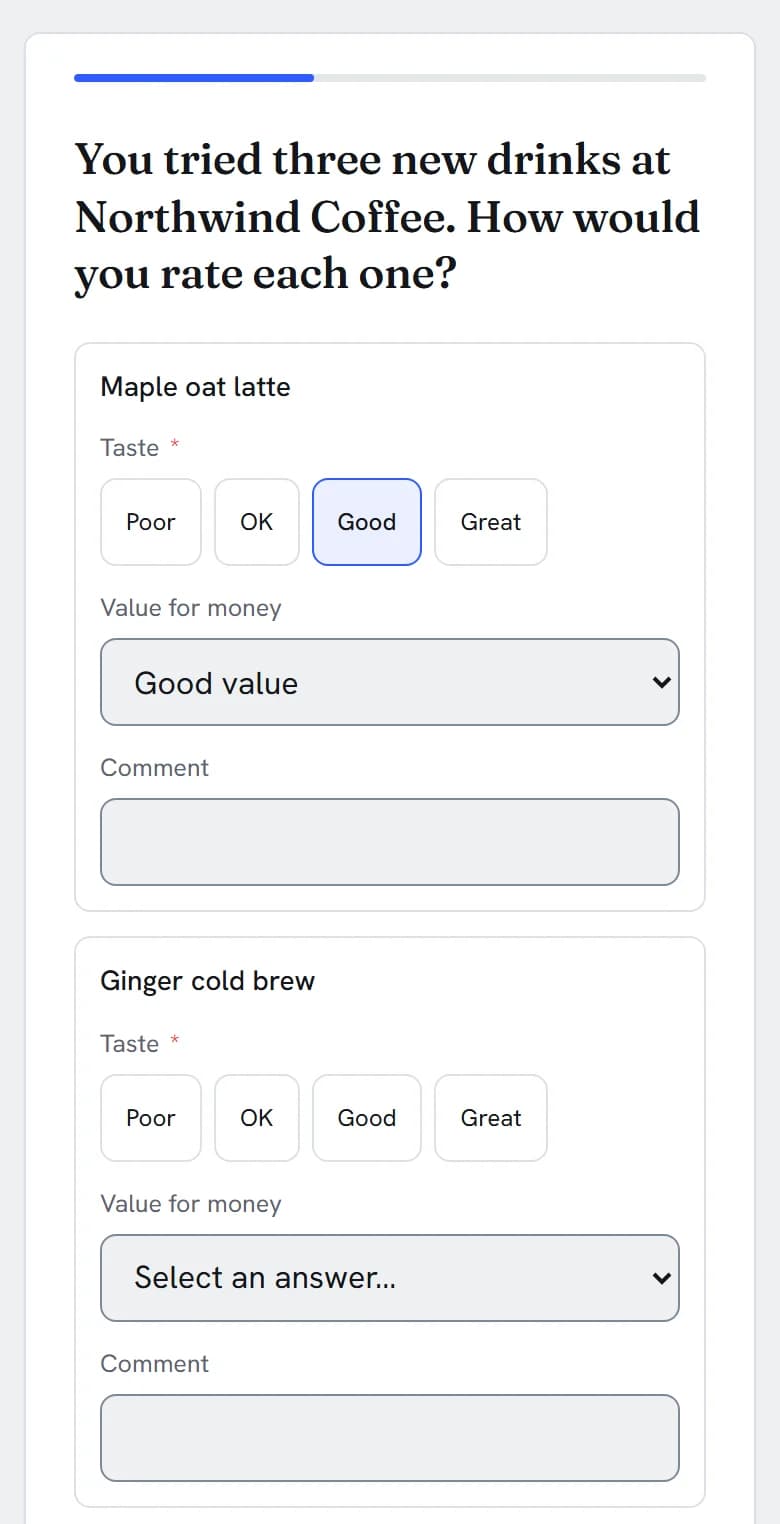
Ask several questions about each item in one table, such as how each new drink tastes, whether it’s good value and a word on why. Each column is its own question: choices to tap, a dropdown or a short comment. Phones get a card per item, and Results gives every column its own table.
Available onProfessional & up
acme.surveti.com/s/tasting
Live demo
Answer for each drink. Your answer joins the results.
This is the question your respondents get. Pick a taste, choose from the dropdown and add a comment if you like. Once Next would let you through, the results beside it count you, and you see the row your answer becomes in the export.
You tried three new drinks at Northwind Coffee. How would you rate each one?
Maple oat latte
Taste *
Value for money
Comment
Ginger cold brew
Taste *
Value for money
Comment
Spiced chai
Taste *
Value for money
Comment
Taste *
Value for money
Comment
Maple oat latte
Ginger cold brew
Spiced chai
Every feature
Everything side-by-side questions can do
Three kinds of column, required answers item by item, items that apply to each person, a card per item on a phone, and a table per column in Results.
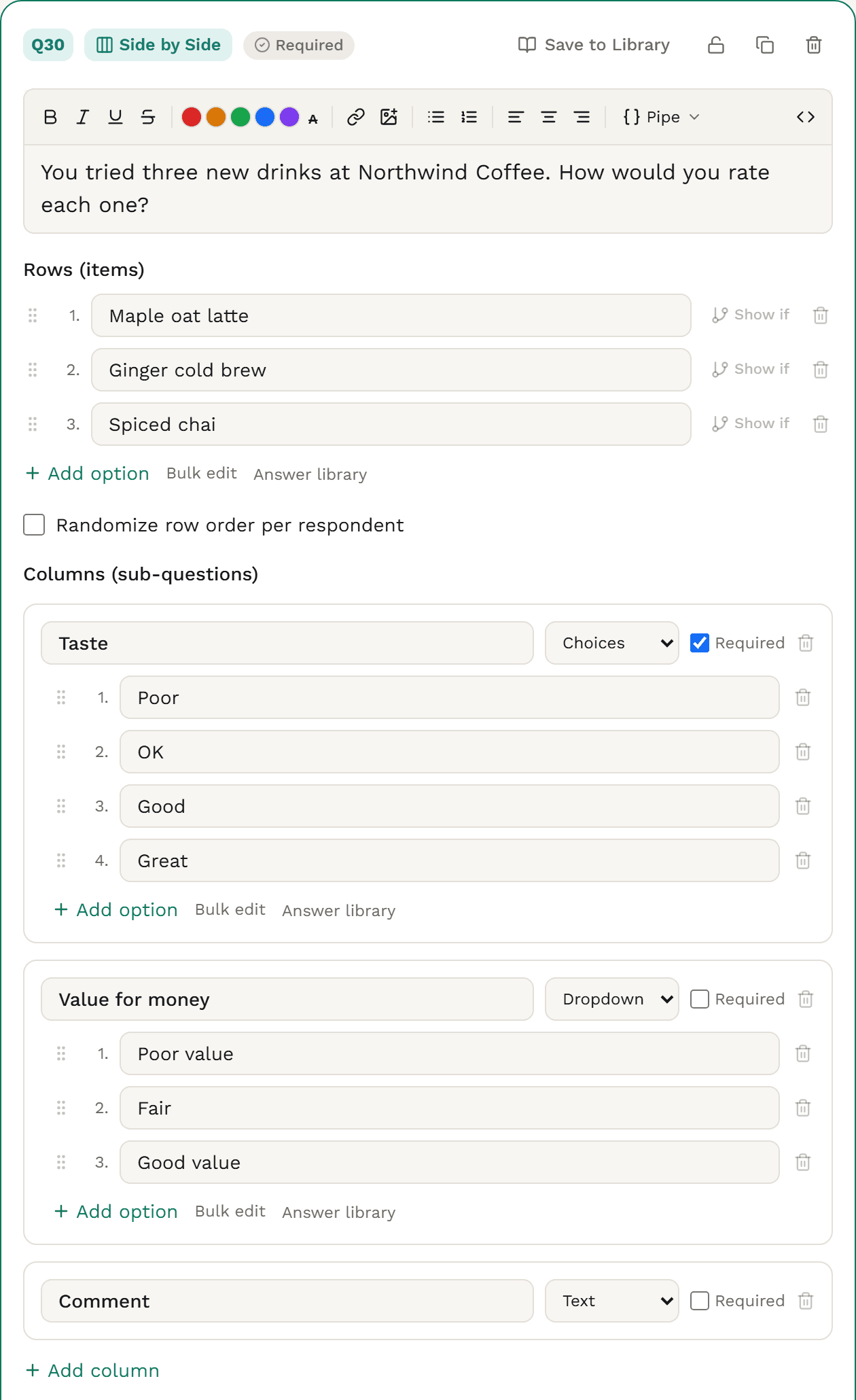
Build it your waySet-up in the builder.
LiveProfessional+
Starts ready to edit
A new Side by Side starts with two items, Product A and Product B, and two columns, Quality and Comments, saved with the question. Before your first launch, Surveti checks every choice and dropdown column has choices and no two columns share an id.
Itemstwo
Columnstwo
KindsChoices, Text
LiveProfessional+
Your items
Write as many items as you need, at least one, and put them in any order.
LiveProfessional+
Three kinds of column
Each column is its own question about every item: choices people tap, a dropdown, or a one-line comment, each with its own list.
One pick per column: several picks, numbers and dates aren’t column kinds yet.
LiveProfessional+
Shuffled items
Show the items in a different order to each person, kept if they go Back or come back later.
Required answers and show-ifWho answers what.
LiveProfessional+
Required by default
Every item shown needs at least one answer. Or make the question optional.
Next tells people which items are still to answer.
LiveProfessional+
Required columns
Tick Required on a column, such as Taste here, and every item shown needs an answer in it.
LiveProfessional+
Items that apply to each person
Give any item its own show-if rule, such as showing Ginger cold brew only to people who tried it, and people it doesn’t apply to never see it.
Items hidden by a show-if rule are never required.
LiveProfessional+
Translated with your survey
Items, column labels and choices translate with your survey, and the dropdown’s “Select an answer…” and Next’s messages follow each respondent’s language.
On the respondent’s screenWhat people answering see and use.
LiveProfessional+
Tap a chip
Tap a chip to pick an answer, and tap it again to clear it.
LiveProfessional+
Dropdowns and comments
A dropdown column is your browser’s own list, starting at “Select an answer…”, and a text column is a one-line box for a short comment.
LiveProfessional+
A card per item on a phone
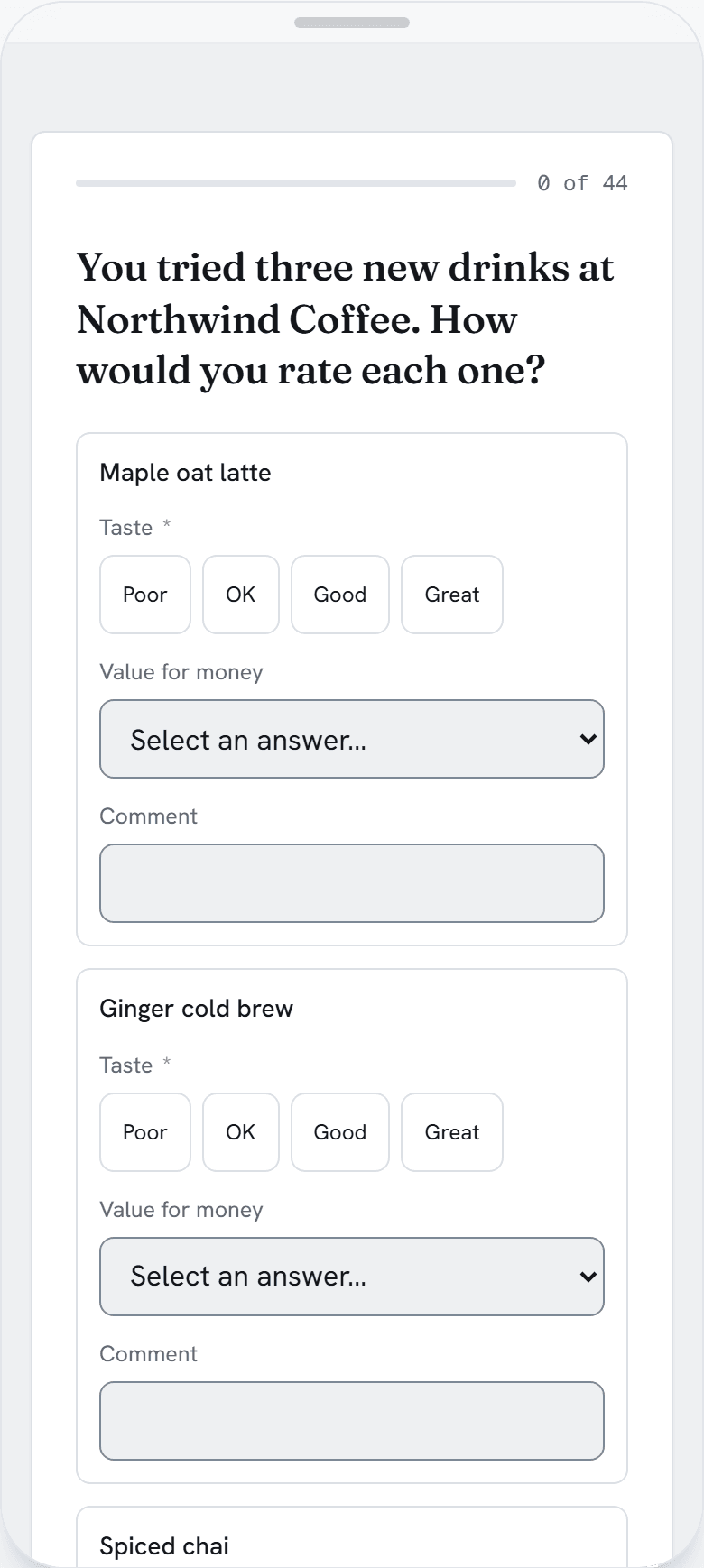
On a phone each item becomes a card with every column inside it, so nothing scrolls sideways. On a wider screen it’s a table, items down the side and columns across.
LiveProfessional+
By keyboard
Each choice is a button: Tab to it and press Space or Enter to pick it, and again to clear it. Every control is named after its item and column.
LiveProfessional+
Your theme, light or dark
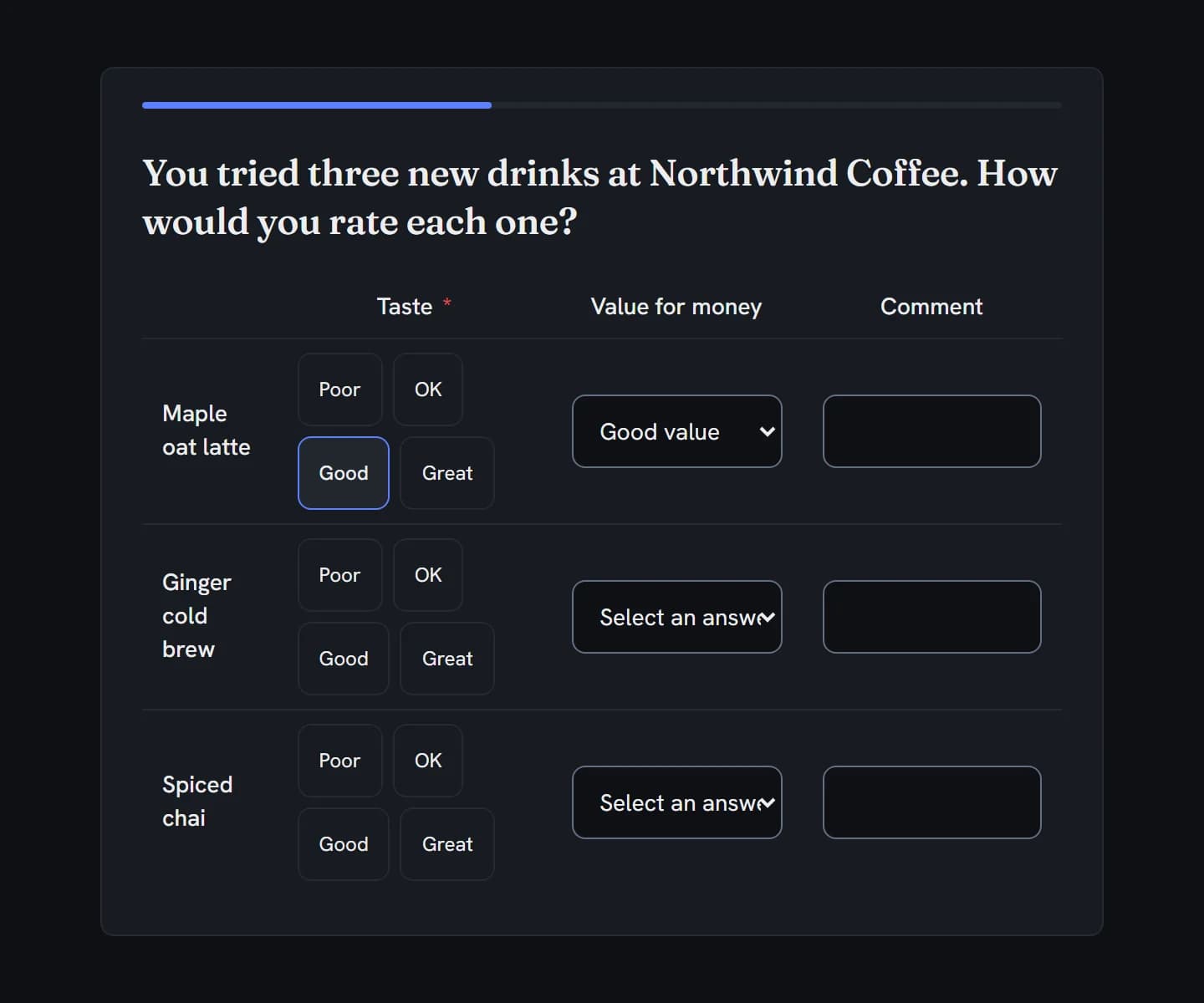
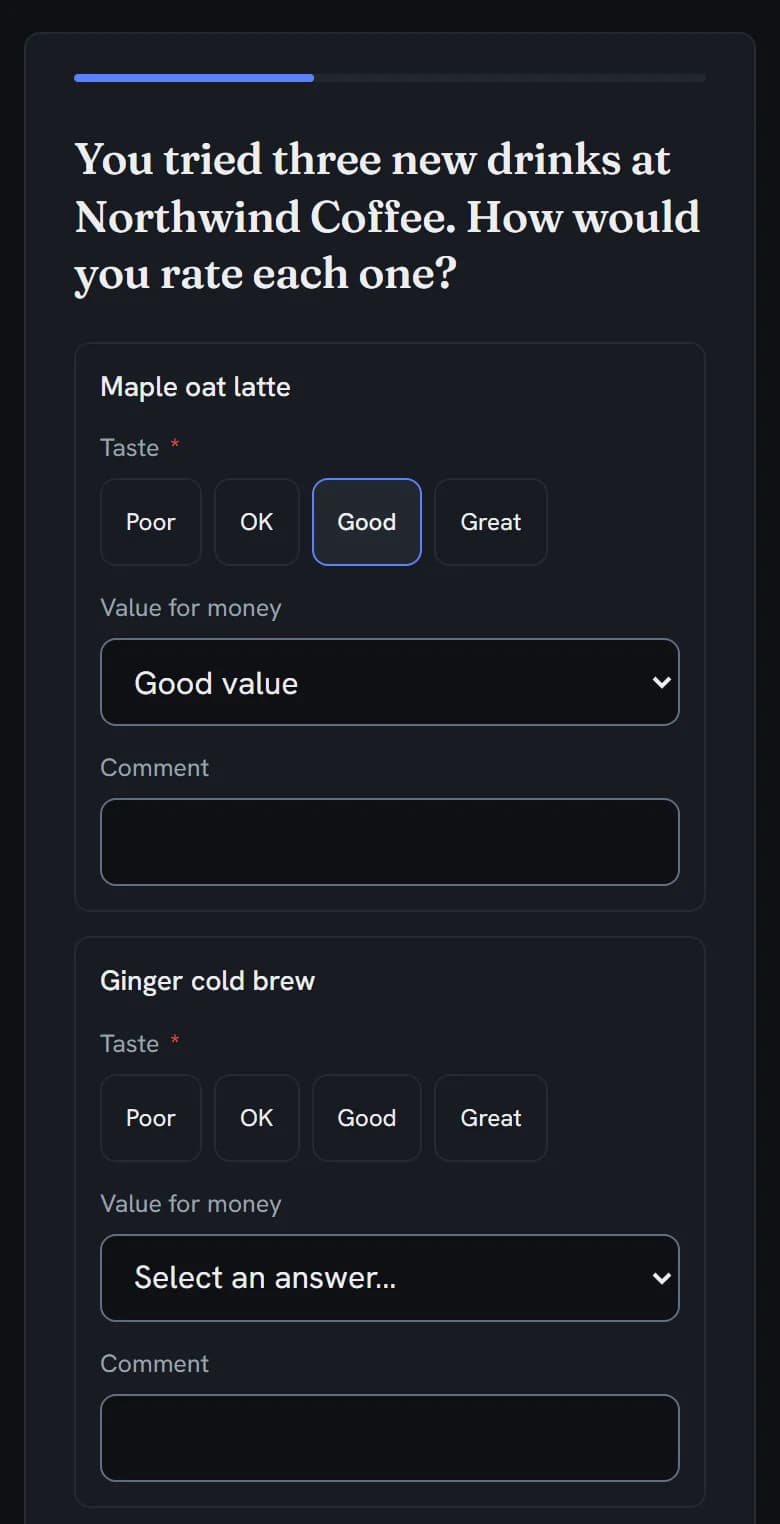
Chips, dropdowns and text boxes follow your survey’s theme and dark mode.
In your resultsResults, the client portal and weighting.
LiveProfessional+
One table per column
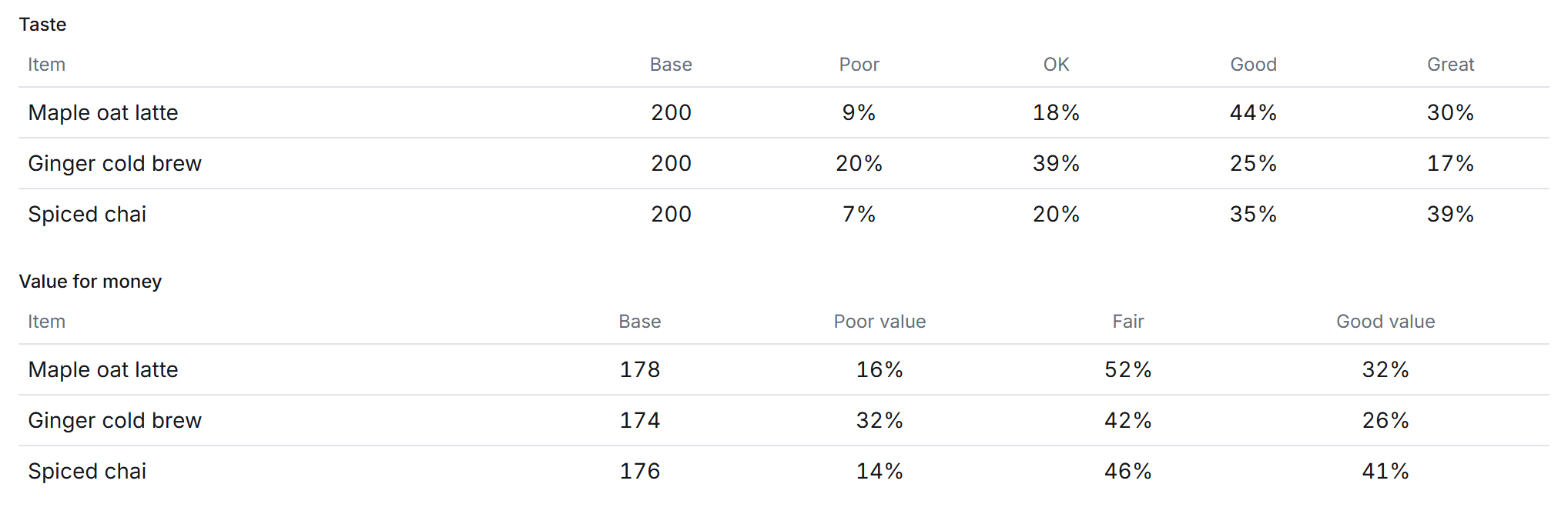
Results shows one table per column. For a choice or dropdown column, each item’s base and the share for each choice; for a text column, how many people typed something for each item.
LiveProfessional+
Comments stay with your team
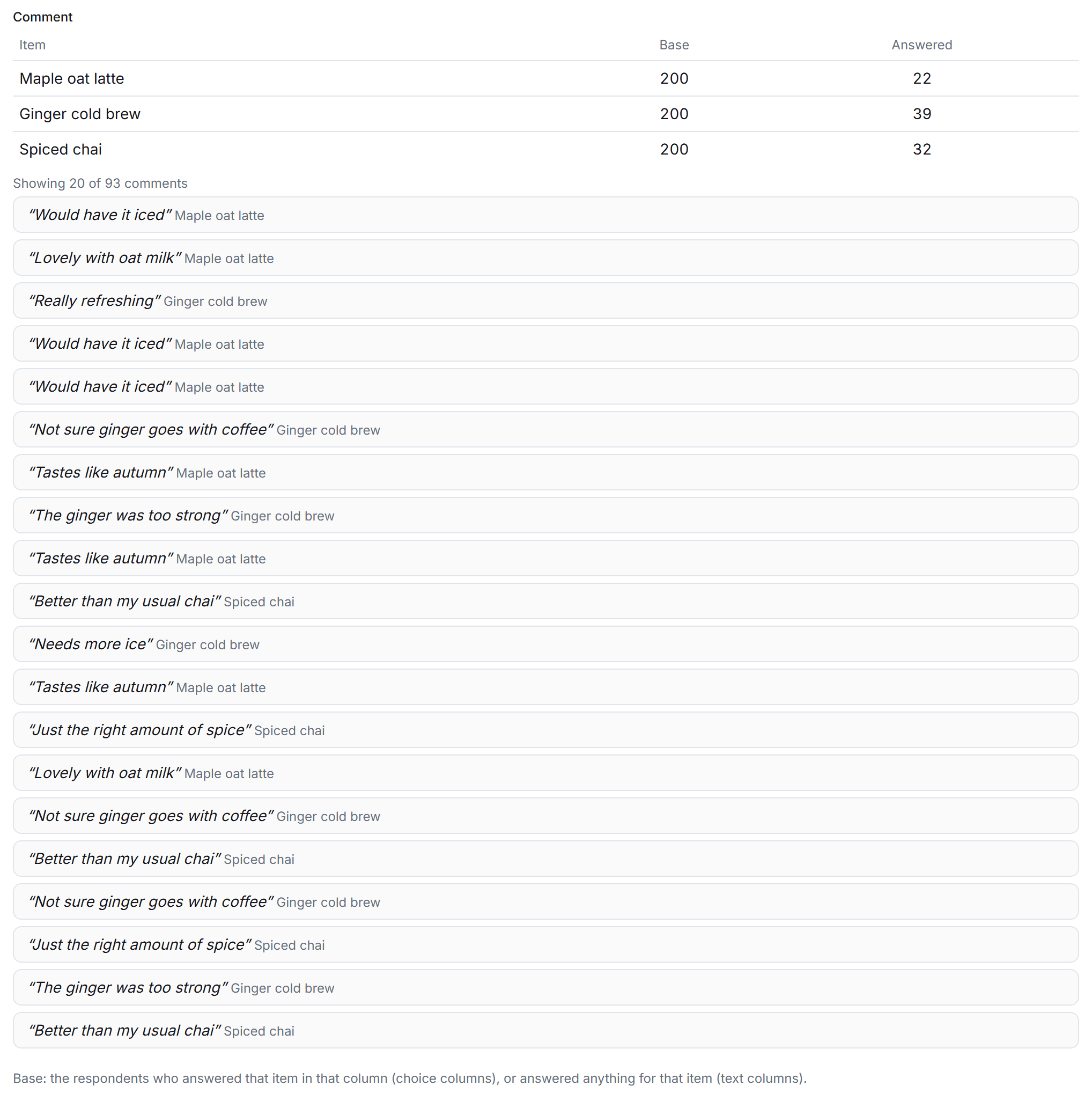
Results lists each text column’s comments, up to twenty, under its count. Clients you share results with see the counts only, and exports leave the comments out unless you tick Include open-ended answers.
Researchers and above see the comments as typed; Analysts and Viewers see them with contact details masked.
LiveResearch Team
Weighted results
Weight respondents, and each column’s bases and shares follow the weights.
In your dataWhat lands in your exports.
LiveProfessional+
One column per item and column
Columns are named by position, Q1_1_1 to Q1_3_3, each labelled with your question, the item and the column.
LiveProfessional+
Codes and comments
A choice or dropdown cell holds its code, such as 3; a comment cell holds what was typed, once you tick Include open-ended answers; an empty column is a blank cell.
LiveProfessional+
SPSS with value labels
SPSS gets choice and dropdown columns with value labels, so you read Good, not 3, and comments as text.
Not part of side-by-side questions yet: several picks, a number or a date in a column; checks on what people type, such as a minimum length; an N/A column; rules on one item’s answer in one column; piping an answer into a later question; and side-by-side questions in crosstabs, on dashboards or in report decks.
Choosing
Side by side, matrix or custom table?
A side-by-side question asks a few different questions about each item. A matrix asks one question about each item on columns they all share. A custom table adds other kinds of column.
Side by Side · Professional+
Use a side-by-side question when
Each item needs a few different questions, each with its own answers: choices, a dropdown or a short comment.
You want a table per column in Results, and a card per item on a phone.
Grid (single) · Free
Use a matrix when
Every item is rated on the same set of columns, one pick per row.
For a rating grid: a mean and Top-2 per statement, crosstabs, and a Top-2 bar per statement in report decks.
Custom Table · Research Team
Use a custom table when
A column needs several picks, a scale or a date.
Rating several statements with stars instead? Use a star rating grid.
Build it
Add a side-by-side question
1
Add the question
In the builder, choose Side by Side (“Multiple scales per row”) from the Matrix group, and write the question, such as “You tried three new drinks at Northwind Coffee. How would you rate each one?” It starts with two items, Product A and Product B, and two columns, Quality and Comments, saved with the question, ready to rename.
2
Write the items
Edit the Rows (items): the things people answer about, such as products, places or features.
3
Set up each column
Under Columns (sub-questions), give each column a label, choose Choices, Dropdown or Text, and write its choices. Use Add column for another.
4
Make a column required, if it matters
Tick Required on a column, and every item shown needs an answer in it.
5
Shuffle the items or hide some
Tick Randomize row order per respondent to show the items in a different order to each person, and give an item a show-if rule to show it only to the people it applies to.
6
Preview, then launch
A side-by-side question is required by default: every item shown needs at least one answer. Preview on a phone and a laptop. Settle the columns and their choices before the survey goes live. Before your first launch, Surveti checks every choice and dropdown column has choices and no two columns share an id.
EditorItems, columns and their kinds in one place.
Phone previewThe same question at a phone’s width: a card per item.
The data you get
One column per item and column
Every item’s answer in every column gets its own column, labelled with the item and the column.
respondent_id
Q1_1_1
Q1_1_2
Q1_1_3
Q1_2_1
Q1_2_2
Q1_2_3
Q1_3_1
Q1_3_2
Q1_3_3
47762a85-0001-4000-8000-000000000001
3
3
(empty)
2
1
(empty)
2
2
(empty)
47762a85-0002-4000-8000-000000000002
1
3
(empty)
3
1
(empty)
2
3
(empty)
47762a85-0003-4000-8000-000000000003
3
2
(empty)
1
3
(empty)
3
2
(empty)
47762a85-0004-4000-8000-000000000004
3
3
Would have it iced
2
2
(empty)
1
1
(empty)
47762a85-0005-4000-8000-000000000005
3
1
Lovely with oat milk
3
3
Really refreshing
4
3
(empty)
47762a85-0006-4000-8000-000000000006
4
2
(empty)
2
3
(empty)
3
2
(empty)
47762a85-0007-4000-8000-000000000007
3
2
Would have it iced
1
2
(empty)
4
3
(empty)
47762a85-0008-4000-8000-000000000008
3
(empty)
(empty)
4
1
(empty)
3
2
(empty)
Trimmed to the question’s columns. Every export also carries the respondent columns (status, language, timing and more). Comments are written when you tick Include open-ended answers; otherwise each reads [OPEN_ENDED].
One column per item and column
Columns are named by position, Q1_1_1 to Q1_3_3, so rewording an item or a column never renames it.
Codes, labelled in SPSS
A choice or dropdown cell holds its code, such as 3. SPSS and the Excel Value Labels sheet name each code.
Comments as typed
A comment cell holds what was typed, such as “Would have it iced”, once you tick Include open-ended answers.
Blank when not answered
A column someone left empty for an item is an empty cell.
Charts & analysis
A table for every column
Results shows each column as its own table: the share for each choice, item by item, and how many people commented on each item, with the comments for your team.
You tried three new drinks at Northwind Coffee. How would you rate each one?Results · as your team sees it · 200 answers
Items down the side of every table. Taste and Value for money show the share for each choice.
ResultsComment shows how many people commented on each item, then the comments. Clients see the counts without the comments.
Where it charts
ResultsOne table per column
Client portalCounts, never the comments
ExportsOne column per item and column
CrosstabsNot yet
Tab booksNot yet
DashboardNot yet
Report deckNot yet
Analysis that applies
One table per column
Professional+
Results shows one table per column. For a choice or dropdown column, each item’s base (who answered that column for it) and the share for each choice; for a text column, how many people typed something for each item.
Comments for your team
Professional+
Results lists each text column’s comments, up to twenty, under its count. Researchers and above see them as typed; Analysts and Viewers see them with contact details masked. Clients you share results with see the counts only.
Weighted to your population
Research Team
Weight respondents, and each column’s bases and shares follow the weights.
Export for your own analysis
Professional+
One column per item and column, for your own crosstabs and charts in the tool you already use.
How Surveti compares
Side-by-side questions across survey tools
Side by Side capabilities in Surveti, Qualtrics, QuestionPro, Alchemer, SurveyMonkey and Jotform, as of 18 November 2026
As of 18 Nov 2026, from each vendor’s public help, pricing and product pages.yespartialpaidunclearnon/a
Partial means partly built in, or possible through a documented workaround; unclear means the vendor’s public docs don’t settle it; n/a means the setting doesn’t apply to that product. Qualtrics’ is its Side by Side question, QuestionPro’s its Flex Matrix (its Side-by-Side Matrix shares one scale), Alchemer’s its Custom Table, SurveyMonkey’s its Matrix of Dropdown Menus and Jotform’s its Input Table with multi-type columns. Also documented elsewhere: SurveySparrow’s Matrix Grid sets one answer type for the whole question, Typeform’s Matrix and Google Forms’ grids share one set of answers across every row, and Forsta documents no question type that mixes answer types by column.
Choices to tap, a dropdown or a short comment in each column, each with its own list.
A card per item on a phone
On a phone each item becomes a card with every column inside it, so nothing scrolls sideways.
Required, item by item
Every item shown needs an answer, or every item needs a column you mark Required, and Next says which items are left.
Items that apply to each person
Give an item a show-if rule, and people it doesn’t apply to never see it or need to answer it.
Comments stay with your team
Your team reads the comments in Results; clients you share results with see the counts.
SPSS with value labels
Choice and dropdown columns arrive in SPSS with their labels, ready to tabulate.
When to use it
Use it when each item needs a few different questions
When to use it
Rating several products or options on more than one measure, such as taste and value.
You want a short comment beside each rating, on the same row.
Comparing a few items, each on the same handful of questions.
Some items apply just to some people, such as the products each person has used.
When to reach for something else
Every item is rated on the same columns, and you want a Top-2 bar in report decks. Use a matrix.
You just want each item rated with stars. Use a star rating grid.
A column needs several picks, a scale or a date. Use a custom table.
You need to crosstab the answers by another question today. Ask each column as its own question.
Sample wording
“You tried three new drinks at Northwind Coffee. How would you rate each one?” Items: Maple oat latte, Ginger cold brew, Spiced chai. Columns: Taste (Poor, OK, Good, Great; required), Value for money (a dropdown: Poor value, Fair, Good value), Comment (a short comment).
Best practices
Keep it to three or four columns: a long table scrolls sideways on a narrow laptop window.
Keep the items few, so each card stays short on a phone.
Mark Required just the column that matters, and leave comments optional.
Give every column a short label: it heads the column, names each card’s control on a phone and labels the export.
Use a dropdown for a long list, and chips for a few choices people can see at a glance.
Settle the columns and their choices before the survey goes live. Changing a column’s choices or kind later asks you to confirm, because answers already given could read differently.
Accessibility
Every control is named after its item and column
A button per choice
Each choice is a button: Tab to it and press Space or Enter to pick it, and again to clear it.
Named for its row and column
Every control is named after its item and column, such as “Maple oat latte – Taste”.
Familiar controls
A dropdown is your browser’s own, and a comment is a one-line text box.
More than colour
A chosen chip is shaded, outlined and set in bolder text, and every control shows a focus ring.
“You tried three new drinks at Northwind Coffee. How would you rate each one?” for 200 people, answering three columns, Taste, Value for money and a Comment, for each of three drinks.
Frequently asked questions
What is a side-by-side question?
A table that asks a few different questions about each item, one per column, such as how a drink tastes and whether it’s good value. In the builder it’s Side by Side (“Multiple scales per row”), one question in your survey.
What kinds of column can I use?
Three: Choices (chips people tap, one pick), Dropdown (one pick from a list) and Text (a one-line comment). Each column has its own choices. Several picks, numbers and dates aren’t column kinds yet.
What does “required” mean here?
A side-by-side question is required by default: every item shown needs at least one answer. Tick Required on a column, and every item shown needs that column too. Next tells people which items are still to answer.
Can I hide an item from some people?
Yes. Give the item a show-if rule, such as showing Ginger cold brew only to people who tried it. People it doesn’t apply to never see it, and it’s never required of them.
Who sees the comments?
Your team. Results lists each text column’s comments, up to twenty, under its count: Researchers and above see them as typed, and Analysts and Viewers with contact details masked. Clients you share results with see the counts only, and exports leave the comments out unless you tick Include open-ended answers.
What does Results show?
One table per column. For a choice or dropdown column, each item’s base (who answered that column for it) and the share for each choice; for a text column, how many people typed something for each item, and for your team the comments.
How does it work on a phone?
Each item becomes a card, with every column’s label and answer inside it, so nothing scrolls sideways. On a wider screen it’s a table, items down the side and columns across.
What does the export look like?
One column per item and column, labelled with your question, the item and the column. Choice and dropdown cells hold their codes, labelled in SPSS and in Excel’s Value Labels sheet, and comment cells hold what was typed, in CSV, Excel and SPSS.
Which plan do I need?
Side-by-side questions are on Professional+, with required columns, show-if on items, Results, and CSV, Excel and SPSS exports. Weighting is on Research Team.