Survey Builder
Setting Up Skip Logic to Route Respondents
Route respondents past irrelevant questions with skip logic — jump to a later question or straight to the end based on an answer.
Overview
Route respondents past irrelevant questions with skip logic — jump to a later question or straight to the end based on an answer. Skip rules live on the question whose answer triggers the jump.
Step-by-step
Select the trigger question — click the question whose answer decides the route, open Settings, and switch to the Logic tab.
Add a rule under Skip Logic — click + Add Skip Rule and fill in the three parts: If answer to (this question) / Operator (Equals, etc.) / Value, then Then skip to — a later question, END (complete survey), or TERMINATE (screen out — disqualify).
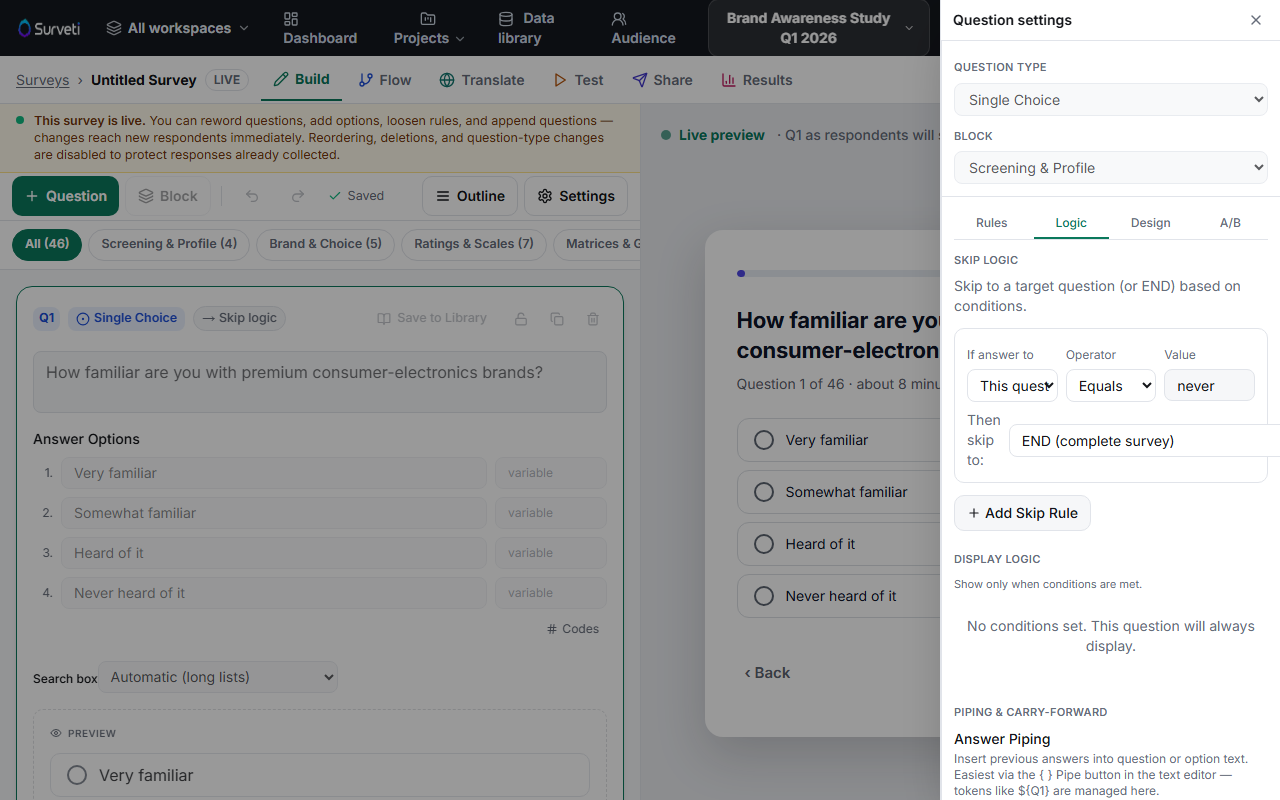
Spot the chip — questions with skip rules show a → Skip logic chip on their card, so routed questions are visible at a glance on the canvas.
Validate before launch — run Tools → Logic validator to catch rules pointing at deleted or reordered questions, and click through the Test tab both ways.
Key options
| Skip target | What happens |
|---|---|
| A later question | Respondent jumps forward; skipped questions collect nothing |
| END (complete survey) | Respondent finishes early and counts as a normal complete |
| TERMINATE (screen out) | Respondent is disqualified — see the screen-out article |
Tips
Tip: Skip logic only jumps forward. If you find yourself wanting to send someone backward, restructure the question order instead — backward jumps create loops.
Note: Multiple rules on one question are evaluated in order; the first match wins. Put the most specific condition first.
Related articles
- How to Show or Hide a Question Based on a Prior Answer — conditional display instead of jumps
- Setting Up Screen-Out Logic to Disqualify Respondents — the TERMINATE target
- Using the Logic Validator to Detect Broken Rules — pre-launch check