Survey Builder
Setting Up Screen-Out Logic to Disqualify Respondents
Disqualify respondents who don't fit your audience with a TERMINATE skip rule — they're marked screened-out, not completed.
Overview
Disqualify respondents who don't fit your audience with a TERMINATE skip rule — they're marked screened-out, not completed, and never see the rest of the survey. Screeners belong in the first block.
Step-by-step
Write the screening question first — e.g. "How familiar are you with [category]?" as the survey's first question, so unqualified respondents spend seconds, not minutes.
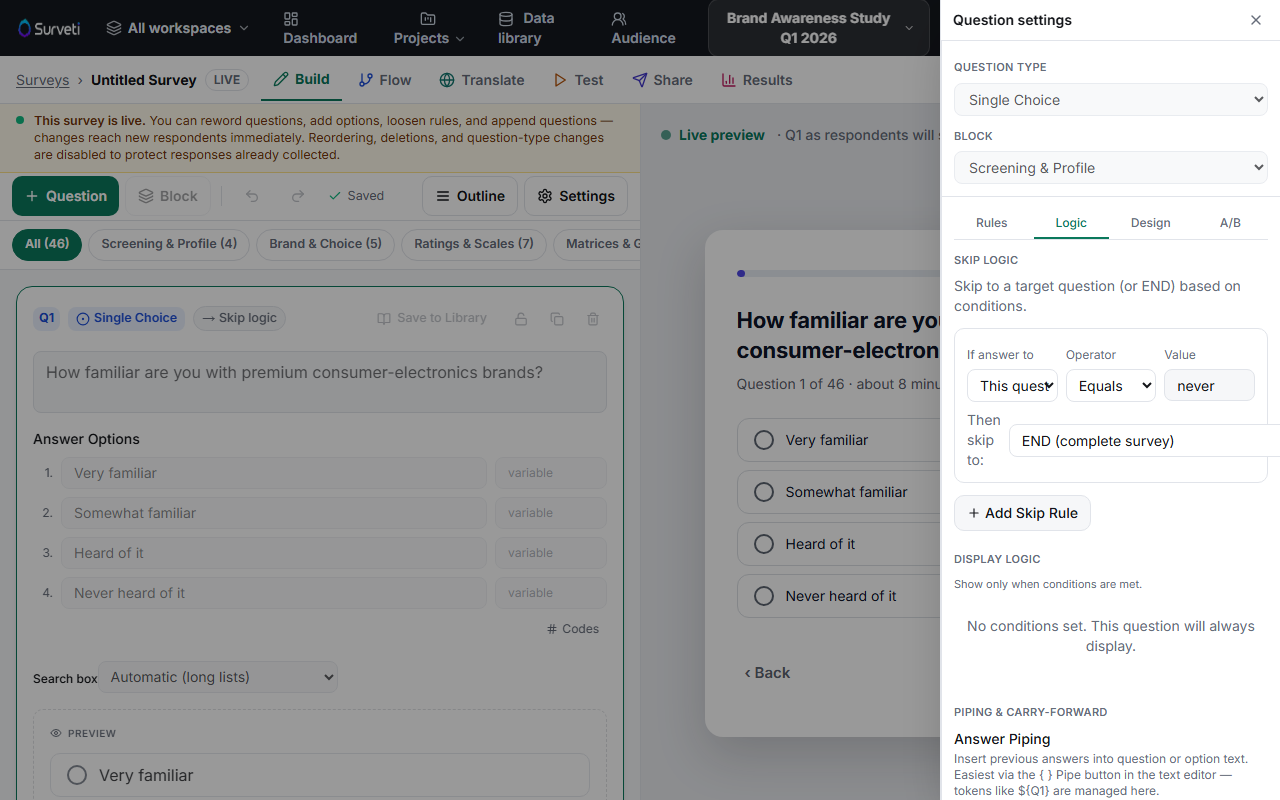
Add the terminate rule — select the screener, open Settings → Logic, click + Add Skip Rule, set the disqualifying condition (e.g. Equals "Never heard of it"), and choose TERMINATE (screen out — disqualify) as the target.
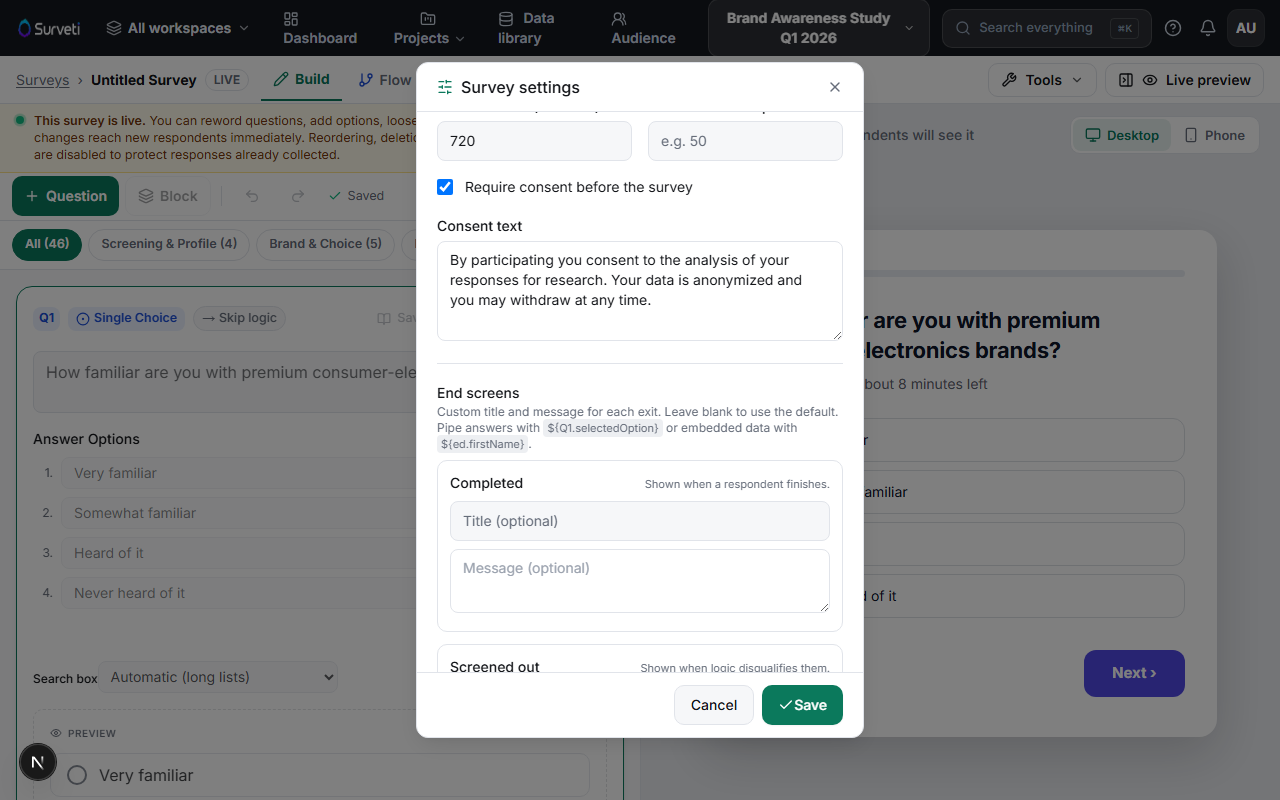
Customize the screen-out message — open Tools → Survey settings → End screens and fill in the Screened out title and message ("Shown when logic disqualifies them"). Leave blank for the default.
Check the numbers in Results — screened-out respondents are tracked separately from completes in the field monitor, so you can watch your incidence rate live.
Tips
Tip: Be polite and quick in the screen-out message — these people gave you their time. "Thanks — this study needs a different profile, so we'll stop here" beats a curt "You do not qualify."
Note: Screen-outs still count toward your plan's monthly completes (the respondent engaged), and they never trigger incentives. Budget quota for your expected incidence rate.
Related articles
- Setting Up Skip Logic to Route Respondents — the mechanism behind TERMINATE
- Understanding Monthly Response Limits by Plan — screen-outs and your quota
- Customizing the Survey Completion Screen Message — the other end screens