Survey Builder
Reordering Questions by Dragging and Dropping
Change question order by dragging cards on the builder canvas — or use the Outline for long surveys.
Overview
Change question order by dragging cards on the builder canvas — or use the Outline for long surveys.
Prerequisites
- The survey must be in Draft status. Reordering is disabled on Live and Paused surveys to protect collected responses.
Step-by-step
Grab the drag handle — hover over a question card and use its drag handle (the dotted grip) to pick it up.
Drop it where it belongs — drag up or down and release. Question numbers update automatically, and the change autosaves.
Use the Outline for long surveys — click Outline in the toolbar to see every block and question in a compact list; it's much easier than dragging a card across 40 questions.
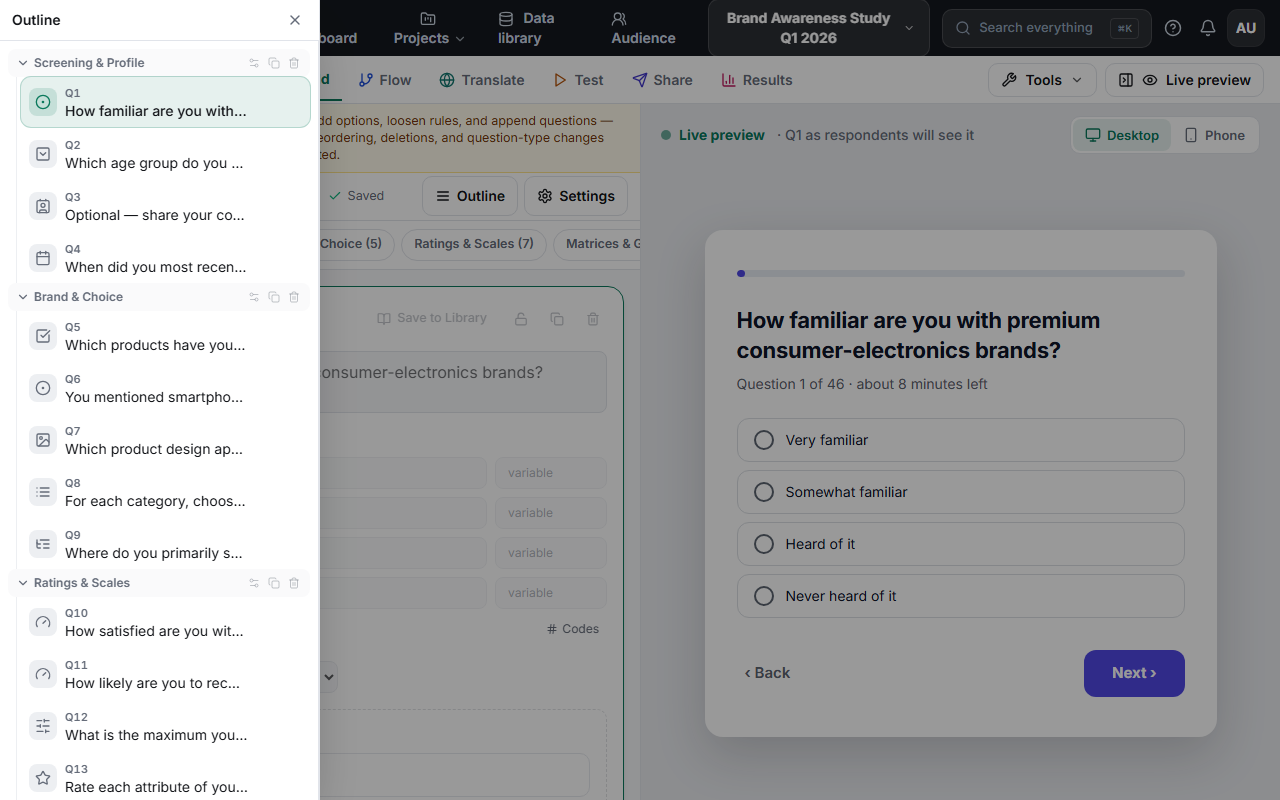
Mind block boundaries — dropping a question inside a different block moves it into that block, which also applies that block's logic and randomization settings.
Tips
Tip: Keep screening questions first — if you use skip or screen-out logic, it can only reference questions that come before the current one in the flow.
Note: If drag handles appear locked, check the survey status chip in the top bar: a Live survey shows a banner explaining that reordering, deletions, and type changes are disabled while responses are being collected.
Related articles
- How to Add and Name Survey Blocks — structure before you reorder
- Understanding Survey Status: Draft, Live, Paused, and Closed — why editing is restricted when Live