Survey Builder
Making a Question Required vs. Optional
Choose between Required, Soft required, and Optional for every question — each level trades data completeness against respondent goodwill.
Overview
Choose between Required, Soft required, and Optional for every question — each level trades data completeness against respondent goodwill.
Step-by-step
Select the question and open Settings — click the question card, then click Settings in the toolbar. The drawer opens on the Rules tab.
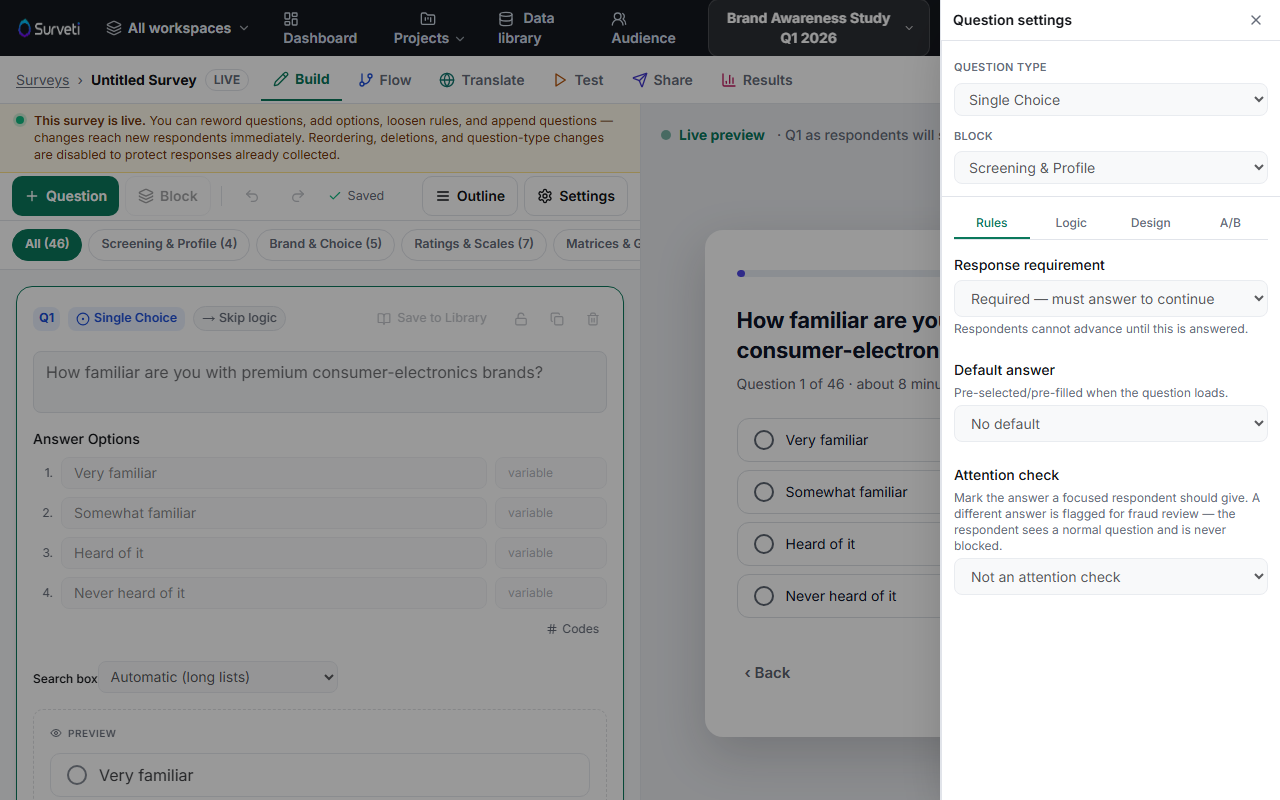
Pick a Response requirement — the dropdown offers three levels (see table below).
Check the preview — required questions block the Next button in the taker until answered; soft-required questions show a confirmation prompt when skipped.
Key options
| Level | What it does |
|---|---|
| Required — must answer to continue | Respondents cannot advance until this is answered |
| Soft required — warn but allow skipping | Respondents are warned if they skip, but may proceed |
| Optional — can be left blank | Respondents may leave this question blank |
Tips
Tip: Reserve hard Required for questions your analysis genuinely cannot survive without (screeners, the primary metric). Requiring everything inflates dropout and teaches respondents to click anything just to pass.
Note: Soft required is the sweet spot for open-text questions — it recovers most accidental skips without forcing junk answers from unwilling respondents.
Related articles
- Adding Help Text Below a Question — reduce skips by clarifying the ask
- How to Add and Configure an Open-Ended Text Question — where soft-required shines