Survey Builder
Importing a Survey from a Word or PDF Document Using AI
Turn an existing questionnaire document into a fully built survey — upload it, let AI detect the questions, then review and create.
Overview
Turn an existing questionnaire document into a fully built survey — upload it, let AI detect the questions, then review and create. The importer handles Word, PDF, pasted text, Excel, and Qualtrics QSF files.
Prerequisites
- AI imports consume your plan's monthly AI credits (visible under Settings → Billing).
Step-by-step
Open the importer — go to Surveys → Import (or Import survey on the dashboard). The page walks three steps: Upload → AI Processing → Review & Create.
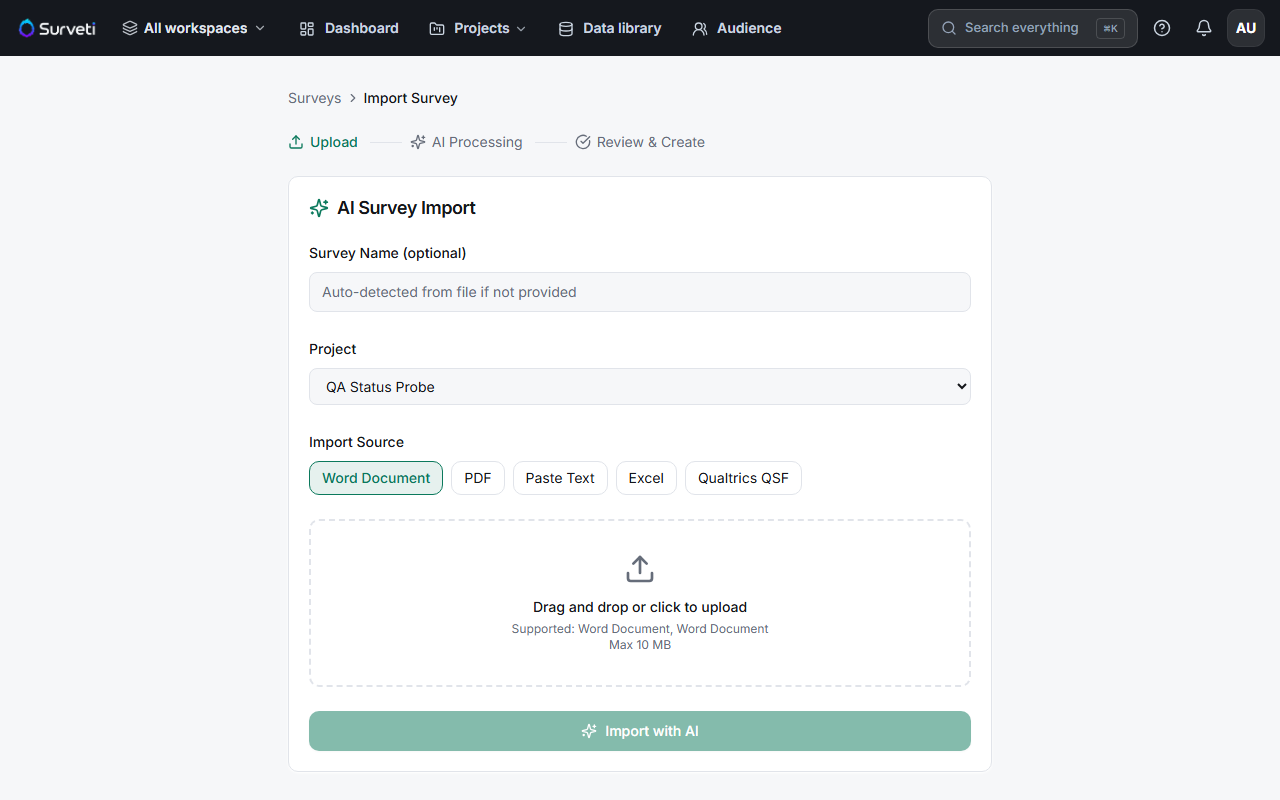
Pick the source type — Word Document, PDF, Paste Text, Excel, or Qualtrics QSF, then drag your file into the upload area (10 MB max). The survey name is auto-detected from the file unless you type one; pick the target Project.
Click Import with AI — the AI reads the document, identifies each question, its type, and its options, and assembles a draft survey.
Review before creating — the review step shows every detected question so you can fix types or options the AI got wrong before the survey is created. Give it real attention — a mis-typed grid is much cheaper to fix here than in the builder.
Create and refine — the survey lands in the builder as a normal Draft: add logic, themes, and settings like any hand-built survey.
Tips
Tip: Cleaner documents import better. If your Word file uses consistent numbering and one question per paragraph, detection accuracy goes way up.
Note: Qualtrics users: importing the QSF export preserves structure far better than importing a PDF of the same survey — always prefer QSF when available.
Related articles
- Creating Your First Survey from Scratch — the manual route
- Choosing the Right Question Types for Your Goals — sanity-check detected types