Survey Builder
How to Use Single-Choice Radio Questions
Set up a single-choice question — the workhorse type where respondents pick exactly one answer from a list.
Overview
Set up a single-choice question — the workhorse type where respondents pick exactly one answer from a list. Use it for classification ("Which best describes your role?"), preference, and yes/no decisions.
Step-by-step
Add the question — click + Question and choose Single Choice.
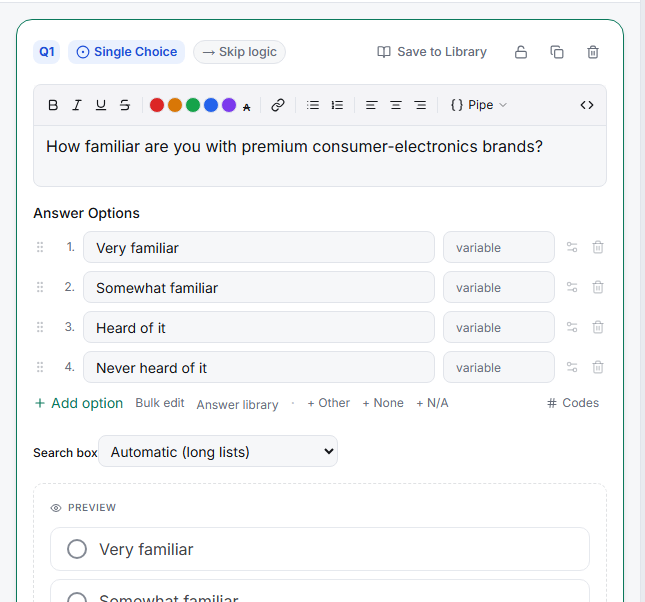
Write the question and options — fill in Answer Options one per row. Each option can carry a reporting variable/code (toggle # Codes to see them) so your exports use stable values even if you reword labels.
Add special options if needed — use + Other (adds a write-in field), + None, or + N/A below the option list.
Configure behavior in Settings — select the question and open Settings: response requirement on the Rules tab, option randomization and logic on the Logic tab.
Key options
| Option | What it does |
|---|---|
| Search box | Adds type-to-filter for long lists (Automatic enables it when the list is long) |
| Codes | Per-option reporting values for clean exports |
| Answer library | Apply a saved option set (age bands, countries, agree–disagree) |
| Per-option display logic | Show an option only when a condition is met |
Tips
Tip: Options should be mutually exclusive and cover every respondent — if you can't guarantee coverage, add + Other so nobody is forced into a wrong answer.
Related articles
- How to Use Multi-Select Checkbox Questions — when more than one answer applies
- Adding an Other or None of the Above Answer Option — special options in detail
- Randomizing Answer Options Within a Question — fight order bias