Survey Builder
How to Use Multi-Select Checkbox Questions
Let respondents pick several answers with a multi-select question, with optional minimum and maximum selection limits.
Overview
Let respondents pick several answers with a multi-select question, with optional minimum and maximum selection limits. Use it for "select all that apply" lists.
Step-by-step
Add the question — click + Question and choose Multiple Choice (checkboxes).
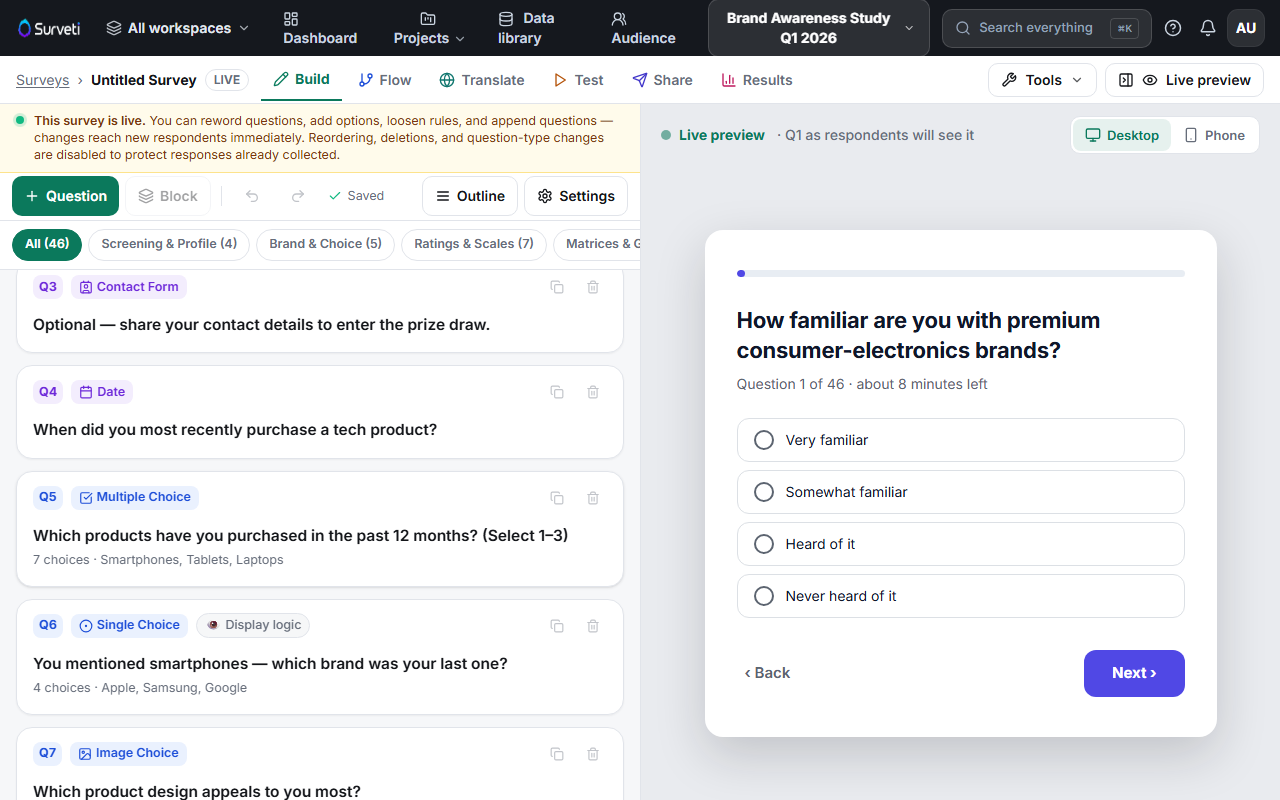
Write the options — same option editor as single choice: rows, reporting codes, the Answer library, and per-option display logic.
Signal the expectation in the question text — "(Select all that apply)" or "(Select 1–3)" tells respondents what a valid answer looks like before validation has to.
Set selection limits — configure minimum and maximum selections in the question's validation settings so a "pick your top 3" question can't collect seven answers.
Add exclusive options — + None and + N/A are mutually exclusive with everything else: ticking them clears other selections, so "None of the above" can never coexist with a real answer.
Tips
Tip: If you plan to rank or rate the selected items later, multi-select is the natural screener — downstream questions can carry forward only the options the respondent picked.
Note: Every option added to a multi-select becomes a separate column in exports. Keep lists tight — a 25-option "select all" produces noisy data and respondent fatigue.
Related articles
- How to Use Single-Choice Radio Questions — when exactly one answer applies
- Adding an Other or None of the Above Answer Option — exclusive options explained
- Setting Minimum and Maximum Selections on a Multi-Select Question — limits in detail