Survey Builder
How to Use Dropdown Questions
Use a dropdown when the option list is long — country, industry, age band — and radio buttons would swamp the page.
Overview
Use a dropdown when the option list is long — country, industry, age band — and radio buttons would swamp the page. Respondents pick exactly one answer from a compact control.
Step-by-step
Add the question — click + Question and choose Dropdown.
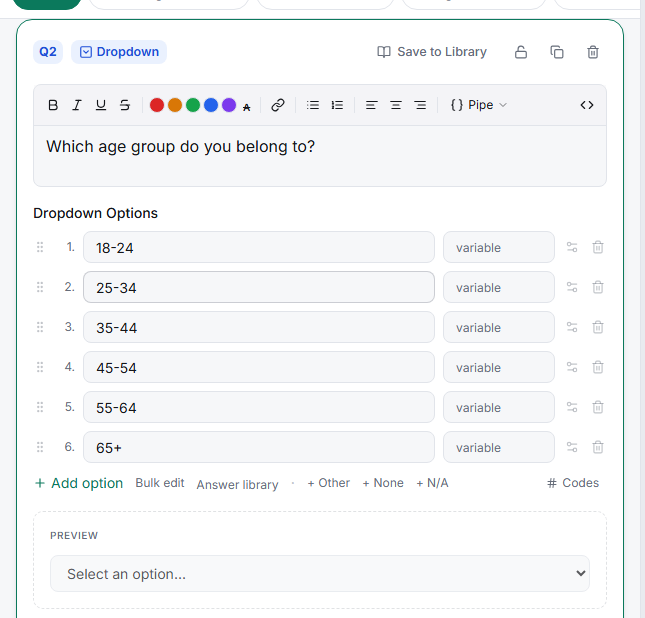
Fill the options — for standard lists, click Answer library and apply a saved set instead of typing fifty rows. Bulk edit lets you paste one option per line.
Leave the search box on Automatic — long lists automatically get type-to-filter in the taker, so respondents can type "Ger…" instead of scrolling to Germany.
Add special options if needed — + Other, + None, and + N/A work here just as in radio questions.
Tips
Tip: Rule of thumb: up to ~7 options, use radio buttons (everything visible at once beats a click); beyond that, use a dropdown.
Note: Dropdowns hide the option list until clicked, which makes them poor for questions where seeing all answers matters to the judgment (e.g. brand awareness) — use radios or image select there.
Related articles
- How to Use Single-Choice Radio Questions — the short-list alternative
- How to Use Multi-Select Checkbox Questions — when several answers apply