Survey Builder
How to Show or Hide a Question Based on a Prior Answer
Use display logic to show a question only when earlier answers make it relevant.
Overview
Use display logic to show a question only when earlier answers make it relevant. Unlike skip logic (which jumps away from somewhere), display logic makes a question conditional in place.
Step-by-step
Select the follow-up question — click the question that should appear conditionally, then open Settings and switch to the Logic tab.
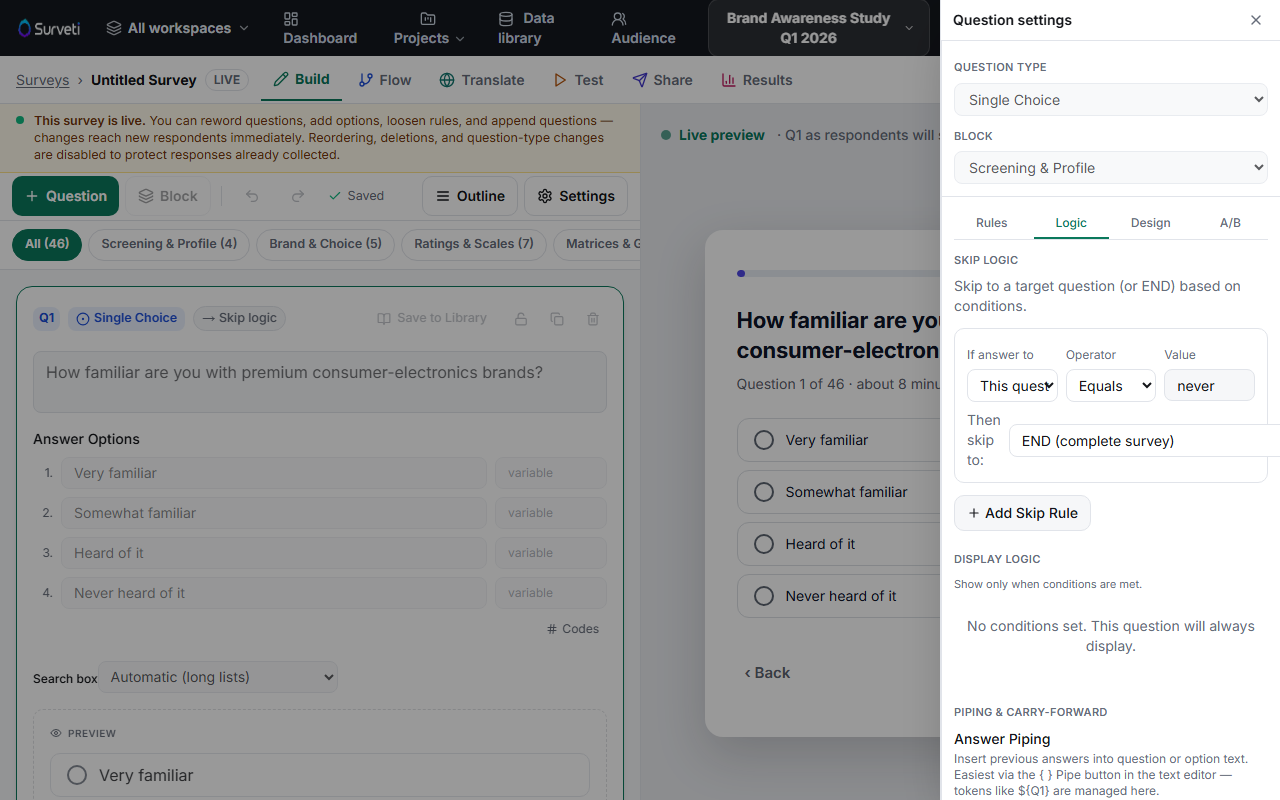
Add a condition under Display Logic — "Show only when conditions are met": pick the source question, an operator (equals, contains, greater than…), and the value. Until conditions are added, the panel reads "No conditions set. This question will always display."
Combine conditions if needed — multiple conditions let you require all (AND) or any (OR) to match.
Test both paths — open the Test tab and answer the source question both ways; the conditional question should appear exactly when intended.
Tips
Tip: Individual answer options can be conditional too — in the option editor, each option has a "Show this option only when" setting, which is often lighter-weight than hiding a whole question.
Note: A hidden question collects nothing — its response count in Results will be lower than its neighbors. That's the logic working, not missing data.
Related articles
- Setting Up Skip Logic to Route Respondents — jumping past sections instead
- Testing a Respondent Path with the Path Tester — verify logic before launch