Survey Builder
How to Add and Configure an Open-Ended Text Question
Collect answers in the respondent's own words with an open text question, with validation for formats like email or numbers.
Overview
Collect answers in the respondent's own words with an open text question, with validation for formats like email or numbers. One good open question often explains the numbers from all the closed ones.
Step-by-step
Add the question — click + Question and choose Open Text.
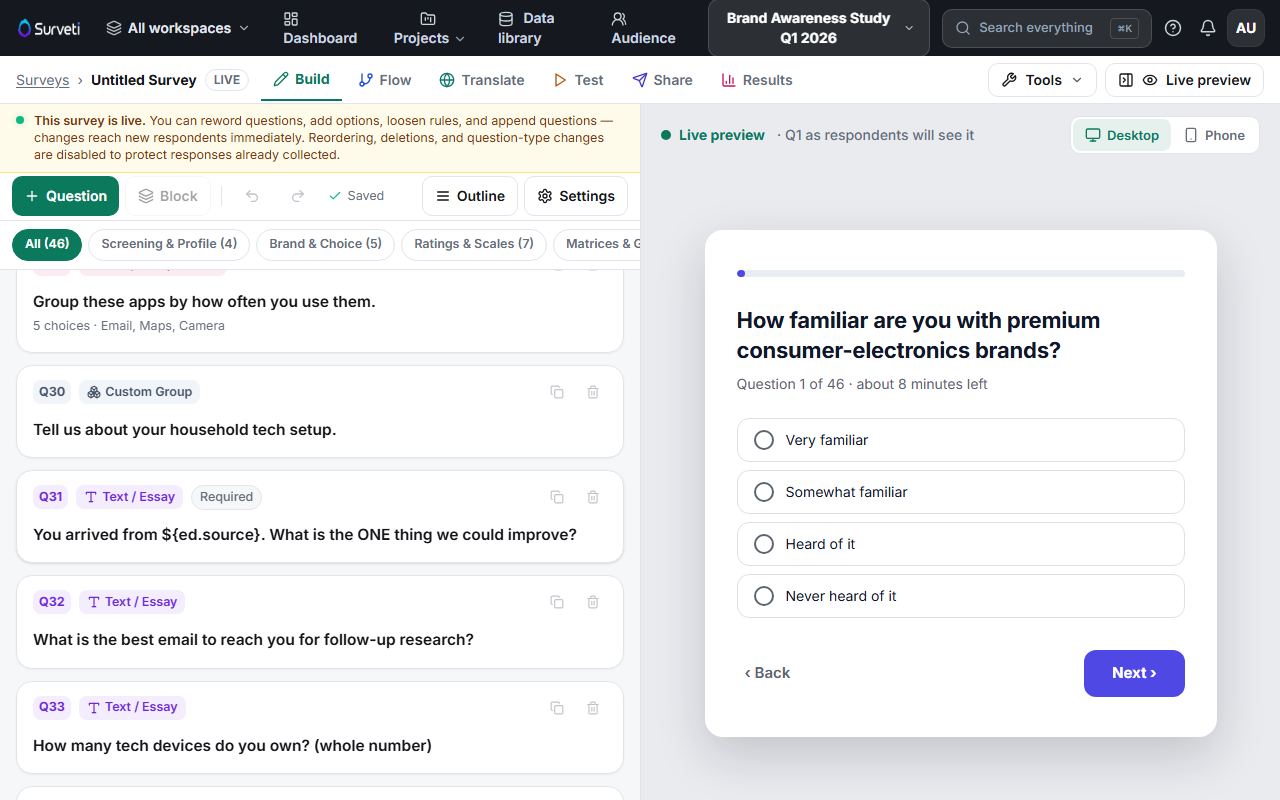
Ask one specific thing — "What is the single most important improvement we could make?" outperforms "Any feedback?". Specific prompts get usable verbatims.
Configure validation — in the question's validation settings you can require a format (such as email address or a whole number) or cap the answer length, so the data arrives clean.
Set the requirement thoughtfully — open questions are effortful. Soft required (warn but allow skipping) usually beats hard-required here: you keep most answers without forcing junk from unwilling respondents.
Tips
Tip: Place your key open question right after the experience it asks about (e.g. "What went wrong?" after a low NPS score via skip logic) — context produces better verbatims than a generic question at the end.
Note: Verbatims appear in Results as a text listing rather than a chart, and they're included in exports for coding in your analysis tool.
Related articles
- Making a Question Required vs. Optional — the three requirement levels
- Setting Up Skip Logic to Route Respondents — trigger follow-ups from prior answers