Survey Builder
How to Add and Configure a Rating Scale Question
Measure attitudes with a rating scale question — set the number of points, label the anchors, and choose a display style.
Overview
Measure attitudes with a rating scale question — set the number of points, label the anchors, and choose a display style. This is the Likert-style type behind satisfaction and agreement questions.
Step-by-step
Add the question — click + Question and choose Scale.
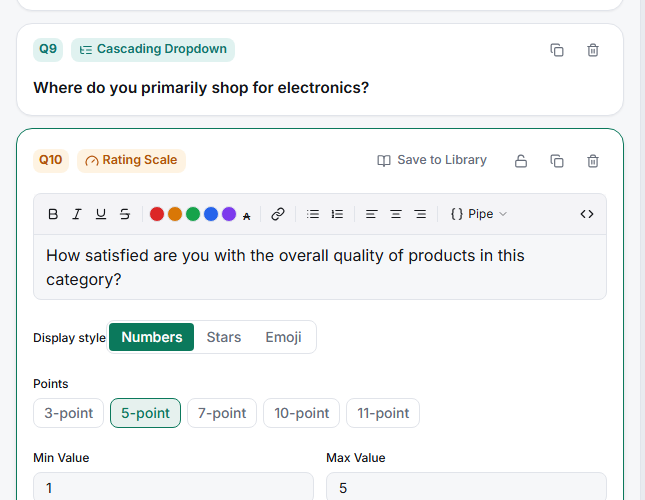
Choose the number of points — 5 points is the safe default: enough resolution to see movement, few enough that labels stay meaningful.
Label the anchors — at minimum, label the low and high ends ("Strongly disagree" / "Strongly agree"). Labeled midpoints ("Neutral") reduce ambiguity on agreement scales.
Pick a display style — numeric buttons, stars, or emoji, depending on the tone of the survey. The Live preview shows exactly what respondents get.
Keep direction consistent — across the whole survey, higher should always mean better/more. Mixing directions is the most common cause of garbage scale data.
Tips
Tip: If you'll compare questions against each other (feature A vs feature B), give them identical scales — same points, same labels — or the comparison isn't valid.
Note: For a battery of items on the same scale ("Rate each of the following…"), use a Grid question instead of repeating Scale questions — see Setting Up a Single-Answer Matrix Grid Question.
Related articles
- Setting Up a Net Promoter Score Question — the standardized 0–10 loyalty scale
- Setting Up a Single-Answer Matrix Grid Question — many items, one scale