Survey Builder
How to Add a Question to Your Survey
Add a question to your survey from the builder's question picker and start editing it immediately.
Overview
Add a question to your survey from the builder's question picker and start editing it immediately.
Step-by-step
Open your survey in the builder — from Surveys, click the survey name (or its Edit action).
Click + Question — the green button at the top-left of the canvas opens the question type picker.
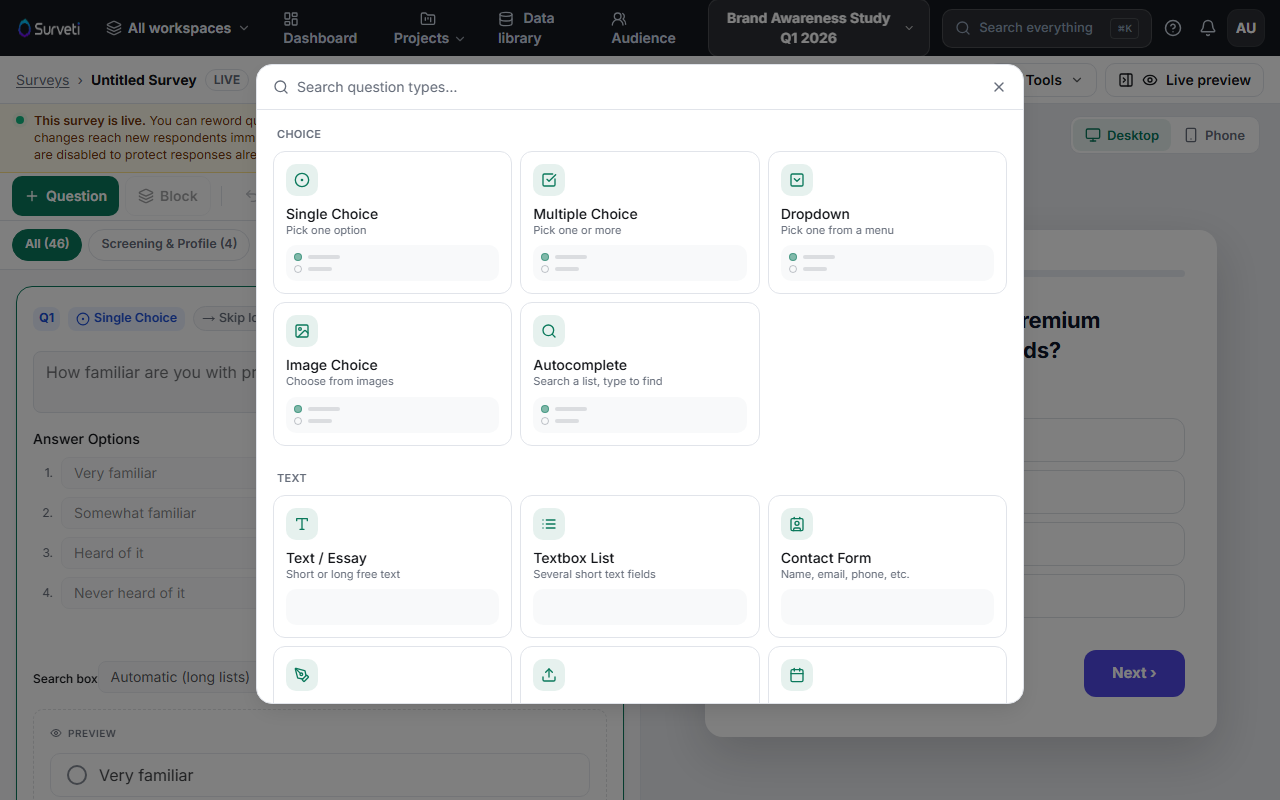
Pick a type — types are grouped by category (choice, scale, grid, open, media, advanced). Types your plan doesn't include are labeled with the plan that unlocks them.
Write the question — the new question is added to the canvas with its editor open. Type the question text, fill in options or scale labels, and watch the Live preview on the right update as you type.
Check its position — new questions land at the end of the current block. Drag the question card to move it, or change its Block in the Settings drawer.
Tips
Tip: If a similar question already exists, duplicating it is faster than starting fresh — see Duplicating a Question to Save Time.
Note: On a Live survey you can append new questions, but you can't reorder or delete existing ones — those actions unlock again when the survey is paused only for safe changes, and fully in Draft.
Related articles
- Choosing the Right Question Types for Your Goals — pick the right type first
- Duplicating a Question to Save Time — clone instead of recreate
- How to Add and Name Survey Blocks — organize questions into sections