Survey Builder
Applying a Theme Preset to Your Survey
Restyle your whole survey in one click with a theme preset, or apply a saved brand kit.
Overview
Restyle your whole survey in one click with a theme preset, or apply a saved brand kit. Themes change how the survey looks to respondents without touching any questions.
Step-by-step
Open the theme editor — in the builder, open Tools → Theme. The Survey Theme dialog appears.
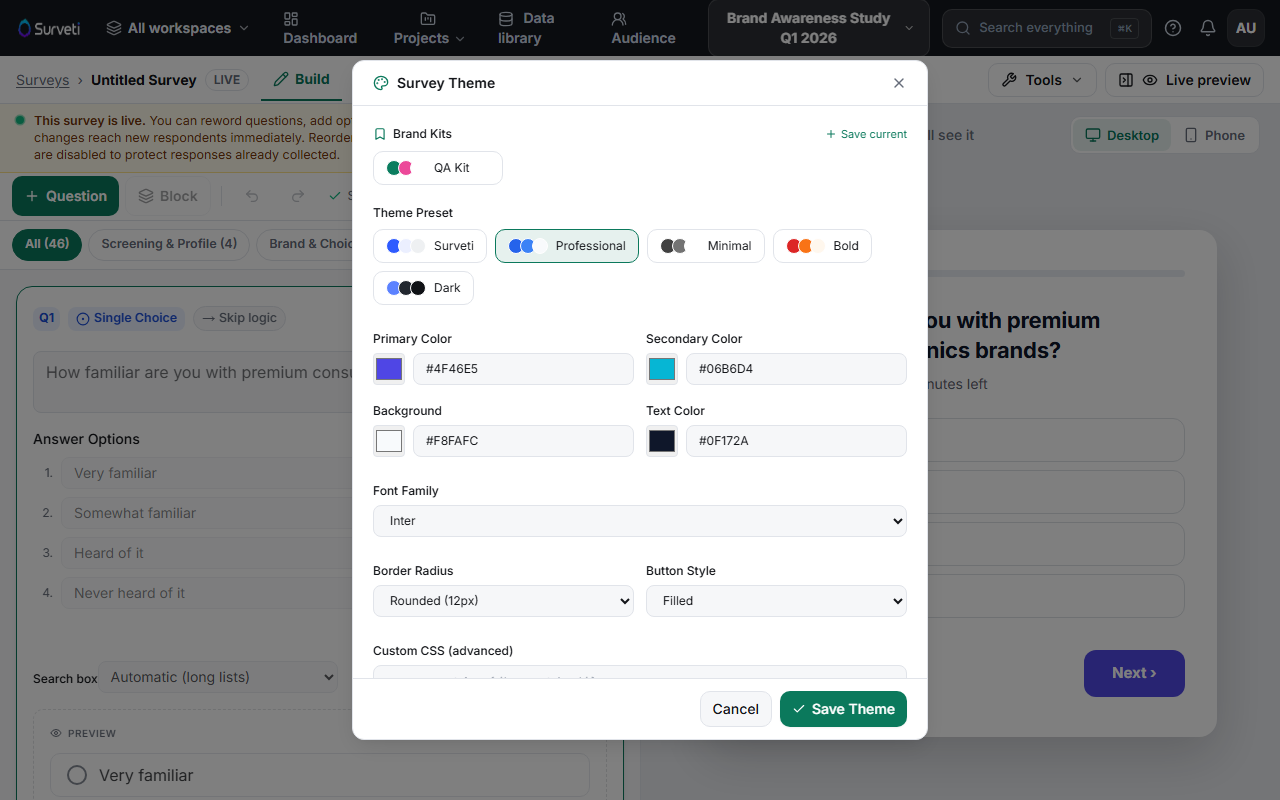
Click a Theme Preset — Surveti, Professional, Minimal, Bold, or Dark. Each preset sets the colors, font, and control styling together; the color swatches on each chip preview its palette.
Or apply a Brand Kit — kits under Brand Kits are themes saved by your organization. Click one to apply it, or use Save current to turn this survey's theme into a kit your teammates can reuse.
Save — click Save Theme. The taker and the Live preview immediately reflect it.
Tips
Tip: Presets are starting points — apply the closest one, then adjust individual colors and fonts (see Customizing Survey Colors and Fonts) rather than building from scratch.
Note: Themes are per-survey. To keep every survey on-brand without repeating yourself, save your adjusted theme as a Brand Kit once and apply it everywhere.
Related articles
- Customizing Survey Colors and Fonts — fine-tune beyond the preset
- Setting Up Brand Kits for Your Organization — org-wide theming