Survey Builder
Adding Help Text Below a Question
Add instructional text under a question to clarify what you're asking without cluttering the question itself.
Overview
Add instructional text under a question to clarify what you're asking without cluttering the question itself. In Surveti this lives in the question's Design settings as Instructional text.
Step-by-step
Select the question and open Settings — click the question card, then Settings in the toolbar.
Switch to the Design tab — the drawer has four tabs: Rules, Logic, Design, and A/B.
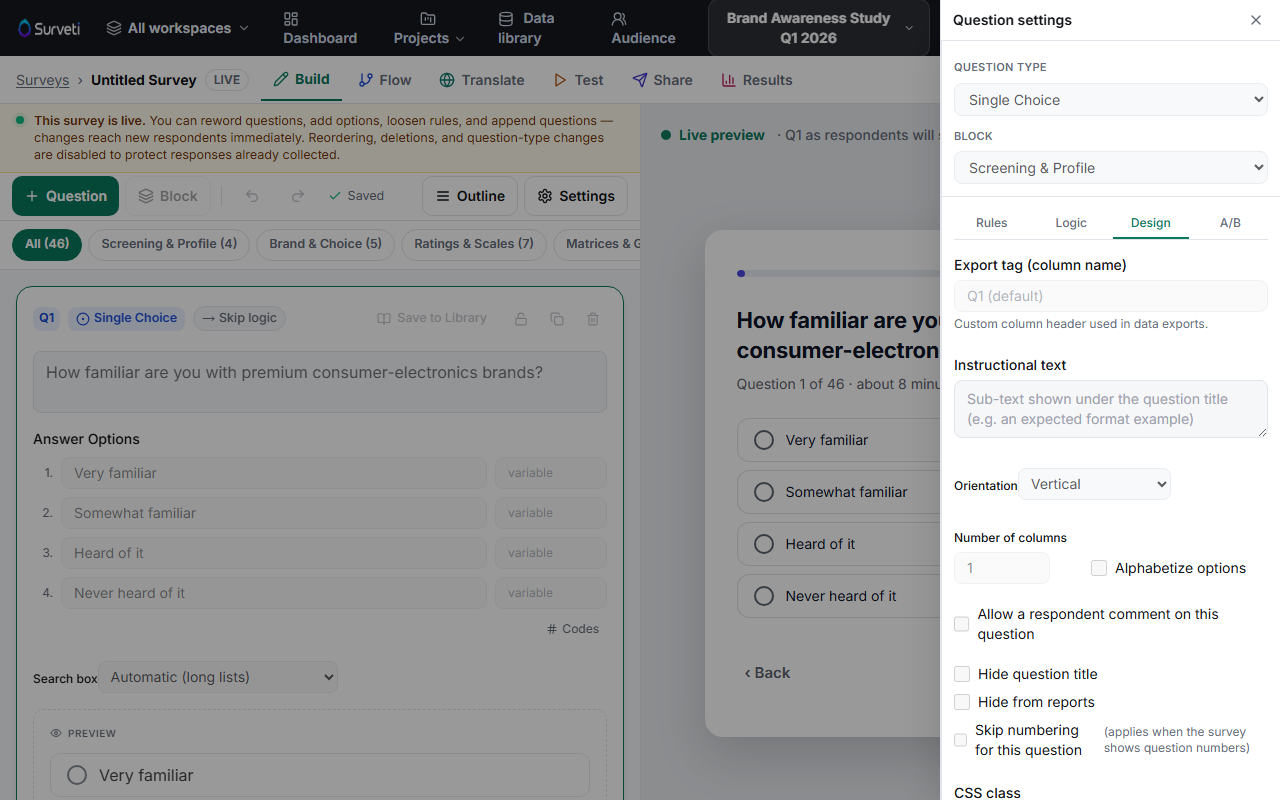
Fill in Instructional text — a sentence or two shown below the question text in the taker, styled quieter than the question itself. The Live preview updates as you type.
Tips
Tip: Use instructional text for how to answer ("Think about the last 30 days", "Select up to three"), and keep the question text itself for what you're asking. Splitting them keeps both readable.
Note: Don't bury critical constraints in help text alone — respondents skim. If an answer is invalid without a constraint, enforce it with validation too, not just words.
Related articles
- Making a Question Required vs. Optional — the Rules tab next door
- How to Add and Configure an Open-Ended Text Question — where a good prompt matters most