Survey Builder
Adding an Other or None of the Above Answer Option
Add special answer options — Other with a write-in field, None, or N/A — so every respondent has a truthful answer available.
Overview
Add special answer options — Other with a write-in field, None, or N/A — so every respondent has a truthful answer available. They behave differently from normal options, which is why they're built in rather than typed by hand.
Step-by-step
Open the option list — select a choice question (single, multi, or dropdown) in the builder.
Use the special-option buttons — below the option list, next to + Add option and Bulk edit, click + Other, + None, or + N/A.
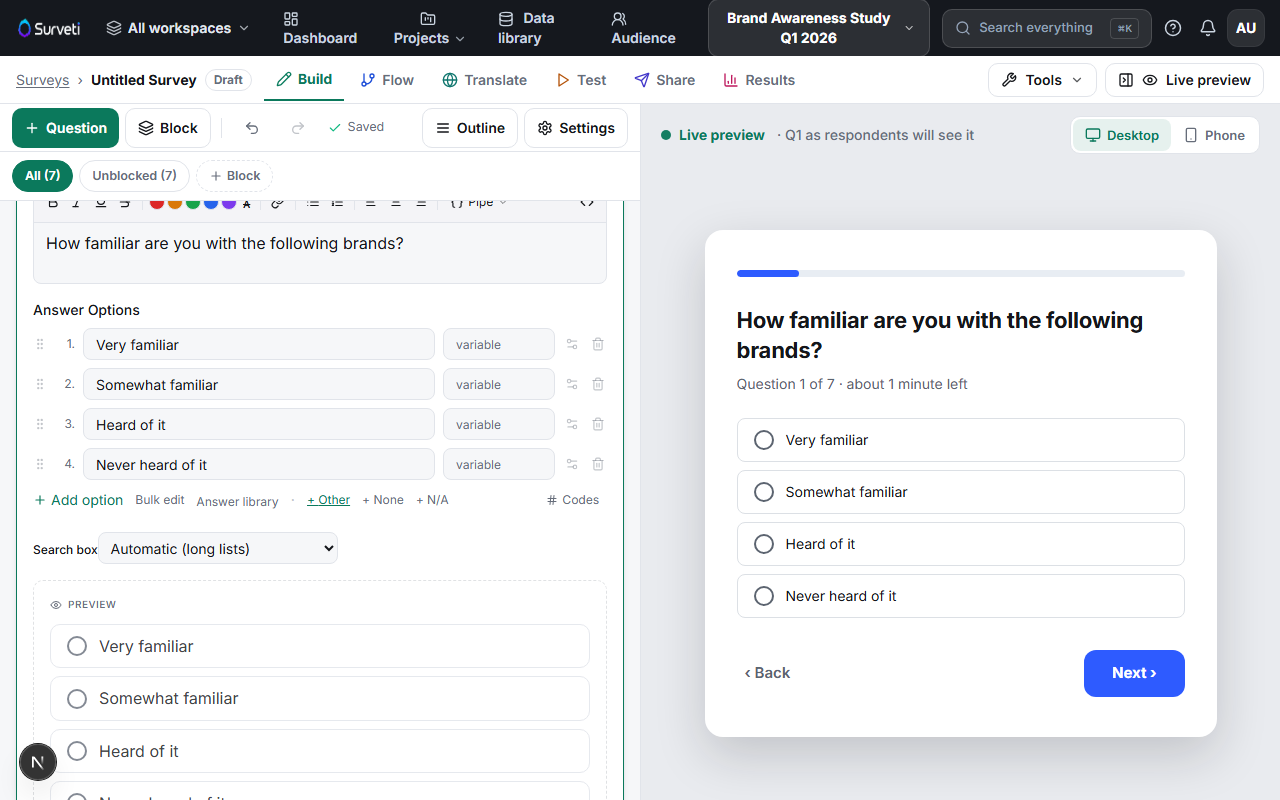
Keep or reword the default label — Other arrives as "Other (please specify)" with a text field attached; None and N/A arrive with standard labels you can edit.
Rely on the built-in behavior — special options always stay at the bottom when answer order is randomized, and in multi-select questions None/N/A are exclusive: selecting one clears all other selections automatically.
Key options
| Option kind | Behavior |
|---|---|
| Other | Adds a write-in text field; the typed answer is captured alongside the choice |
| None | Exclusive in multi-select; means "none of these apply" |
| N/A | Exclusive in multi-select; means "this question doesn't apply to me" |
Tips
Tip: Watch the Other write-ins in your first 50 responses — if one answer keeps appearing, promote it to a real option and your data gets cleaner from that point on (adding options is allowed even while the survey is Live).
Note: Type these as special options, not normal rows. A hand-typed "None of the above" in a multi-select can be selected alongside real answers, which produces contradictory data.
Related articles
- How to Use Multi-Select Checkbox Questions — where exclusivity matters most
- How to Use Single-Choice Radio Questions — the option editor basics