Results & Analysis
Exporting Survey Responses as a Flat CSV File
Download your raw survey responses as a CSV — one row per respondent — for analysis in Excel, R, or anything else.
Overview
Download your raw survey responses as a CSV — one row per respondent — for analysis in Excel, R, or anything else.
Step-by-step
Open Export Data — go to Export (or click Export from the survey's Results tab).
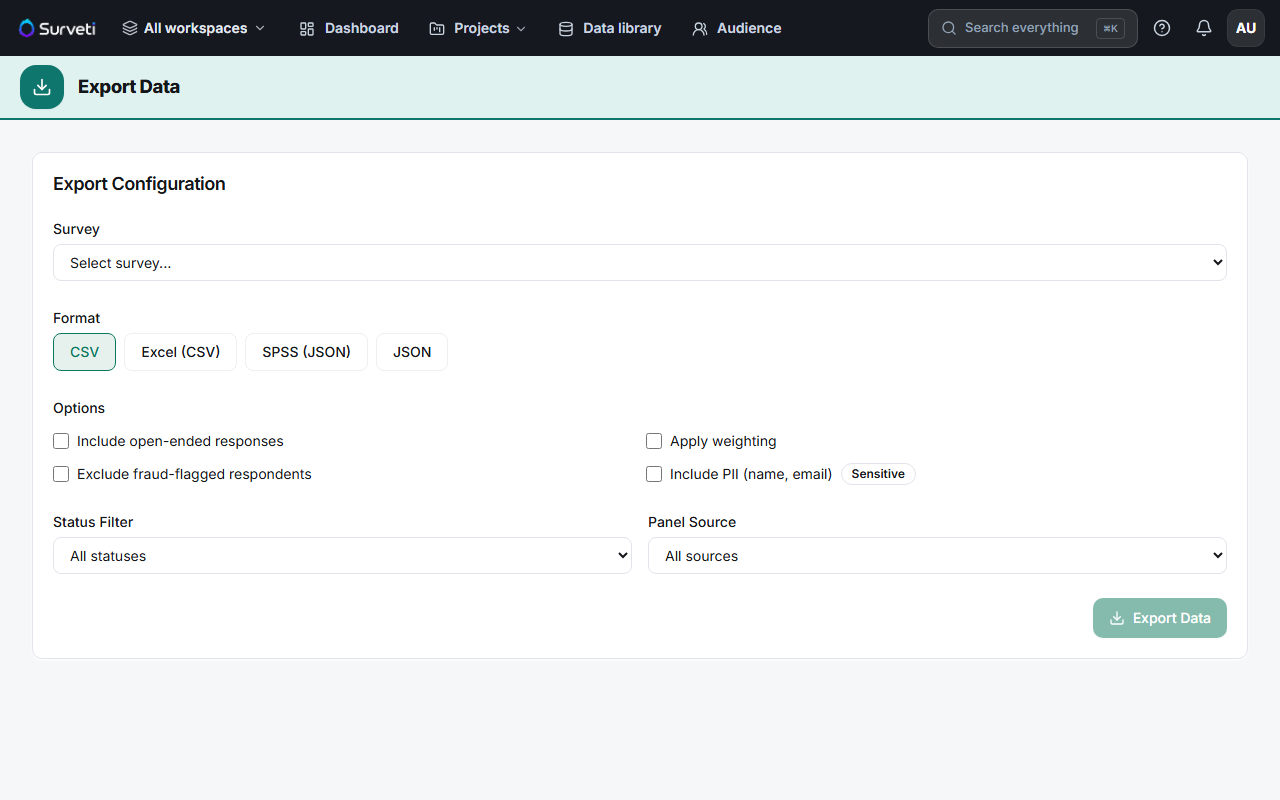
Select the survey — choose it from the Survey dropdown.
Choose CSV as the Format — the format row offers CSV, Excel (CSV), SPSS (JSON), and JSON.
Set your options and filters — decide about open ends, weighting, fraud exclusion, and PII (see the related article), and narrow by Status Filter or Panel Source.
Click Export Data — the file downloads with one row per respondent and one column per question.
Key options
| Format | Use for |
|---|---|
| CSV | Universal flat file — Excel, R, Python, anything |
| Excel (CSV) | CSV tuned for opening cleanly in Excel |
| SPSS (JSON) | Structured export for SPSS workflows |
| JSON | Programmatic use and integrations |
Tips
Tip: Export the answer codes, not just labels, when you'll do analysis — codes stay stable even if you reword an option later, so your scripts don't break between waves.
Note: Exports respect your filters. If the row count looks low, check the Status Filter (partials excluded?) and whether fraud exclusion is on.
Related articles
- Controlling PII, Open Ends, and Weights Included in an Export — the options in detail
- Excluding Fraud-Flagged Responses from Analysis and Exports — clean data only