Results & Analysis
Controlling PII, Open Ends, and Weights Included in an Export
Decide exactly what goes into your export file — personal data, verbatim text, and survey weights are each opt-in.
Overview
Decide exactly what goes into your export file — personal data, verbatim text, and survey weights are each opt-in. Everything sensitive is off by default.
Step-by-step
Open Export Data and select your survey and format.
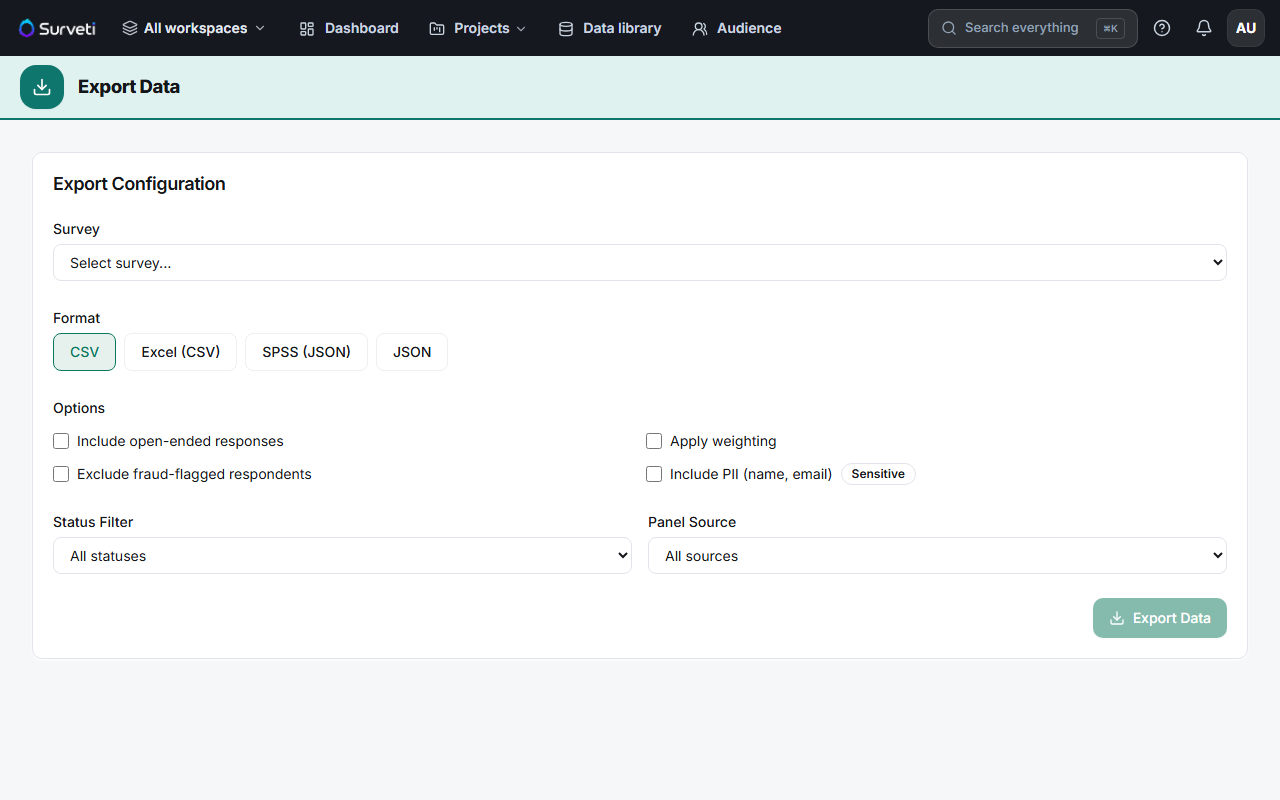
Set the Options — four checkboxes control what's included (see the table below). All are unticked by default.
Export — the file contains exactly what you ticked, nothing more.
Key options
| Option | What it adds |
|---|---|
| Include open-ended responses | Verbatim text answers |
| Apply weighting | Applies respondent weights to the data |
| Exclude fraud-flagged respondents | Removes flagged records from the file |
| Include PII (name, email) — Sensitive | Decrypts and includes personal identifiers |
Tips
Tip: Leave Include PII off unless you have a concrete reason to need names and emails. Once personal data is in a spreadsheet on someone's laptop, it's outside Surveti's encryption and your control — and it's the kind of thing that turns a data request into an incident.
Note: Weighting changes your numbers. An unweighted and a weighted export of the same survey will not match — decide which one your analysis uses and label the file accordingly.
Related articles
- Exporting Survey Responses as a Flat CSV File — the export basics
- Excluding Fraud-Flagged Responses from Analysis and Exports — quality exclusion