Results & Analysis
Browsing Verbatim Responses and Sentiment Scores in the Text Analytics View
Read every open-ended answer with its sentiment score and theme tags, page by page.
Overview
Read every open-ended answer with its sentiment score and theme tags, page by page — the qualitative detail behind the summary charts.
Step-by-step
Open Text Analytics — go to Analysis → Text and select your survey and open-ended question.
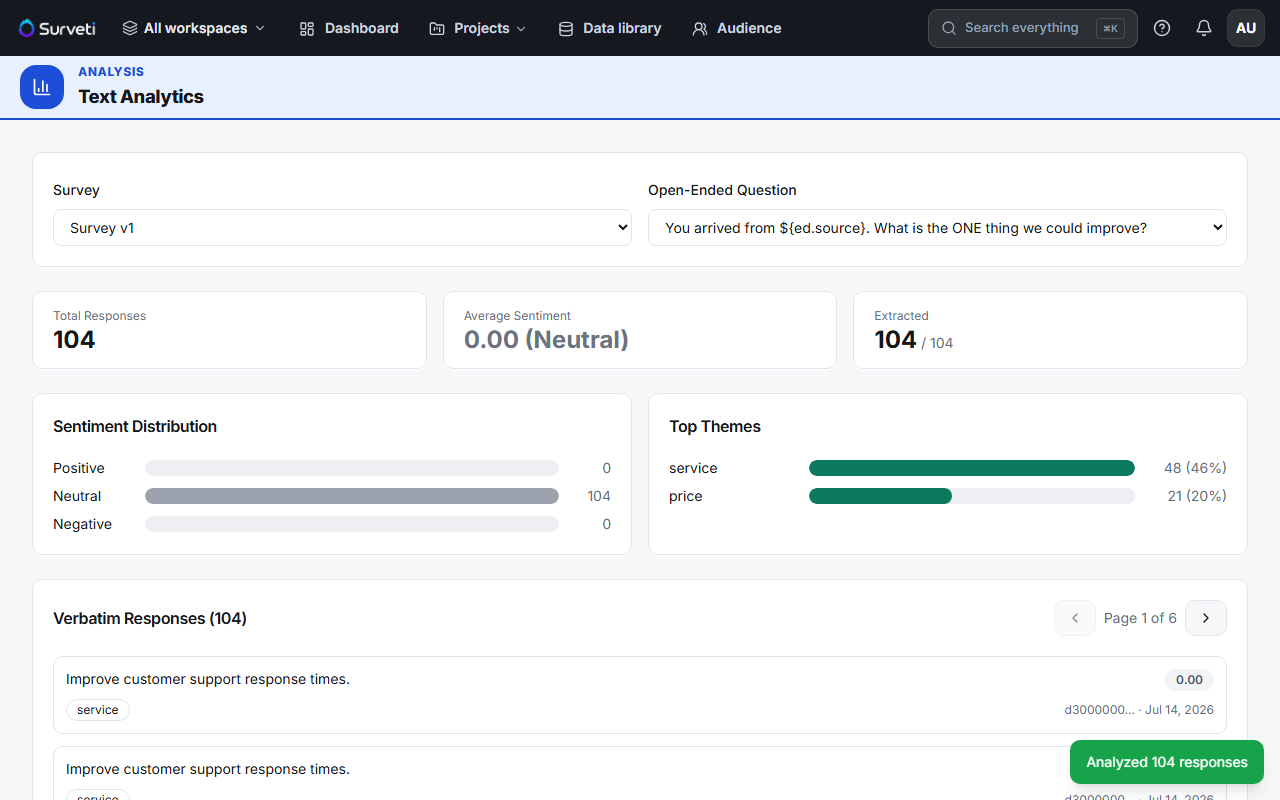
Scroll to Verbatim Responses — the count in the heading (e.g. 104) is every answer to that question.
Read each row — the verbatim text, its sentiment score chip on the right, and any theme chips underneath (e.g. "service").
Page through — use the arrows to move between pages.
Cross-reference the summary — the Sentiment Distribution and Top Themes panels above tell you the shape; the verbatims tell you the substance.
Tips
Tip: Read the extremes first. The most negative and most positive verbatims carry more information per minute than the neutral middle — that's where the specific, fixable complaints and the genuine praise live.
Note: Scores show N/A until you run the analysis. If every chip reads N/A, the extraction hasn't been run for that question yet — see Running AI Sentiment and Theme Extraction on Open-Ended Responses.
Related articles
- Running AI Sentiment and Theme Extraction on Open-Ended Responses — generate the scores
- Controlling PII, Open Ends, and Weights Included in an Export — export the verbatims