Getting Started
Viewing Survey Results After Responses Come In
Watch live response summaries for every question, drill into individual responses, and export your data.
Overview
Watch live response summaries for every question, drill into individual responses, and export your data. Everything starts from the Results tab.
Prerequisites
- A survey with at least one response — see How to Collect Your First Responses.
Step-by-step
Open the Results tab — in the builder's top tabs, click Results. Each question gets its own card with a chart of the answers so far; summaries auto-refresh every 30 seconds while you watch.
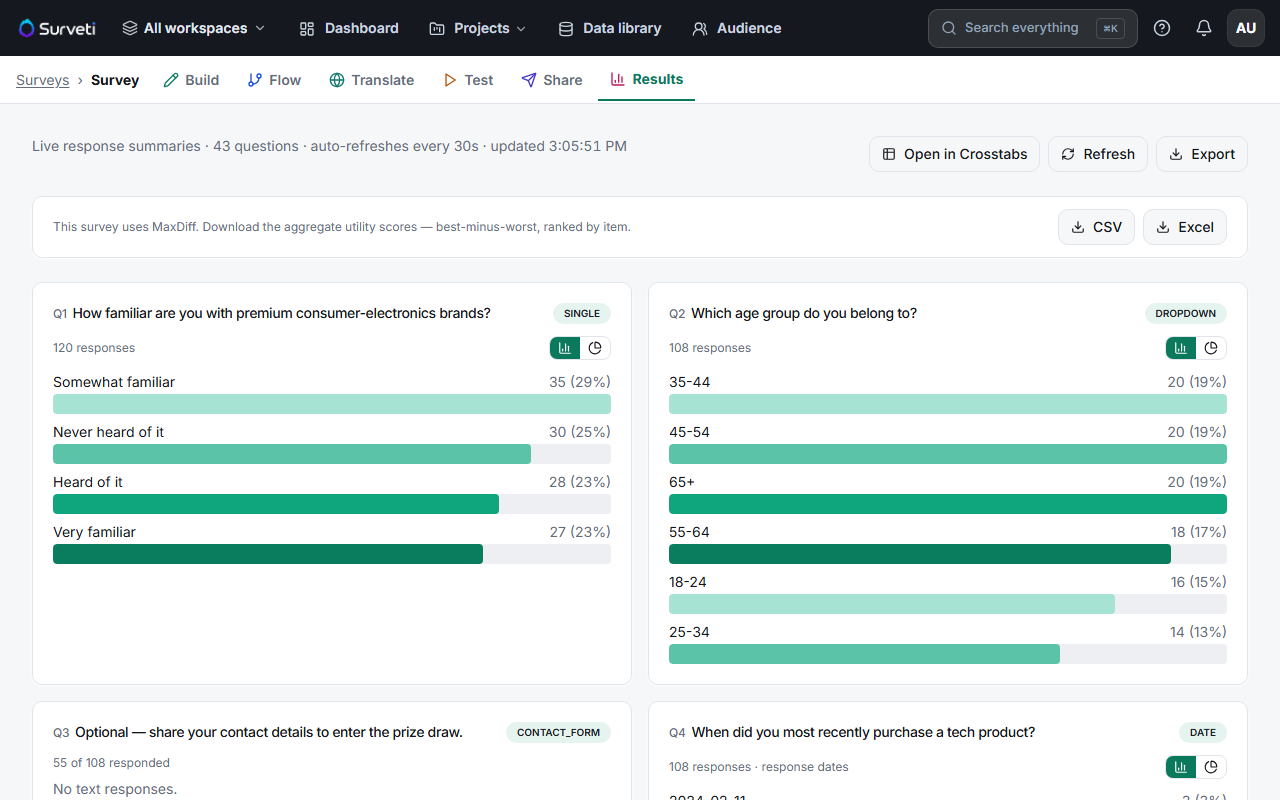
Switch chart views per question — the icons on each card toggle between bar and pie views; open-text questions list the verbatim answers instead.
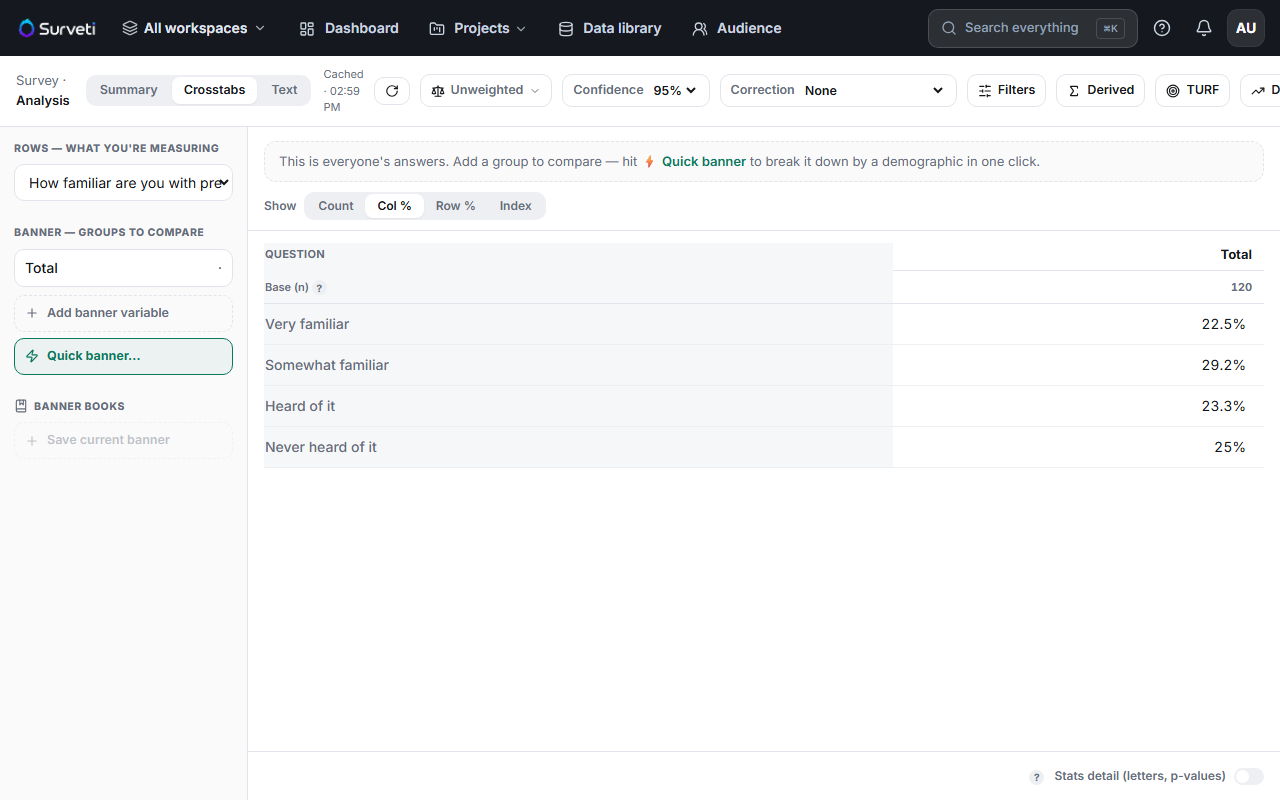
Cross-tabulate when you need comparisons — click Open in Crosstabs to break one question's answers down by another (for example, satisfaction by age group).
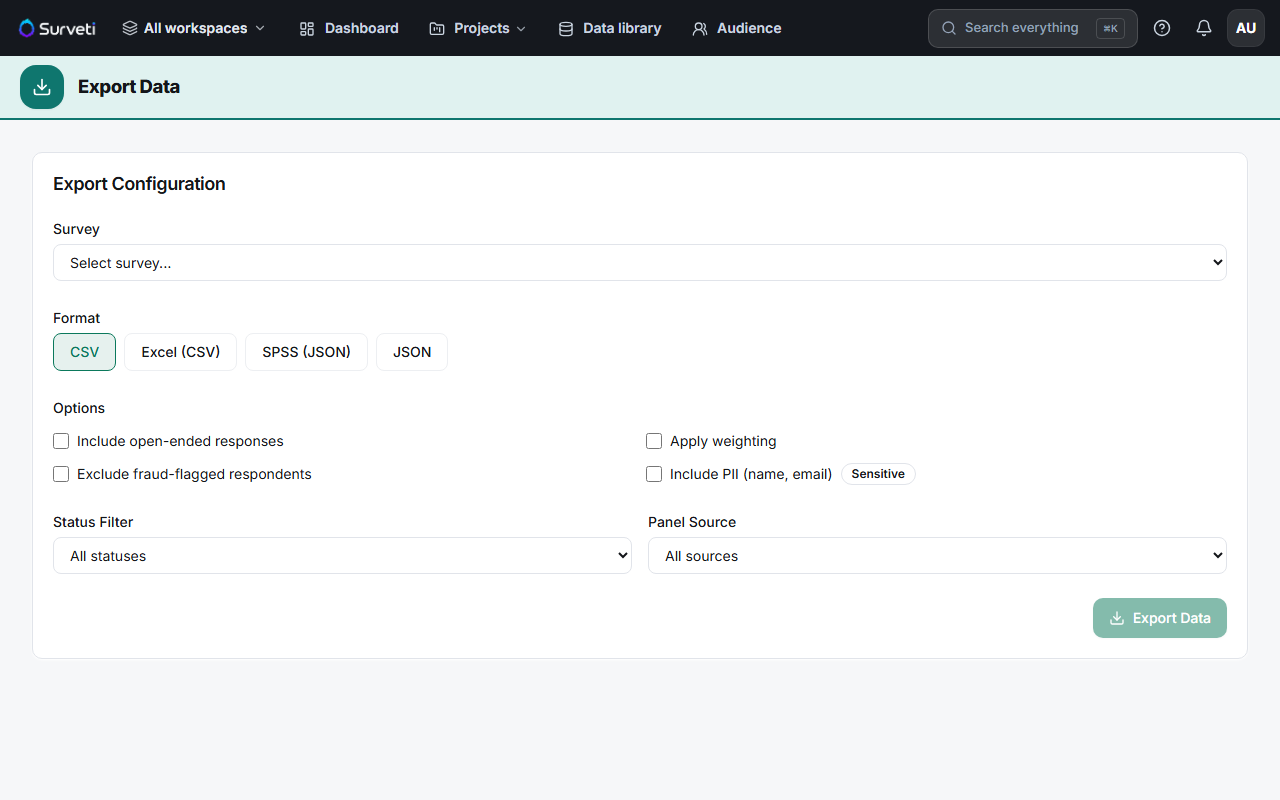
Export your data — click Export to download the raw responses for analysis in other tools.
Tips
Tip: Check results after your first 5–10 responses, not just at the end — early data catches routing mistakes and confusing questions while there's still time to fix them (Live surveys allow safe edits like rewording).
Note: Response counts differ per question when respondents skip questions or get routed around them by logic — that's expected, not data loss.
Related articles
- How to Collect Your First Responses — get more data flowing
- Understanding Survey Status: Draft, Live, Paused, and Closed — closing fieldwork
- Understanding Monthly Response Limits by Plan — how responses count against your plan