Getting Started
Understanding Survey Status: Draft, Live, Paused, and Closed
Every Surveti survey is in one of four statuses that control whether it accepts responses — learn what each one means and how to change it.
Overview
Every survey is in one of four statuses that control whether it accepts responses — Draft, Live, Paused, or Closed. You change status from the survey list's row menu.
The four statuses
| Status | What it means |
|---|---|
| Draft | You're still building. The survey link doesn't accept responses yet, and you can edit everything freely. |
| Live | The survey is collecting. Respondents can open the link and submit. Editing is limited to safe changes. |
| Paused | Collection is temporarily stopped — the link stops accepting new respondents, but you can resume anytime. |
| Closed | Fieldwork is finished for good. The link no longer works; your data stays available in Results. |
Step-by-step
Find the survey in your list — go to Surveys in the top navigation. Each row shows its status chip, and the filter tabs (All, Draft, Live, Paused, Closed) narrow the list.
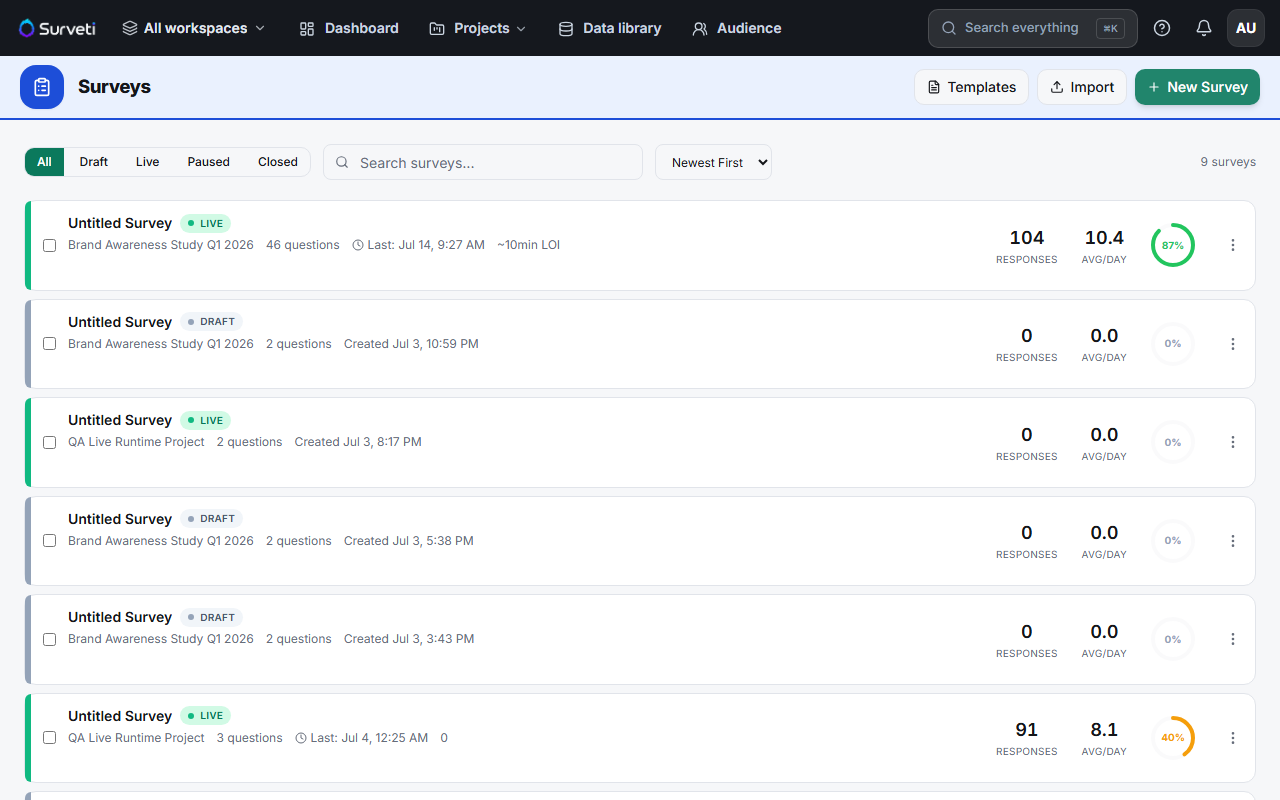
Open the row menu (⋯) — the actions offered depend on the current status:
- Draft → Go Live
- Live → Pause or Close
- Paused → Resume or Close
Confirm the change — the status chip updates immediately, and the survey link starts or stops accepting respondents to match.
Tips
Tip: Use Pause instead of Close if there's any chance you'll collect more later — Close is meant to be final.
Note: While a survey is Live or Paused, the builder protects collected data: you can reword questions, add options, loosen rules, and append questions, but reordering, deletions, and question-type changes are disabled. A banner in the builder reminds you of this.
Related articles
- Publishing Your First Survey and Sharing the Link — going from Draft to Live
- How to Collect Your First Responses — what happens while Live
- Viewing Survey Results After Responses Come In — your data outlives the status