Getting Started
Setting Up Your Workspace Name and Profile
Set your organization name, keep your personal profile up to date, and secure your account with a password change or two-factor authentication.
Overview
Set your organization name, keep your personal profile up to date, and secure your account with a password change or two-factor authentication. Everything personal lives in Settings → Profile.
Step-by-step
Name your organization at sign-up — the Organization field on the registration form sets the name your whole team sees. Choose your company or team name; it appears in the workspace switcher at the top of the app.
Open your profile settings — click your avatar in the top-right corner and choose Settings, then select Profile.
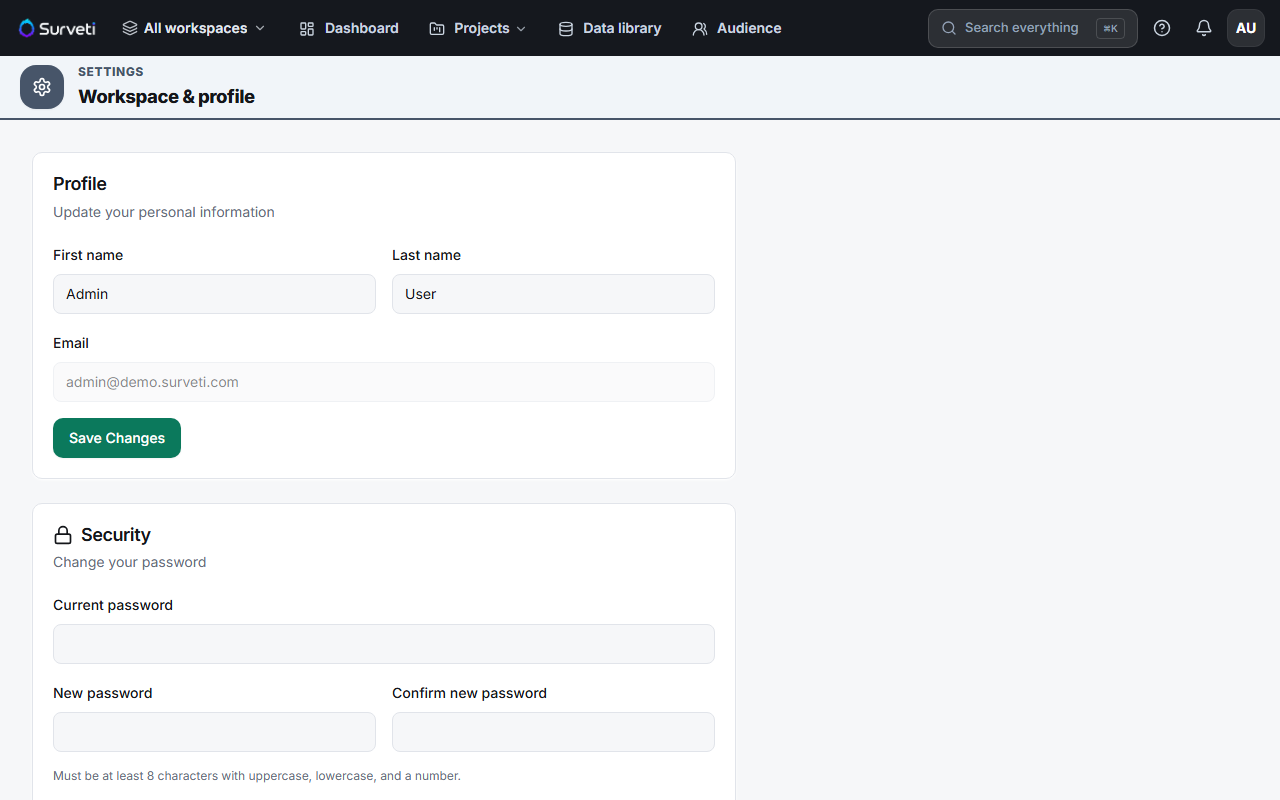
Update your personal information — edit First name, Last name, or your Email address, then save. Your name appears next to comments, invitations, and audit entries, so keep it recognizable.
Change your password when needed — under Change your password, enter your current password, the new password, and the confirmation, then save. Passwords must be at least 8 characters.
Add two-factor authentication (recommended) — enable 2FA from the same page: scan the QR code with an authenticator app (or enter the setup key manually), type the 6-digit code to confirm, and store the backup codes somewhere safe. From then on, sign-in asks for a code after your password.
Tips
Tip: If your organization has more than one workspace, use the workspace switcher in the top navigation bar (next to the Surveti logo) to move between them — your profile settings apply everywhere.
Note: Disabling two-factor authentication requires your account password, so a stolen unlocked laptop is not enough to remove it.
Related articles
- How to Create a Surveti Account — where the organization name is first set
- Inviting Team Members to Your Workspace — add colleagues once your profile is ready
- Resetting Your Password — recover access if you're locked out