Getting Started
Resetting Your Password
Reset a forgotten Surveti password from the login page, or change your current password from your profile settings.
Overview
Reset a forgotten Surveti password from the login page, or change your current password from your profile settings.
Step-by-step
If you're locked out
Open the reset page — on the login page, click Forgot password? (or go to app.surveti.com/forgot-password).
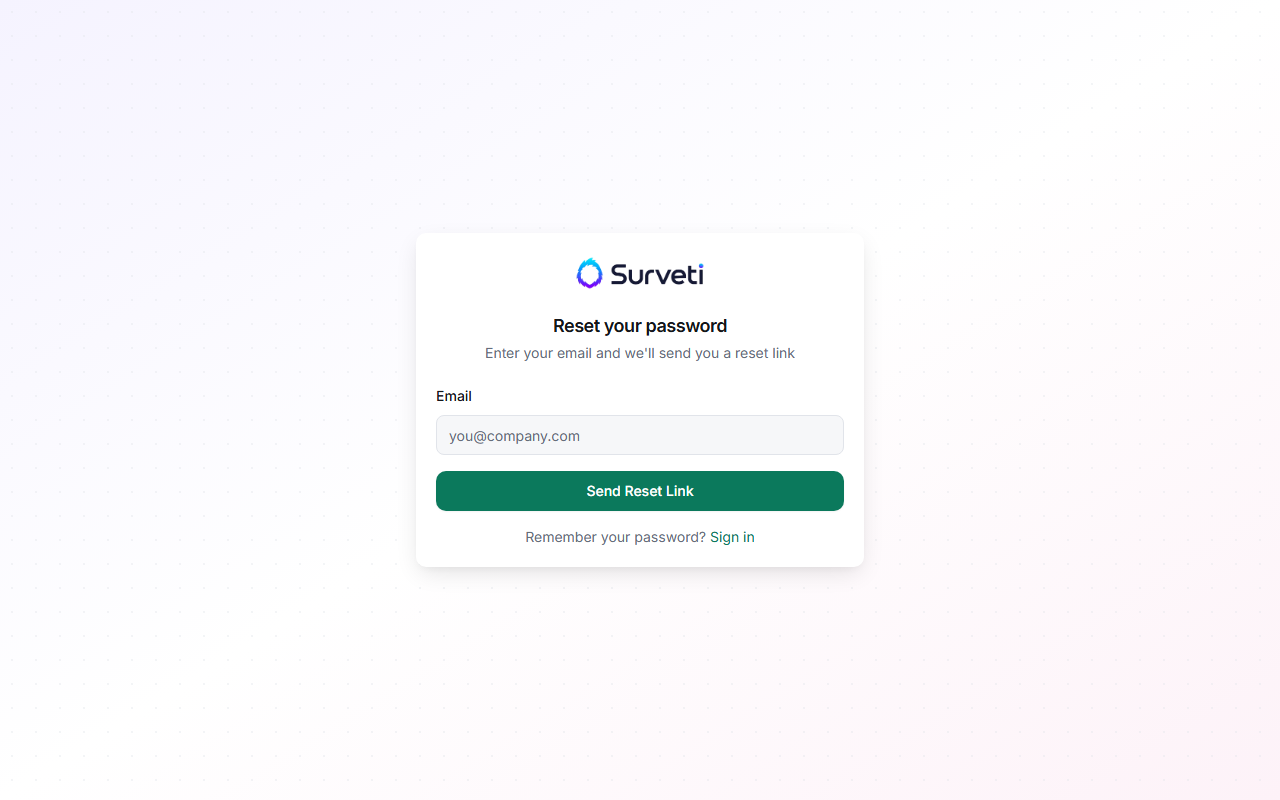
Enter your account email — submit the email address you registered with. Surveti sends a password-reset link to that address.
Follow the link and set a new password — the link opens a reset form. Choose a new password of at least 8 characters, confirm it, and sign in.
If you're signed in and just want to change it
Open your profile — click your avatar in the top-right corner, choose Settings, then Profile.
Use Change your password — enter your current password, the new password, and the confirmation, then save.
Tips
Tip: If the reset email doesn't arrive within a few minutes, check your spam folder and confirm you entered the address you signed up with — reset links are only sent to registered addresses.
Note: If your account has two-factor authentication enabled, you'll still need your authenticator code (or a backup code) after resetting the password.
Related articles
- Setting Up Your Workspace Name and Profile — where password and 2FA settings live
- How to Create a Surveti Account — if you're not sure an account exists for your email