Getting Started
Publishing Your First Survey and Sharing the Link
Take your survey live and share its link so respondents can start answering.
Overview
Take your survey live and share its link so respondents can start answering. Publishing is two steps: set the survey to Live, then grab the link from the Share tab.
Prerequisites
- A survey in Draft status with at least one question — see Creating Your First Survey from Scratch.
Step-by-step
Test it first — open the Test tab in the builder and click through the whole survey once. Fixing a typo before launch is free; fixing it after 200 responses is not.
Go live — go to Surveys, open the row menu (⋯) next to your survey, and click Go Live. The status chip flips to Live.
Open the Share tab — in the builder's top tabs, click Share. The Direct Link section shows your survey's URL.
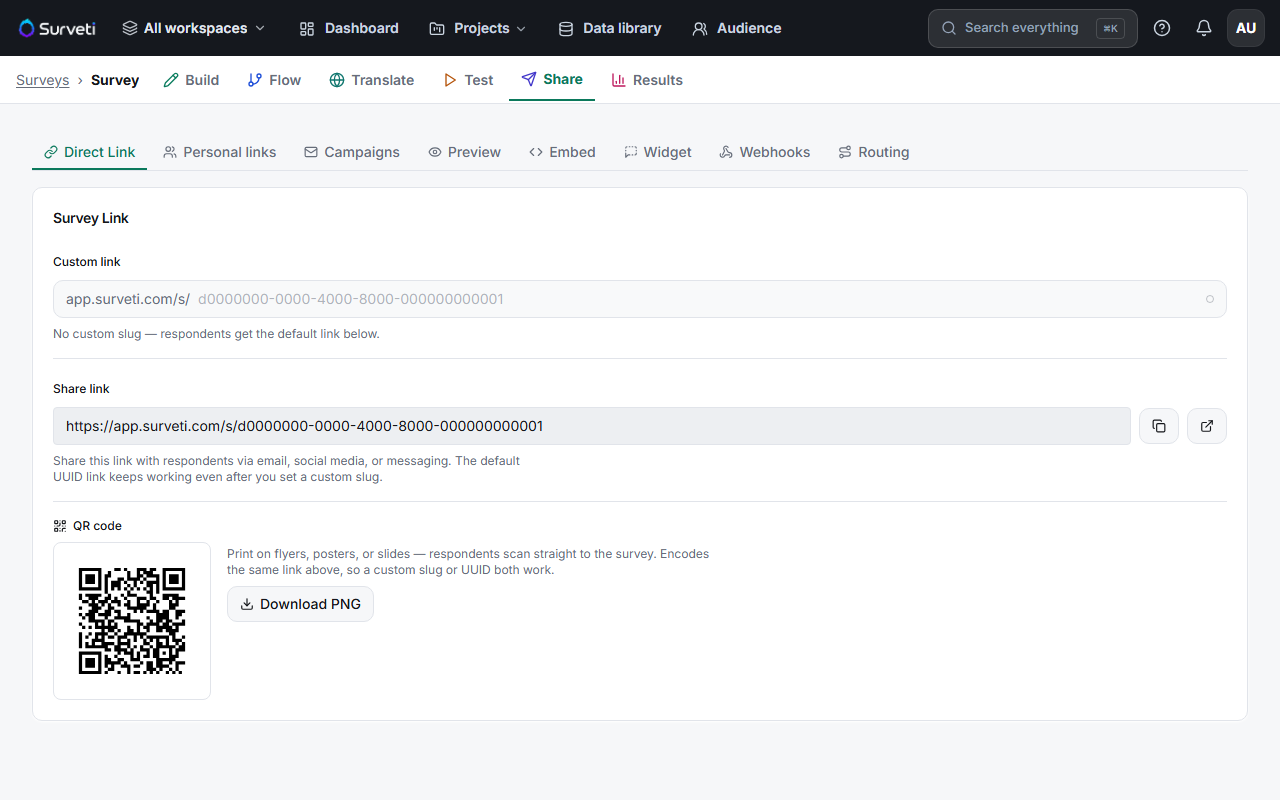
Copy and share the link — click the copy button next to Share link and paste it anywhere: email, Slack, social media, or a website. Anyone with the link can respond while the survey is Live.
Or use the QR code — click Download PNG to get a QR code that encodes the same link — useful for flyers, posters, or presentation slides.
Key options
| Option | What it does |
|---|---|
| Custom link | Replace the long ID in the URL with a readable slug (the default link keeps working) |
| Personal links | Generate unique per-respondent links so you know who answered |
| Campaigns | Send email invitations to a contact list (Solo plan and up) |
| Embed / Widget | Put the survey inside your own website |
Tips
Tip: Share the link in a small channel first (your team, 5–10 people) and check Results before the big send — a soft launch catches problems a test click-through misses.
Related articles
- How to Collect Your First Responses — all the distribution channels
- Understanding Survey Status: Draft, Live, Paused, and Closed — pausing and closing
- Viewing Survey Results After Responses Come In — watch responses arrive