Getting Started
How to Create a New Project
Create a project to group related surveys, people, and results in one place.
Overview
Create a project to group related surveys, people, and results in one place. Every survey lives inside a project, so this is usually your first step after signing up.
Step-by-step
Click + New project — from the Dashboard (top-right button or the dashed "New project" card) or from the Projects page.
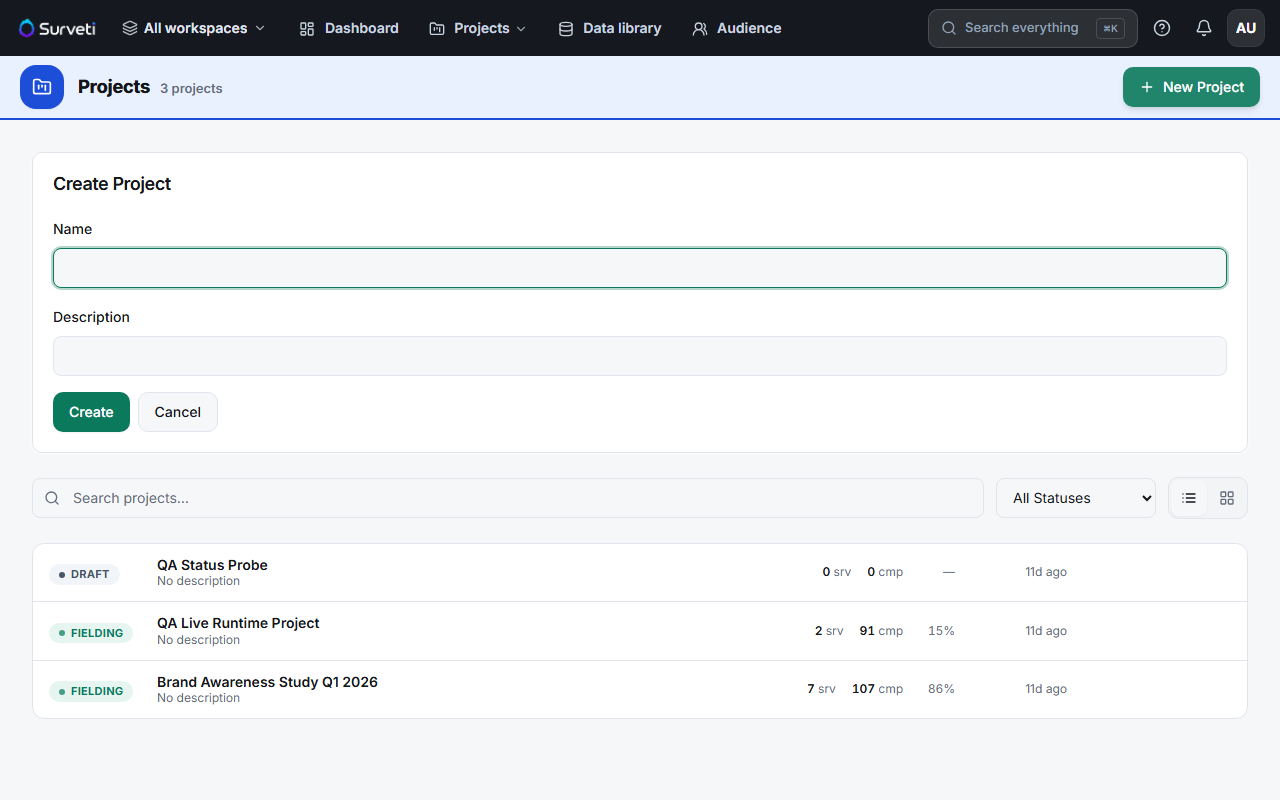
Name the project — pick a name that describes the study, like "Brand Awareness Q3" — you'll navigate by it constantly.
Create it — the project appears on your dashboard with a Draft status chip and zero surveys.
Add your first survey — open the project and use its Build action, or go to Surveys → + New Survey and pick this project from the dropdown.
Tips
Tip: Group surveys that answer the same research question into one project — waves of a tracker, or a screener plus main questionnaire — so their people and results stay together.
Note: Plans include a monthly project-creation quota (Free: 1, Solo: 3, Professional: 10, Team: 25, Research Team: 50). Deleting a project frees its slot for the month; if you hit the quota, the create dialog tells you which plan lifts it.
Related articles
- Creating Your First Survey from Scratch — the next step after your project exists
- Understanding the Surveti Dashboard Layout — where projects appear
- Understanding Monthly Response Limits by Plan — other plan quotas explained