Distribution & Fieldwork
Using the Quota Fill Rate Dashboard to Monitor Field Progress
Watch each quota fill in real time to see how fieldwork is progressing and spot cells that lag behind.
Overview
Watch each quota fill in real time to see how fieldwork is progressing and spot cells that lag behind — so you can adjust distribution before the deadline, not after.
Step-by-step
Open the Quotas page — from the survey, go to Quotas. Each quota shows a fill bar with its current count and percentage (e.g. 0 / 60).
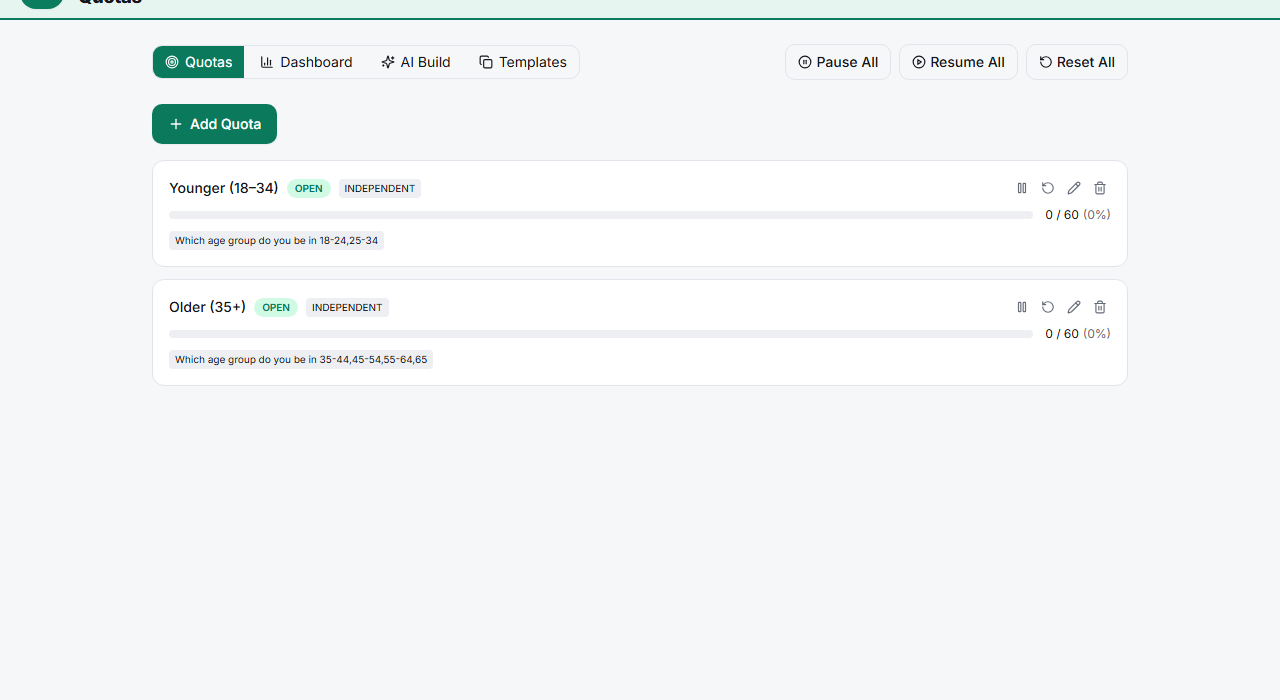
Switch to the Dashboard view — the Dashboard tab gives an at-a-glance overview of every quota's fill rate together.
Spot laggards — cells filling slower than the rest tell you where to send more traffic (or which panel segment under-delivers).
Pause or reset as needed — use Pause All / Resume All to hold collection, or reset a quota to re-open a cell.
Tips
Tip: Check fill rates daily during active fieldwork. Balanced cells at the end come from mid-field adjustments — a quota that's 90% full while another sits at 20% won't fix itself.
Note: A stalled cell often isn't a quota problem — it's an incidence problem. If your "hard-to-reach" segment barely fills, you may need a different traffic source, not a bigger quota.
Related articles
- Setting Up a Simple Response Quota to Cap Total Completions — create quotas first
- Understanding the Fraud Signals That Cause a Respondent to Be Flagged — quality alongside quantity