Distribution & Fieldwork
Using AI Auto-Translate to Generate Translations for All Question Text
Add a language and let AI auto-translate your whole survey, then review the results before fielding multilingually.
Overview
Add a language and let AI auto-translate your whole survey — question text, options, and screens — then review the results before fielding to a multilingual audience.
Prerequisites
- A survey with content in your default language.
Step-by-step
Open the Translate tab — in the builder's top tabs, click Translate. Your default language is marked as the survey's source.
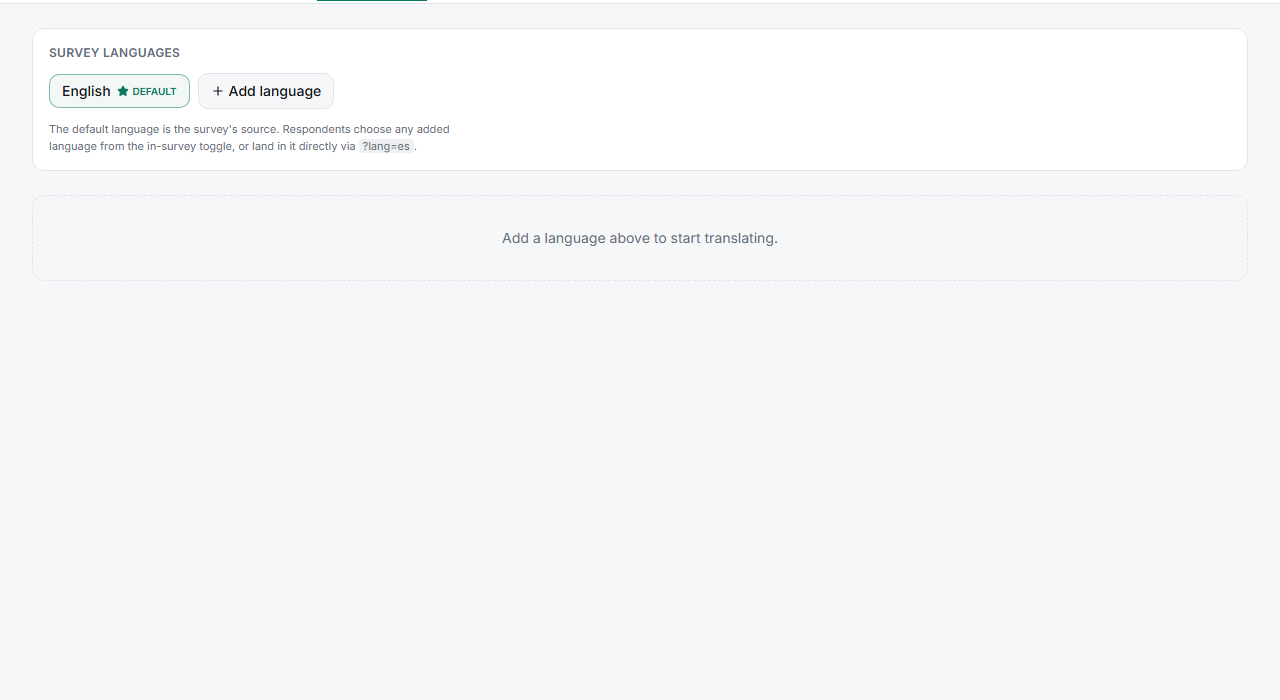
Add a language — click Add language and choose the target (e.g. Spanish). A translation workspace appears for it.
Run Auto-translate — use the Auto-translate action to generate AI translations for all question text at once, instead of typing each one.
Review and refine — read through the generated translations and fix anything that's off. AI gets you 90% of the way; a native reviewer catches the nuances.
Tips
Tip: Respondents pick a language from the in-survey toggle, or land directly in one via
?lang=eson the link — so you can send a Spanish audience straight into Spanish without them choosing.
Note: Auto-translate consumes AI credits and translates literally. Always review market-specific terms, brand names, and idioms — a literal translation of "how likely are you to recommend" can read oddly in some languages.
Related articles
- Choosing the Right Question Types for Your Goals — clear source text translates better
- Editing the Survey Welcome Screen and Start Button Text — screens translate too