Distribution & Fieldwork
Importing Contacts from a CSV File into a Contact List
Bulk-import contacts from a CSV into an Audience list so you can invite them to surveys by email.
Overview
Bulk-import contacts from a CSV into an Audience list so you can invite them to surveys by email. One upload turns a spreadsheet into a reusable, deduplicated list.
Step-by-step
Open Audience and pick a list — click Audience in the top nav, then open a list (or create one with New list).
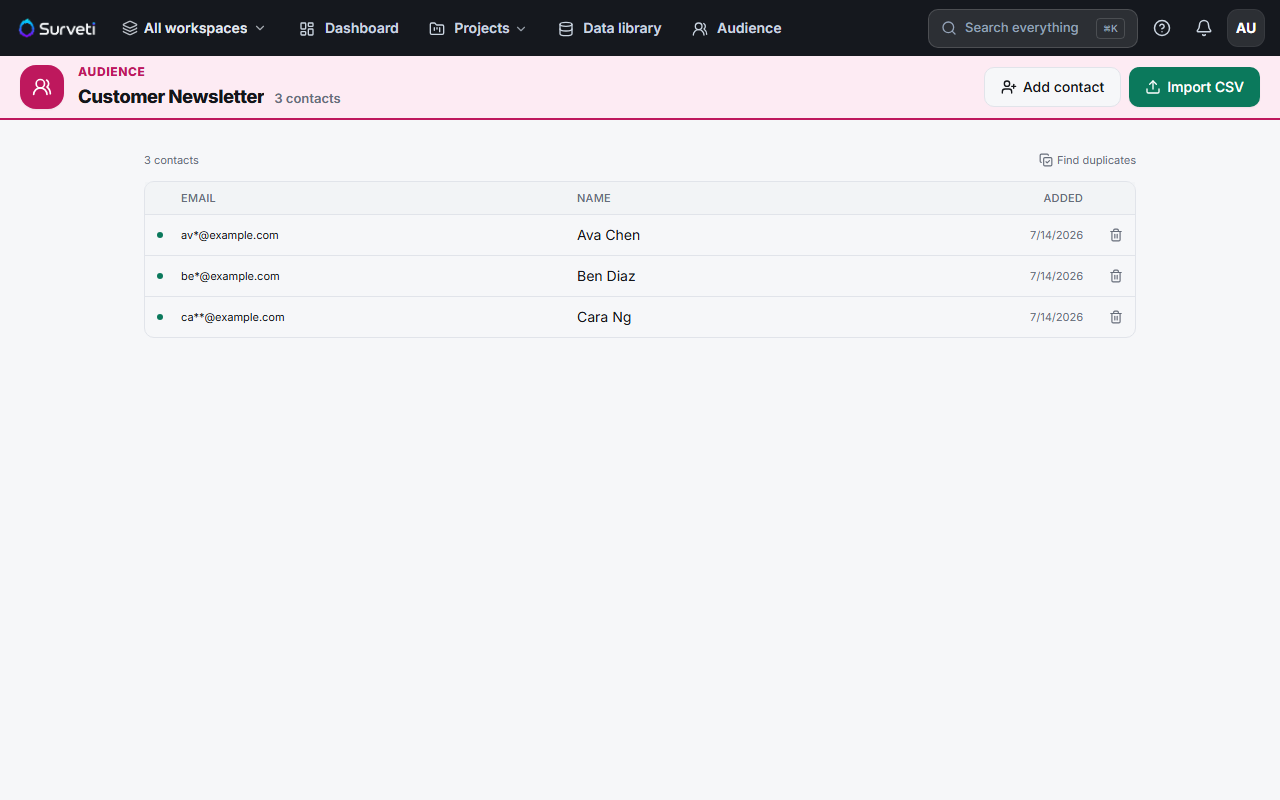
Click Import CSV — upload a file with at least an email column; firstName and lastName columns enable personalization.
Map the columns — match your CSV headers to email, first name, and last name.
Confirm the import — contacts are added to the list, deduplicated by email, and their addresses are stored encrypted (shown masked in the table).
Tips
Tip: Clean the CSV first — one email per row, a header row, no merged cells. A tidy file imports without surprises; a messy export from another tool usually doesn't.
Note: Emails are encrypted at rest and displayed masked (e.g.
av*@example.com) to protect respondent PII. That's expected — the full address is still used when you send.
Related articles
- Understanding Which Contacts Are Suppressed and Why — who won't receive email
- How to Create and Send Your First Email Campaign — invite the imported list