Advanced Research
Building Product Profiles for the Conjoint Preference Simulator
Configure the product profiles you want to compare — one attribute level at a time, up to eight products.
Overview
Configure the product profiles you want to compare — one attribute level at a time, up to eight products. A profile is just one complete combination of your attributes.
Step-by-step
Open the simulator — on the conjoint card in Results, scroll to SHARE-OF-PREFERENCE SIMULATOR.
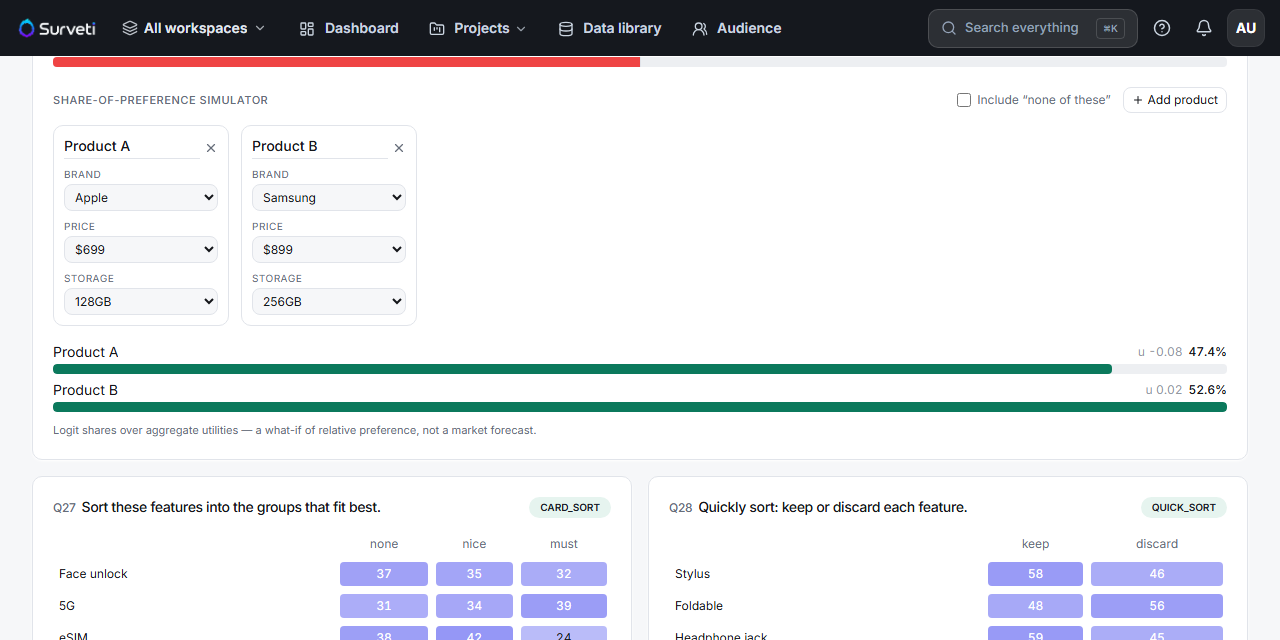
Name each product — the name is editable; use something meaningful ("Current SKU", "Proposed premium") instead of Product A/B so the shares read like a decision.
Set a level for every attribute — each product card has one dropdown per attribute (Brand, Price, Storage). Every attribute needs a level; a profile is a complete product.
Add or remove products — + Add product adds another (max 8); the × removes one.
Compare — shares recalculate live as you change any dropdown.
Tips
Tip: Change one attribute at a time between two otherwise-identical profiles. That isolates exactly what that attribute is worth in share terms — the cleanest way to answer "what does upgrading storage buy us?".
Note: Simulate combinations that could actually ship. A profile that violates your prohibited pairs (a budget brand at a premium price) will still produce a number, but it's a number about a product that can't exist.
Related articles
- Running a Share-of-Preference Simulation with Conjoint Results — reading the shares
- Defining Attributes and Levels for a CBC Study — the levels you can choose from