Account & Billing
Viewing Your Current Usage on the Billing Dashboard
Check every meter — completes, seats, projects, storage, AI credits, transcription — for the current billing period.
Overview
Check every meter — completes, seats, projects, storage, AI credits, transcription — for the current billing period, in one place.
Step-by-step
Open Settings → Billing — click your avatar, choose Settings, then Billing.
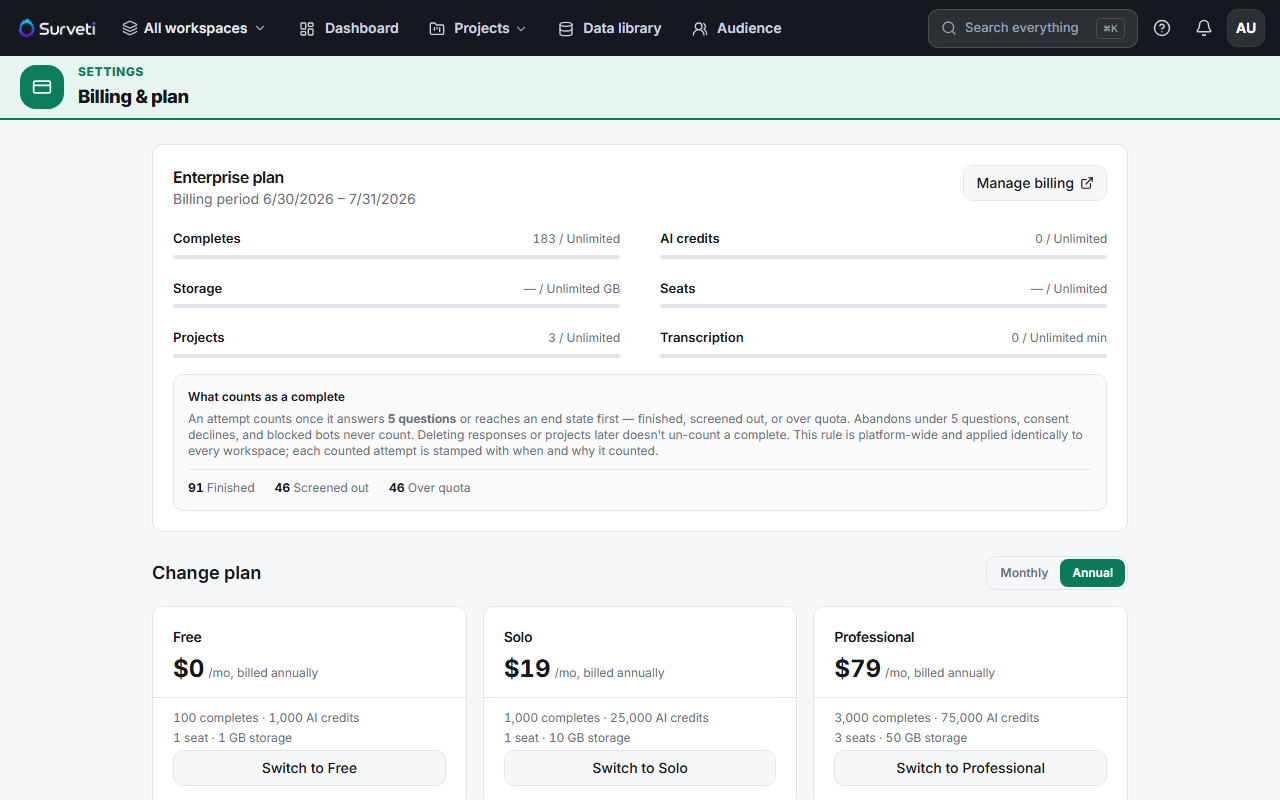
Read the plan card — it names your plan and the billing period dates.
Read the meters — each shows used / included:
- Completes — billable responses this period
- AI credits — allowance consumed
- Storage — GB used
- Seats — occupied vs included
- Projects — created this period
- Transcription — minutes used
Check the complete breakdown — under "What counts as a complete" you'll see the split of Finished, Screened out, and Over quota.
Tips
Tip: The dashboard also has a Plan usage panel showing completes, projects, and AI credits — enough for a daily glance without opening Settings.
Note: Meters follow the UTC calendar month for quotas, while your invoice follows your billing period. The two dates can differ, which is why the page shows both.
Related articles
- What Counts as a Billable Complete in Surveti — how completes are counted
- How Completes Overage Billing Works at $0.10 Per Response — going over
- Monthly AI Credits: Allowance Resets and Purchased Top-Up Packs — credits