Account & Billing
Upgrading Your Plan and How Prorated Billing Works
Upgrade to a bigger plan — through checkout the first time, or through the billing portal if you're already subscribed.
Overview
Upgrade to a bigger plan. Which route you take — and how you're charged — depends on whether you already have a subscription.
Step-by-step
Your first paid plan
Open Settings → Billing → Change plan.
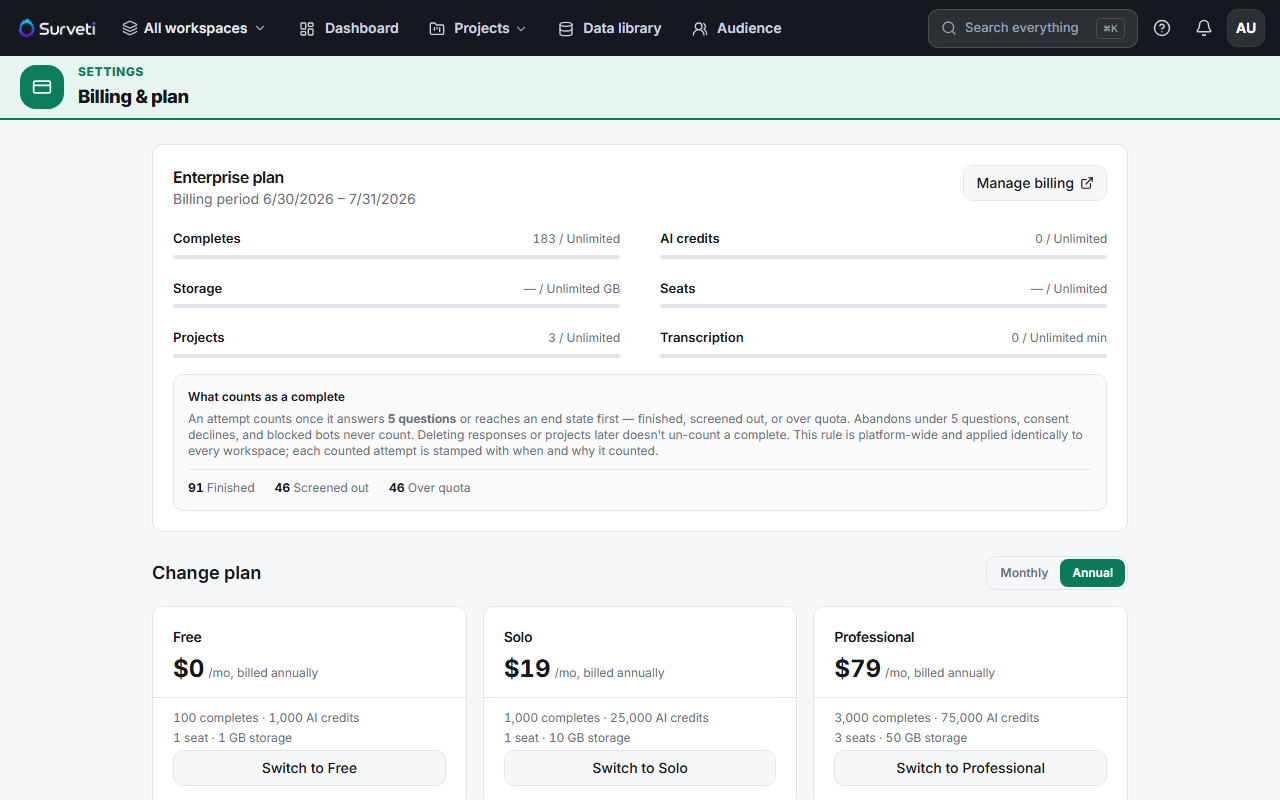
Set Monthly / Annual, then click Switch to [plan].
Complete Stripe checkout — first-time subscribers get a 14-day free trial.
Your new limits apply immediately once the subscription is active.
Already subscribed
Click Manage billing — this opens the Stripe billing portal.
Change your plan there — Surveti routes plan changes for live subscriptions to the portal, and Stripe applies its proration rules to the switch.
How proration works
When you change mid-cycle, Stripe credits the unused portion of what you've already paid against the new plan's charge — you're not billed twice for the same days. The same applies to add-ons: buying extra seats or a storage pack mid-cycle creates prorations, so you pay only for the remainder of the period, then the full amount each cycle after.
Tips
Tip: Upgrade as soon as you know you need it rather than near period end. Proration means an early upgrade costs only the difference for the days remaining — waiting doesn't save you money, it just delays the headroom.
Note: Starting a fresh checkout while a subscription is live is rejected — "A subscription already exists — use the billing portal to change plans." That's the expected path, not an error.
Related articles
- Downgrading Your Plan and When the Change Takes Effect — going the other way
- Updating Your Payment Method via the Stripe Billing Portal — the portal
- Starting a 14-Day Free Trial on a Paid Plan — first-time subscribers