Account & Billing
Updating Your Payment Method via the Stripe Billing Portal
Change the card on file through the Stripe billing portal — Surveti never stores your card details.
Overview
Change the card on file through the Stripe billing portal. Surveti never stores your card details — payment methods live with Stripe.
Prerequisites
- Owner (billing access) and an existing subscription.
Step-by-step
Open Settings → Billing.
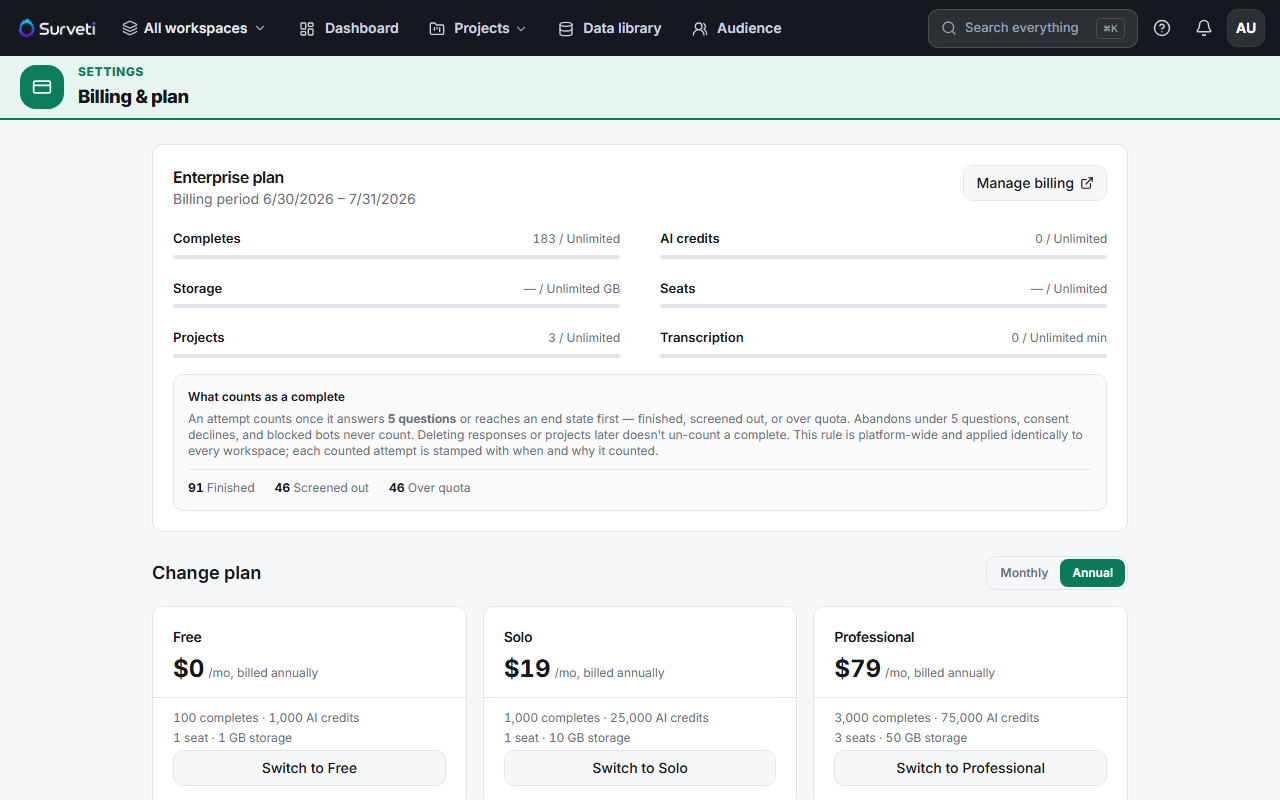
Click Manage billing — Surveti creates a secure portal session and sends you to Stripe.
Update your payment method in the portal — add a new card, set a default, or remove an old one.
Return to Surveti — the portal returns you to your billing settings when you're done.
What else the portal handles
The same portal is where you change or cancel a live subscription, switch billing cycle, and download invoices.
Tips
Tip: Update the card before it expires. A failed renewal starts the dunning process — see What Happens When a Payment Fails and Your Account Is Past Due — and that's a lot more disruptive than a two-minute card update.
Note: Because card data lives with Stripe, Surveti support can't see or change your payment method. Anything card-related has to be done by an Owner through the portal.
Related articles
- Viewing and Downloading Past Invoices in Surveti — also in the portal
- What Happens When a Payment Fails and Your Account Is Past Due — if it lapses
- Downgrading Your Plan and When the Change Takes Effect — portal plan changes