Account & Billing
Inviting a New Team Member to Your Workspace
Send an email invitation with the right role — and know what happens if you're out of seats.
Overview
Send an email invitation with the right role — and know what happens if you're out of seats.
Prerequisites
- Owner or Admin role, and a free seat of the right type.
Step-by-step
Open Settings → Team — click your avatar, choose Settings, then Team.
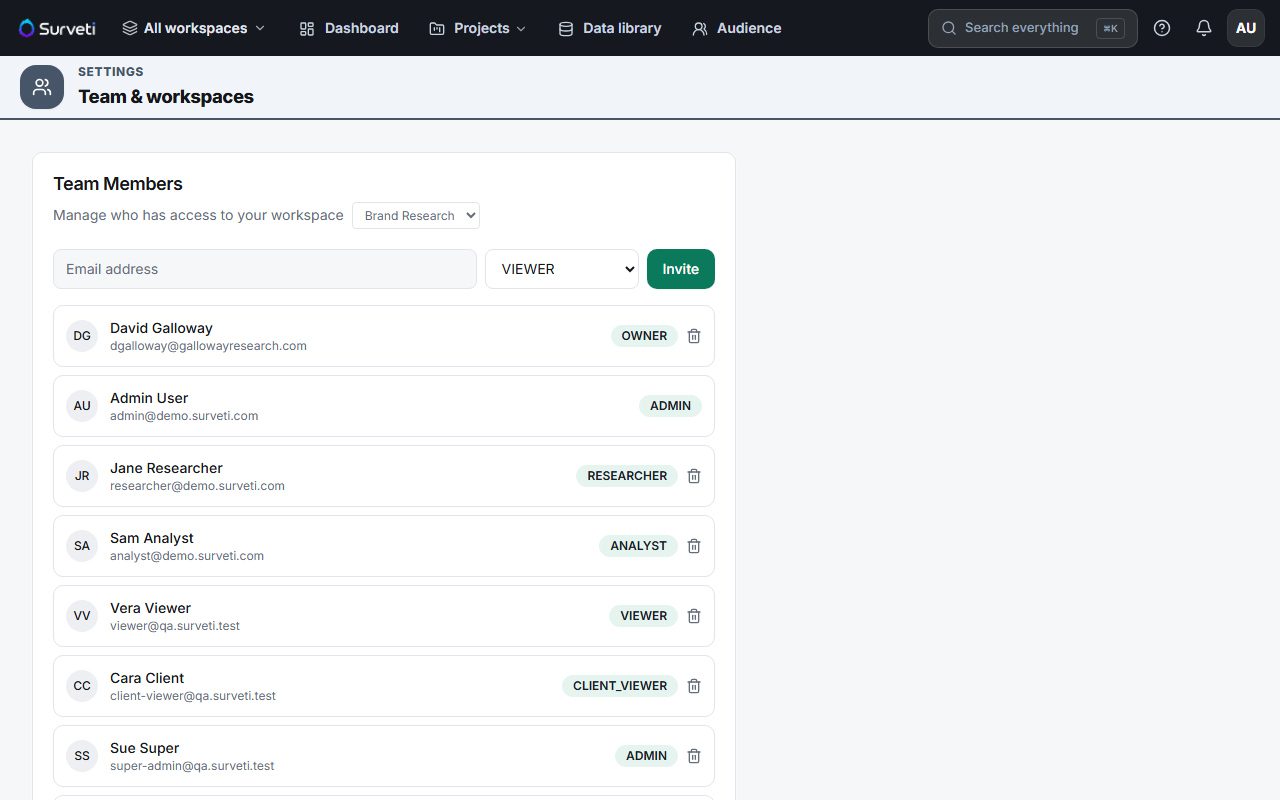
Pick the workspace — if your organization has several, choose the right one from the dropdown.
Enter their email and role — type the address, choose the role, and click Invite. You can only grant roles at or below your own.
They accept by email — new users create an account through the link; existing users are added directly. Once accepted, they appear in the list with their role chip.
Tips
Tip: Choose the role before you send, not after. Getting it right first time avoids a seat-limit surprise later — a Viewer costs a viewer seat, a Researcher costs a builder seat.
Note: If the invite is rejected on seats, the message names your plan, its included seats, any add-on seats you've bought, and the two ways forward: $15/seat/month or upgrade.
Related articles
- Understanding the Six Workspace Roles in Surveti — which role to pick
- Removing a Team Member from a Workspace — the reverse
- Adding Extra Builder Seats as a Monthly Add-On — make room