Account & Billing
Creating and Revoking API Keys in Surveti
Create an API key to connect scripts, CI, or an AI agent — and revoke it the moment it's no longer needed.
Overview
Create an API key to connect scripts, CI, or an AI agent — and revoke it the moment it's no longer needed.
Prerequisites
- API access requires the Professional plan or above.
Step-by-step
Open Settings → API keys (the Integrations & API page).
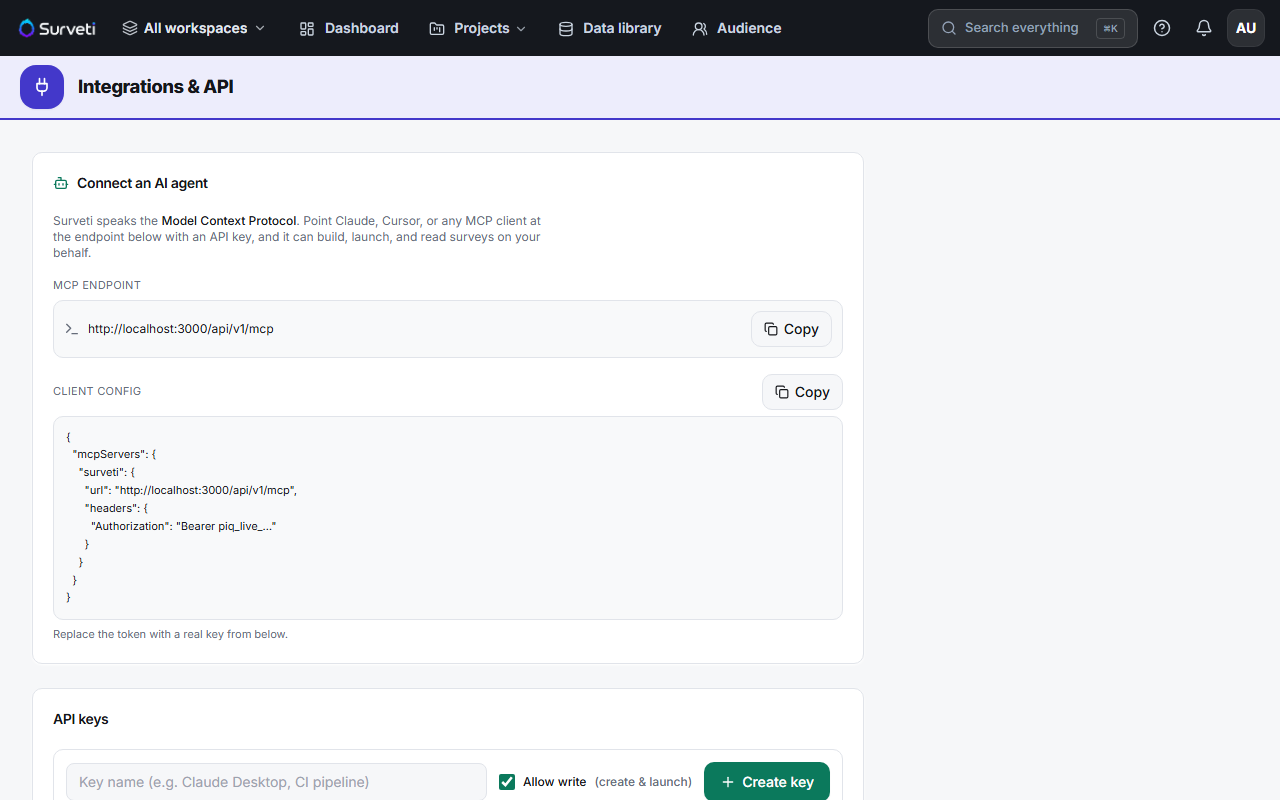
Name the key — use something that identifies where it lives ("Claude Desktop", "CI pipeline"). Future-you needs to know what breaks when it's revoked.
Choose the scope — the Allow write (create & launch) checkbox decides whether the key can change data. See API Key Scopes: Read-Only Versus Read-Write Access.
Click Create key — the key is shown once. Click Copy new API key and store it in your secret manager immediately.
Revoke when done — delete the key from the same page. Revocation is immediate.
Tips
Tip: One key per integration, named after it. Sharing a single key across CI, a script, and an agent means revoking any one of them breaks all three — and you won't know which one leaked.
Note: Surveti stores only a hash of the key plus a short prefix (e.g.
piq_live…) for identification. It cannot be shown again after creation — if it's lost, revoke it and make a new one.
Related articles
- API Key Scopes: Read-Only Versus Read-Write Access — pick the right scope
- What Is Included in the Professional Plan — where API access unlocks