Account & Billing
Changing a Team Member's Role After Invitation
Promote or demote an existing member — and understand when the change costs you a seat.
Overview
Promote or demote an existing member — and understand when the change costs you a seat.
Prerequisites
- You need Owner or Admin, and you can only assign roles at or below your own authority.
Step-by-step
Open Settings → Team — click your avatar, choose Settings, then Team.
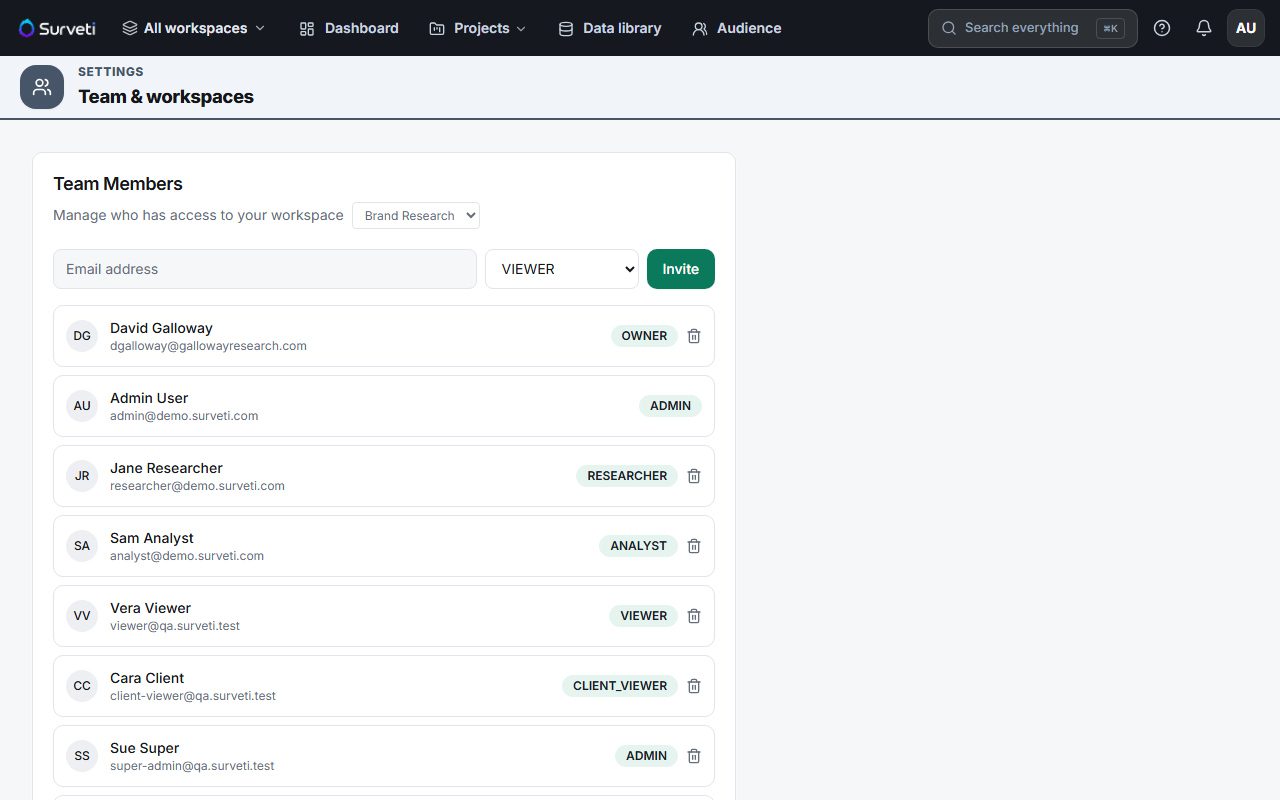
Find the member and change their role.
Watch for a seat check — the change is validated against your plan's seats before it applies.
When a role change costs a seat
Promoting a Viewer → Researcher moves that person from the viewer pool into the full-seat pool. If your full seats are already taken, the change is rejected with a message naming your plan's seat count and your options.
Demoting the other way (Researcher → Viewer) frees a full seat and consumes a viewer seat instead.
Tips
Tip: Only the pool a change actually grows is checked. Moving someone between two full-seat roles (Researcher → Analyst) never trips a seat limit, because your full-seat count doesn't change.
Note: Seats count the person, not the membership. If someone holds a builder role in another workspace of the same organization, demoting them here won't free a full seat — they still hold one elsewhere.
Related articles
- Understanding the Six Workspace Roles in Surveti — pick the right role
- How Builder Seats and Viewer Seats Differ in Surveti — the seat pools
- Adding Extra Builder Seats as a Monthly Add-On — if you're out of seats