Question Types
Setting Up Multi-Select Checkboxes with Min and Max Selection Limits
Let respondents pick several answers and enforce how many with minimum and maximum selection limits.
Overview
Let respondents pick several answers and enforce how many with minimum and maximum selection limits — so a "pick your top 3" question can't return seven answers or zero.
Step-by-step
Add the question — click + Question and choose Multiple Choice.
Enter the options — one per row, same editor as single choice.
Set Min and Max Selections — the multi-choice editor has Min Selections and Max Selections fields. Set both for "pick exactly 3", just Max for "up to 3", or just Min for "at least 2".
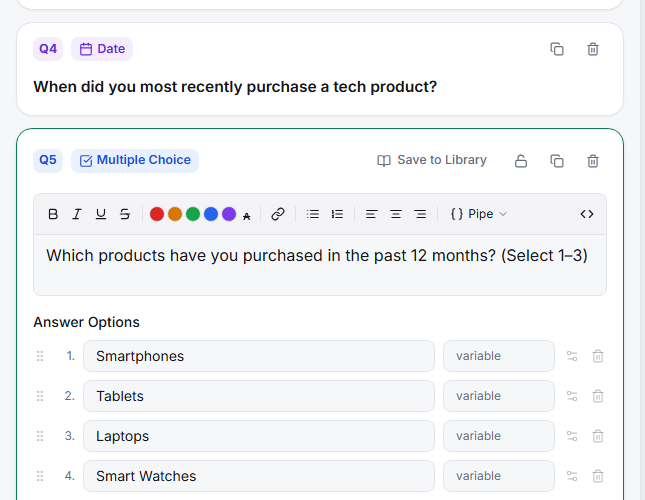
Mirror the limit in the question text — write "(Select up to 3)" so respondents know the rule before validation enforces it.
Key options
| Field | Effect |
|---|---|
| Min Selections | Respondent must select at least this many |
| Max Selections | Respondent cannot select more than this many |
| + None / + N/A | Exclusive options that clear all other selections |
Tips
Tip: A max limit is a research tool, not just validation — capping at "top 3" forces prioritization and produces far more discriminating data than an unlimited "select all".
Note: Leave both blank for a plain "select all that apply". Limits only make sense when the count itself matters to your analysis.
Related articles
- Adding a Single-Choice Radio Question to Your Survey — when exactly one applies
- Adding an Other Write-In Field to a Choice Question — special options