Question Types
Setting Up a Contact Form to Collect Name Email and Address
Collect several contact details in one question with the Contact Form type — toggle which fields show and which are required.
Overview
Collect several contact details in one question with the Contact Form type — name, email, phone, and address — and control which fields show and which are required. It bundles what would otherwise be five validated text questions.
Prerequisites
- The Contact Form type is available on the Professional plan and above.
Step-by-step
Add the question — click + Question and choose Contact Form.
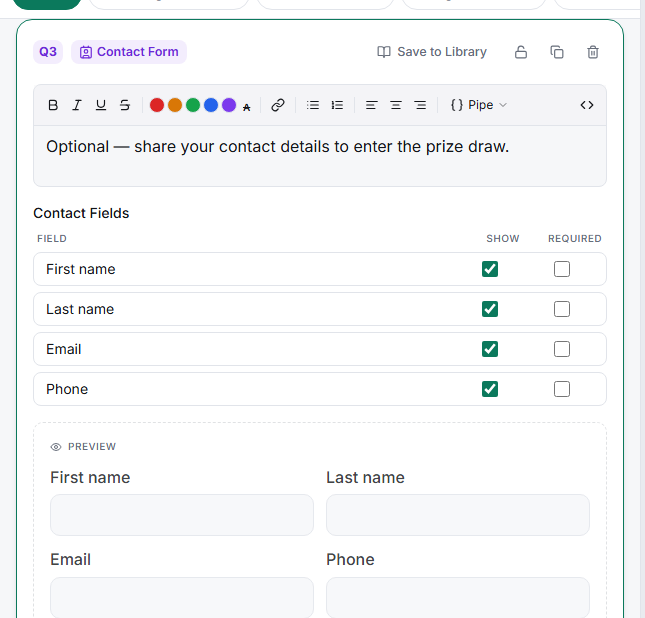
Choose which fields to Show — the field list includes First Name, Last Name, Email, Phone, Company, Street Address, City, State/Province, Postal/ZIP, and Country. First name, last name, and email show by default; tick Show to add the rest.
Set Required per field — tick Required on the fields a respondent must complete. Email is validated as an email; Postal/ZIP is validated as a postal code, automatically.
Preview it — the Live preview lays the enabled fields out as a proper form.
Tips
Tip: Ask only for what you'll use. Every extra field lowers completion — if you only need an email for follow-up, show just name and email and hide the rest.
Note: Contact details are personal data. Pair a contact form with a consent screen and make sure your privacy policy covers how you'll use what you collect.
Related articles
- Validating Email Phone and URL Formats in an Open Text Question — single-field validated inputs
- Editing the Survey Welcome Screen and Start Button Text — adding a consent screen