Question Types
Restricting an Open Text Question to Numeric Input Only
Force numbers-only answers on an open text question, with options for whole numbers and positive values.
Overview
Force numbers-only answers on an open text question, with options for whole numbers and positive values — so "how many employees?" returns 45, not "about forty-ish".
Step-by-step
Add an Open Text question — click + Question and choose Open Text.
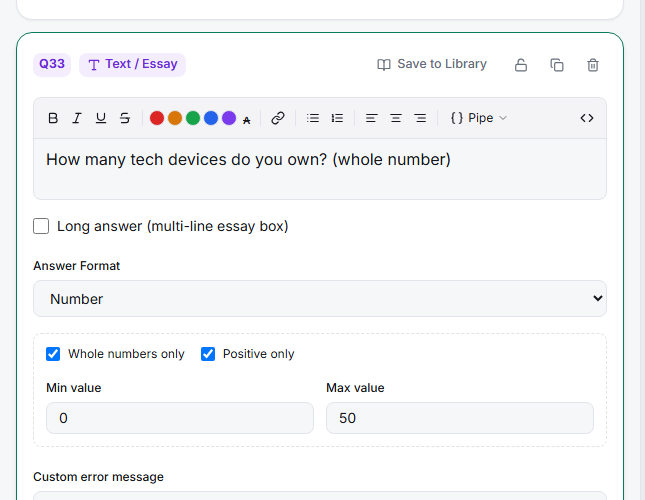
Set Answer Format to Number — in the editor's Answer Format dropdown, choose Number. A numeric-options panel appears.
Tighten the constraints — tick Whole numbers only to reject decimals, and Positive only to reject negatives. Related formats — Percent and Currency — expose the same options for those specific cases.
Add a range if it matters — set min/max bounds so an age question can't accept 400.
Key options
| Format | Use for |
|---|---|
| Number | General numeric input |
| Percent | 0–100 values |
| Currency | Money amounts |
Tips
Tip: Numeric validation cleans data at the source — you avoid parsing "forty", "40ish", and "$40k" into numbers after the fact. Set it whenever you'll do math on the answer.
Note: Tell respondents the unit in the question ("How many hours per week?") — validation enforces that it's a number, not which number you meant.
Related articles
- Validating Email Phone and URL Formats in an Open Text Question — non-numeric formats
- Adding an Open-Ended Essay Text Box to Your Survey — free-text instead