Question Types
Enabling Auto-Transcription for Video Response Questions
Turn webcam and audio responses into searchable text automatically, so you can read and code them like open-text answers.
Overview
Turn webcam and audio responses into searchable text automatically, so you can read and code them like open-text answers instead of watching every clip end to end.
Prerequisites
- A survey containing a Video Response (or audio) question.
- Transcription minutes are included on Professional and above and count against your plan's monthly transcription allowance.
Step-by-step
Open the Transcription settings — in the builder, open Tools → Transcription.
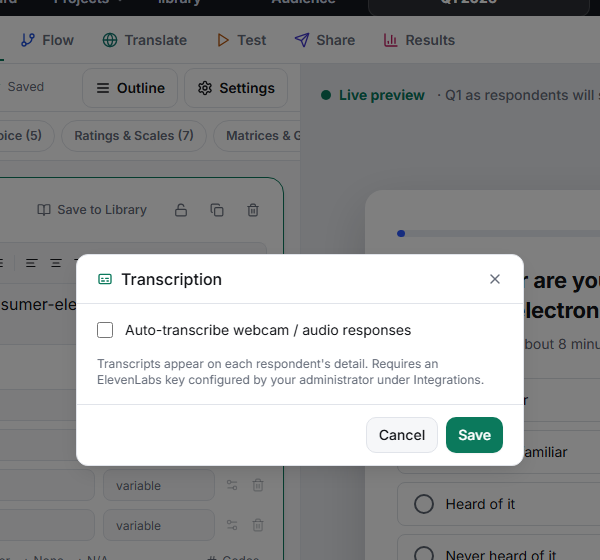
Turn it on — enable Auto-transcribe webcam / audio responses.
Set the Spoken language — choose English, Spanish, or Auto-detect if respondents may answer in either.
Save — from then on, new video and audio responses are transcribed automatically; the text appears alongside each recording in results.
Tips
Tip: Transcription makes qualitative video usable at scale — you can search, theme, and quote answers the same way you would text verbatims, instead of scrubbing through clips.
Note: Transcription consumes your plan's monthly minutes. Check your usage under Settings → Billing before a large video study, and top up if needed.
Related articles
- Collecting Webcam Video Responses from Survey Participants — set up the recording question
- Understanding Monthly Response Limits by Plan — where transcription minutes live