Question Types
Adding Images to Answer Options in an Image Select Question
Let respondents choose between pictures — designs, packaging, logos — with an image select question.
Overview
Let respondents choose between pictures — designs, packaging, logos — with an image select question. When the choice is visual, showing the options beats describing them.
Prerequisites
- Image Select is available on the Professional plan and above.
Step-by-step
Add the question — click + Question and choose Image Select.
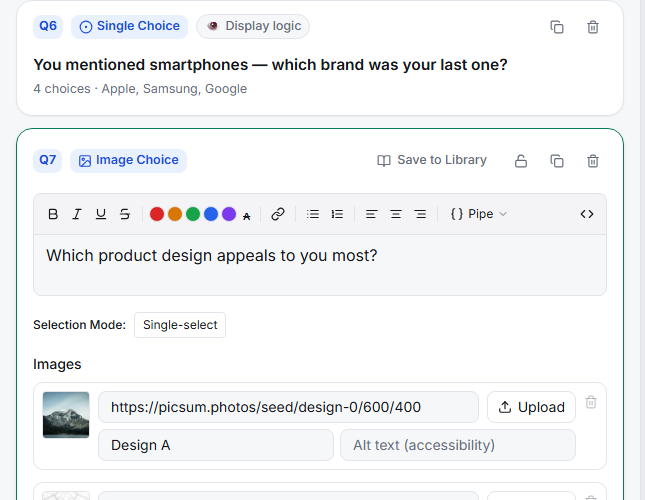
Add an image per option — upload or link an image for each choice, and give each one Alt text so screen-reader users and anyone whose image fails to load still gets a label.
Set the Selection Mode — single (pick one) or multiple (pick several), depending on your question.
Preview it — the taker lays the images out as a clickable grid; check it on Phone, where large images matter most.
Tips
Tip: Keep images consistent in size, framing, and background. A design that stands out only because its photo is brighter or bigger will win for the wrong reason.
Note: Always fill in alt text — it's required for accessibility and protects your data when an image fails to load on a slow connection.
Related articles
- Adding a Single-Choice Radio Question to Your Survey — text-based choice
- Using a Dropdown Question for Long Option Lists — when there are many text options