Question Types
Adding a Single-Choice Radio Question to Your Survey
Add a single-choice radio question where respondents pick exactly one answer, with reporting codes and optional randomization.
Overview
Add a single-choice radio question where respondents pick exactly one answer, with reporting codes and optional randomization. It's the most-used question type for a reason: unambiguous to answer, clean to analyze.
Step-by-step
Add the question — click + Question in the builder and choose Single Choice.
Write the options — type one answer per row under Answer Options.
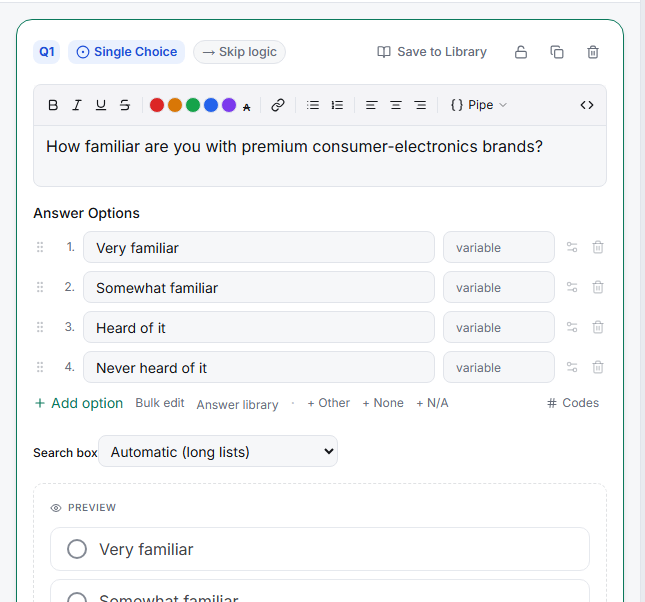
Set reporting codes — toggle # Codes to assign each option a stable value (1, 2, 3…) that stays constant in exports even if you later reword the label.
Add special options if needed — + Other, + None, or + N/A below the list.
Randomize to fight order bias — open Settings → Logic and enable option randomization so the option order rotates across respondents.
Tips
Tip: Keep options mutually exclusive and collectively exhaustive — if a respondent could truthfully pick two, you need multi-select, not single choice.
Related articles
- Setting Up Multi-Select Checkboxes with Min and Max Selection Limits — when several answers apply
- Adding an Other Write-In Field to a Choice Question — capture answers you didn't list
- Using a Dropdown Question for Long Option Lists — for long lists