Question Types
Adding a Date Picker Question to Your Survey
Collect a clean, unambiguous date with the date picker question — and bound it to a valid range.
Overview
Collect a clean, unambiguous date with the date picker question — and bound it to a valid range so nobody enters a purchase date in 1902 or next century.
Step-by-step
Add the question — click + Question and choose Date.
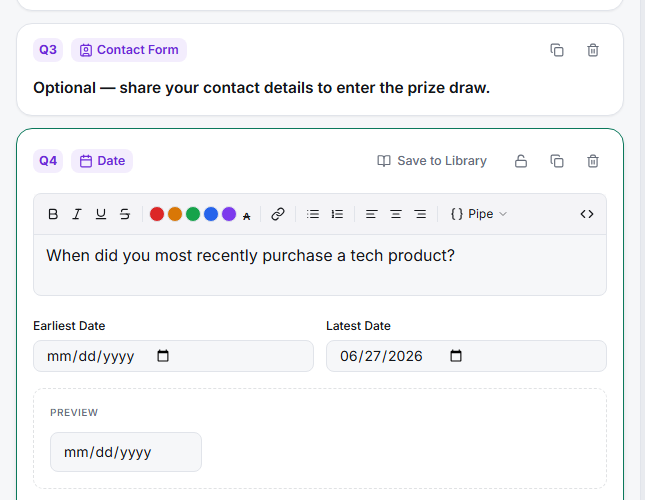
Set the range — fill in Earliest Date and Latest Date to constrain valid answers (e.g. earliest = one year ago, latest = today for "when did you last purchase?").
Preview the picker — the taker shows a calendar control, so respondents pick a date instead of typing one in an ambiguous format.
Tips
Tip: A date picker eliminates the MM/DD vs DD/MM ambiguity that plagues free-text date questions — always prefer it over an open text field for dates.
Note: Bounding the range does double duty: it prevents typos and quietly screens impossible answers (a "first used our product" date before your product launched).
Related articles
- Restricting an Open Text Question to Numeric Input Only — other structured inputs
- Scheduling a Survey to Open and Close Automatically — survey-level dates