Logic & Flow
Setting Multiple Skip Rules on a Single Question
Add several skip rules to one question to branch respondents to different destinations based on their answer.
Overview
Add several skip rules to one question to branch respondents to different destinations based on their answer — the foundation of a true branching survey.
Step-by-step
Open the question's Logic tab — select the trigger question, click Settings, switch to Logic.
Add the first rule — click + Add Skip Rule and set its condition and destination.
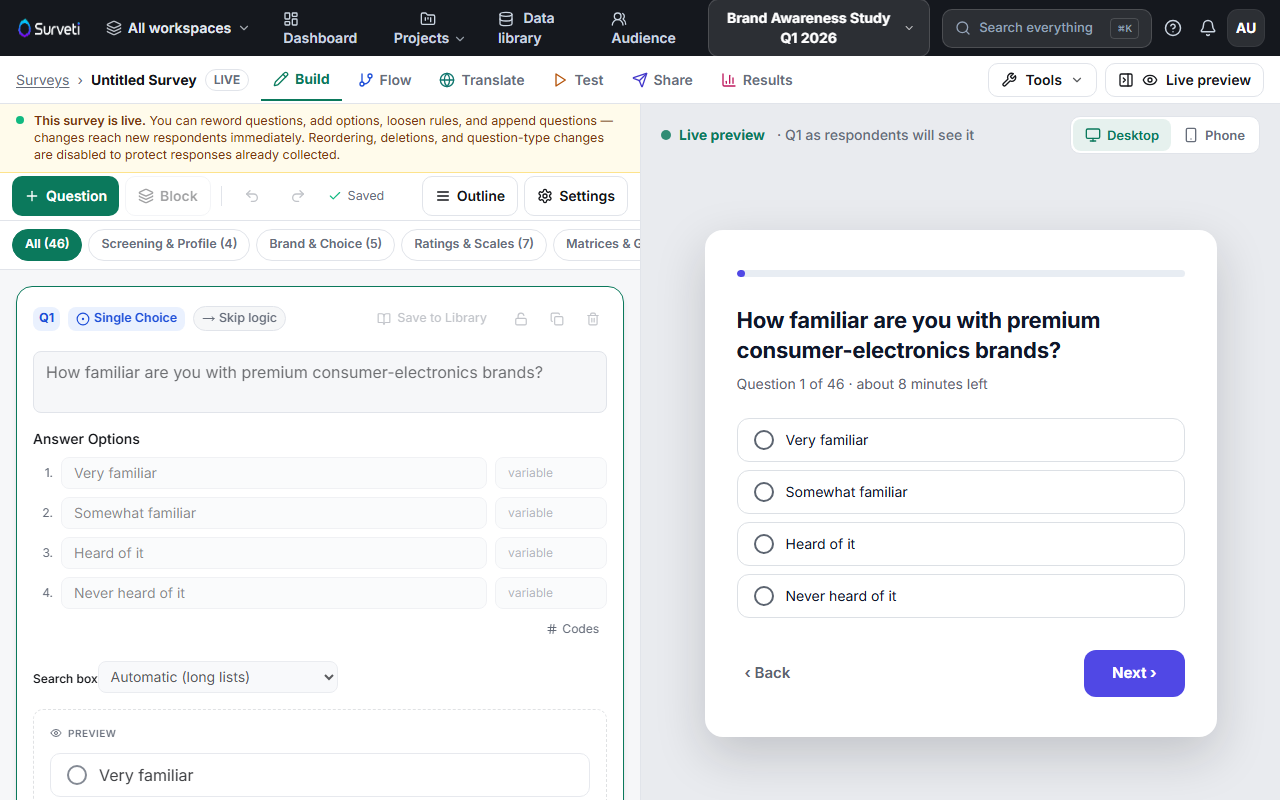
Add more rules — click + Add Skip Rule again for each additional branch (e.g. "Enterprise" → pricing block, "Individual" → features block).
Order them by priority — rules are evaluated top to bottom and the first match wins. Put the most specific condition first so a broad rule doesn't grab a respondent a narrower rule should have caught.
Tips
Tip: Keep a mental "default" path — the questions a respondent reaches when no rule matches. Test that path too, not just the branches.
Note: Because the first matching rule wins, overlapping conditions can hide later rules. If a branch never seems to fire, check whether an earlier rule is catching those respondents first.
Related articles
- Adding a Skip Logic Rule to Jump Respondents Forward in the Survey — the single-rule basics
- Using AND vs OR to Combine Multiple Logic Conditions — richer conditions per rule
- Using the Flow Canvas to Visualize Survey Branching Paths — see all branches at once