Logic & Flow
Customizing the Screen-Out End Screen Title and Body Text
Write your own message for disqualified respondents instead of the default screen-out text.
Overview
Write your own message for disqualified respondents instead of the default screen-out text. It's the last thing a screened-out person sees, so a courteous message protects your brand.
Prerequisites
- Screen-out logic on at least one question — see Routing Disqualified Respondents to a Screen-Out Disposition.
Step-by-step
Open Survey settings — in the builder, open Tools → Survey settings and scroll to End screens.
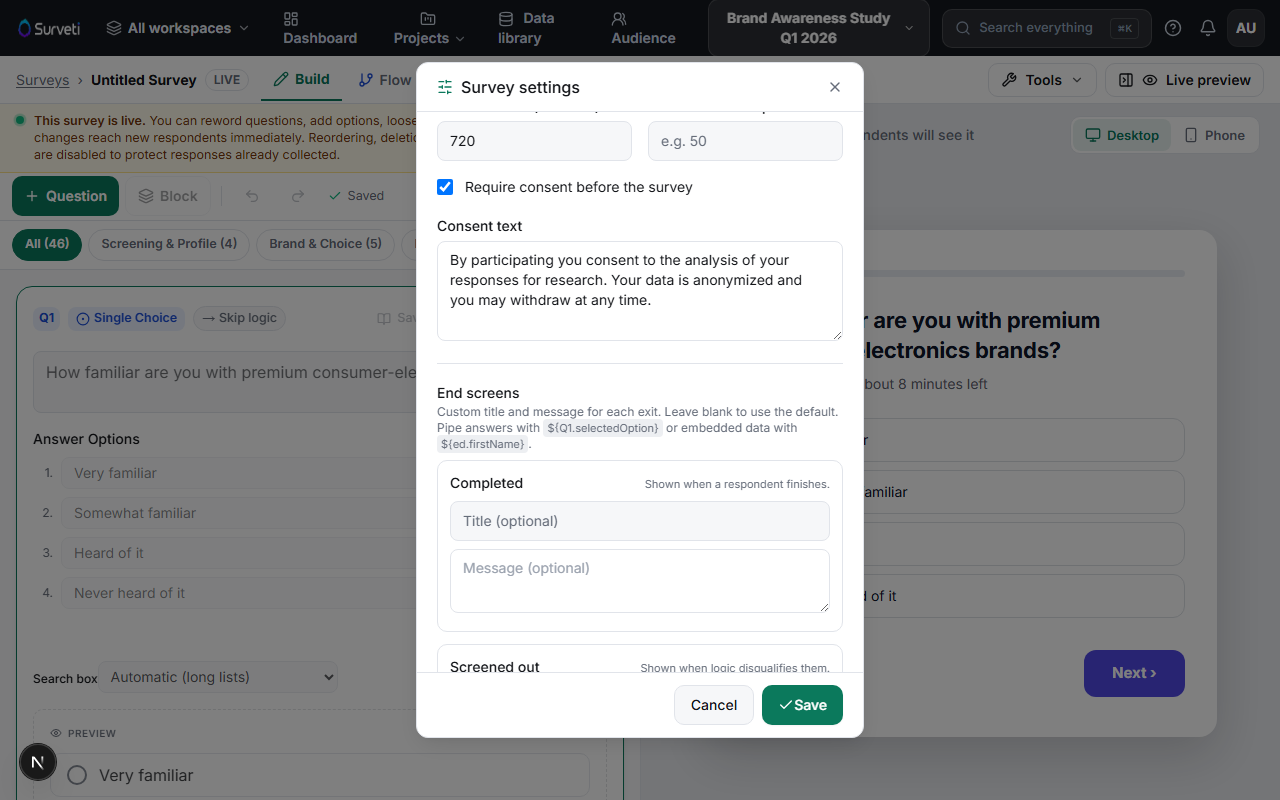
Fill in the Screened out screen — set a Title and Message. This screen is "Shown when logic disqualifies them". Leave blank to use the default.
Personalize if useful — pipe an answer with
${Q1.selectedOption}or embedded data with${ed.firstName}, just like the completion screen.Save and test — click Save, then trigger a screen-out in the Test tab to see your message.
Tips
Tip: Be brief and gracious — these respondents gave you their time. "Thanks — this study needs a different profile, so we'll stop here" reads far better than a blunt "You do not qualify."
Note: The Screened out screen is separate from the Completed screen. Someone routed to TERMINATE sees this one; someone who finishes or is sent to END sees the completion message.
Related articles
- Routing Disqualified Respondents to a Screen-Out Disposition — set up the logic first
- Customizing the Survey Completion Screen Message — the completion screen